Allocate Insurance Payments
|
Once an insurance payment has been added, it must be allocated to specific treatments. Important: In many cases, even though the full charge amount was sent to an insurance company on a claim, they do not pay the full amount. In some cases, they may deny the claim and pay $0. The EOB is used to allocate the insurance payment to the correct treatments in the correct amounts. The EOB details may indicate one of several outcomes for each charge on a claim:
However, even denials and partial payments must be allocated in order to enter EOB details to create secondary claims, transfer balances, or write off balances when necessary. Important: Only one person should allocate an insurance payment at a time. If multiple people allocate the same payment at the same time, data issues may occur and require a call to axiUm Support. Tip: After allocating insurance payments accurately, you can generate the Insurance Aged Balances report to list which claims and treatments have not been paid. There are two ways to allocate an insurance payment in axiUm:
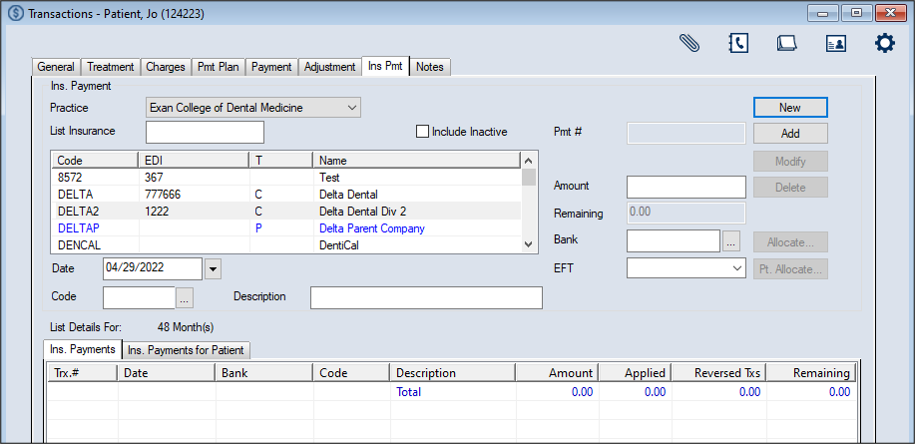
Note: This is the most commonly used method. It allows you to view all outstanding charges owed by the selected insurance company. If the insurance company is a parent company, all claims for the children insurance companies under that parent will also be listed. Note: Insurance companies rarely send payments for a single person. This method is mainly used if you need to unallocate/re-allocate an insurance payment after it was already allocated. You can allocate insurance payments from the Transactions module > Insurance Payment tab. To allocate an insurance payment:
Note: The full list displays if the Load all Ins. companies in list checkbox is selected in the Transaction Options window > Payment Options section. Tip: You can enter an underscore (_) to display all results within the column. Note: You can select the Include Inactive checkbox to include inactive insurance companies in the search.
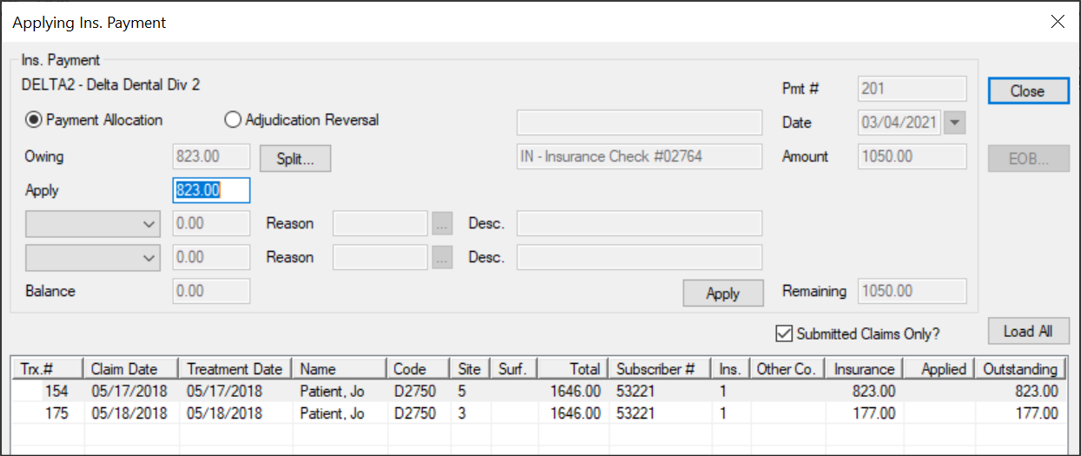
Note: The available fields display differently depending on which button is used to open the window. Note: To include unsubmitted claims in the list, deselect the Submitted Claims Only? checkbox. Notes: Important: The Balance field should display 0.00 when you apply all transfers and write offs. The payment amount displays in the Applied column next to the outstanding treatment/charge(s). Payments that are fully allocated display in black text while those that are partially allocated display in green text.
|