|
If treatments have already been submitted to insurance and you must make changes to the treatment details, you must rebill the treatment/claim.
Example: If insurance information that affects the claim was entered incorrectly into axiUm, you must make the necessary changes in axiUm, then rebill the claim/treatment to apply those insurance changes.
Important: Because any changes made to insurance, procedures, or fee guides do not automatically affect submitted claims, you must rebill any claims impacted by the changes.
Depending which information was changed, you can choose to rebill the entire claim or just a treatment within that claim. If rebilling an entire claim, axiUm rebills all treatments on the same claim number. If rebilling a treatment, axiUm rebills only the selected treatment within that claim.
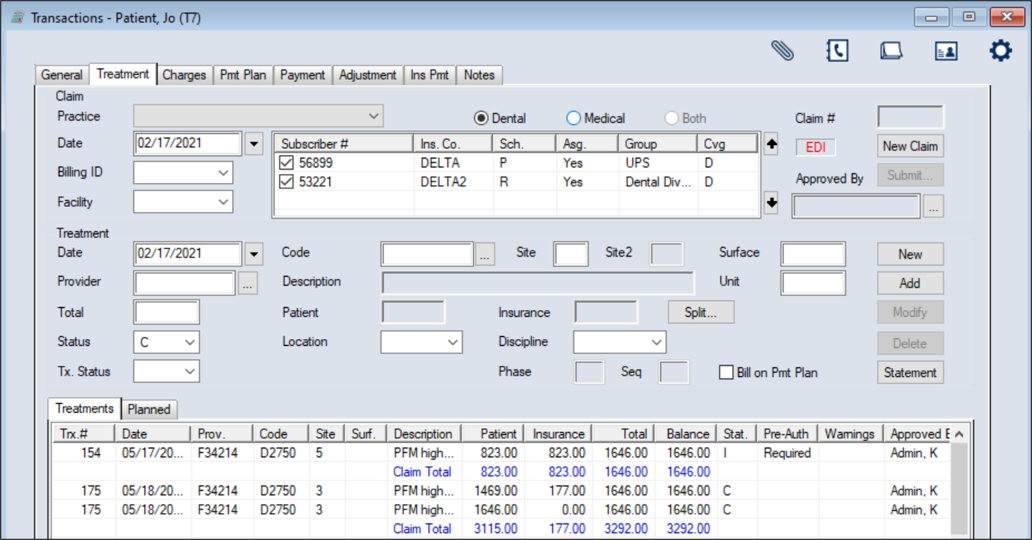
You can rebill treatments and claims from the Treatment tab > Treatments sub-tab.
To rebill a treatment or claim:
- Select a patient and open the Transactions module.
-
Click the Treatment tab > Treatments sub-tab and review the listed treatments.
-
If necessary, make all edits that will be reflected on the treatment/claim or the patient record.
Note: Depending on the changes that are necessary, this may require leaving the Transactions module or accessing another module from within the Transactions module.
-
Complete any of the following:
-
To rebill one treatment on the claim, right-click the treatment and select Rebill Treatment.
-
To rebill all treatments on the claim, right-click any treatment in the claim and select Rebill Claim.
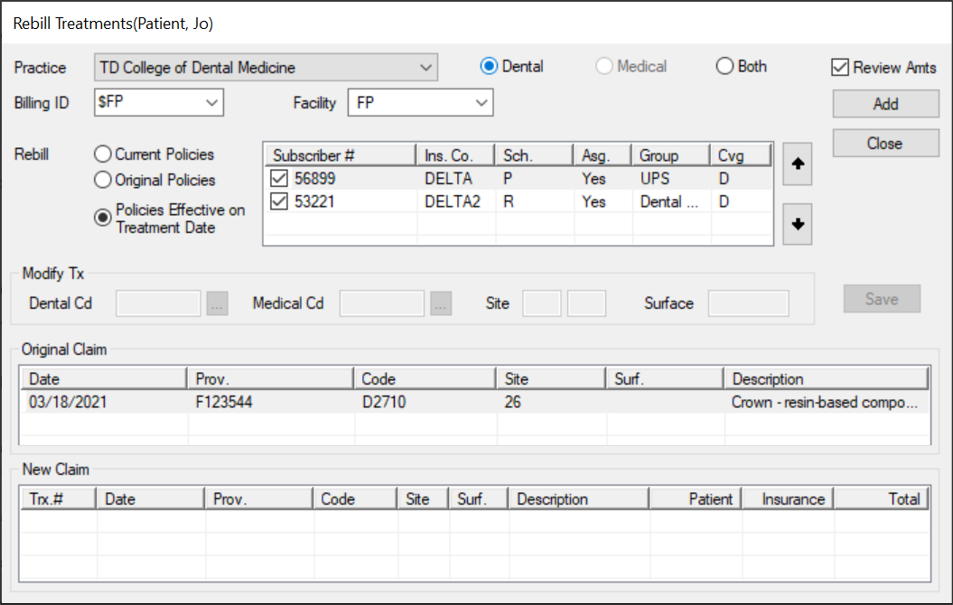
The Rebill Treatments window displays and the treatment(s) display in the Original Claim area.
-
Complete the following for each treatment listed:
-
Review and modify the fields as necessary.
| Practice |
Select the practice where the procedures on this claim were performed from the drop-down.
|
| Billing ID |
Select the billing doctor or fee schedule to be used for the rebilled claim entry.
|
| Dental / Medical / Both |
Select the correct radio button to indicate if this is a dental or medical treatment, or both.
Note: If Medical or Both is selected, the fields in the Modify Tx section are enabled.
|
|
Review Amts |
If necessary, you can review the totals and fees that will be submitted to insurance.
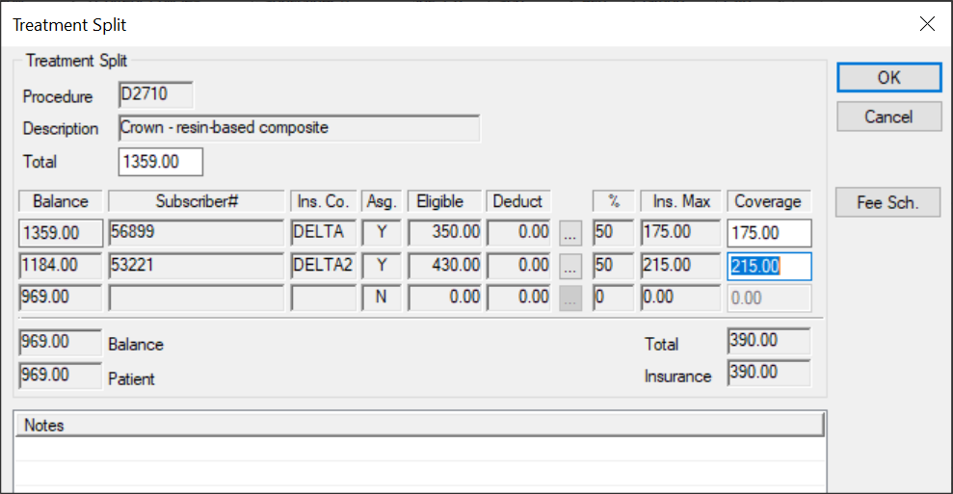
Select the checkbox to display the Treatment Split window when you click the Add button.
|
| Facility |
Select the facility at which the treatments on this claim were performed.
Note: This is required for medical claims, but optional for dental claims.
|
| Rebill |
Select a radio button to determine the appropriate patient insurance information:
- Current Policies: This rebills the treatment using the policy information currently displayed in the Patients module > Patient Card window.
- Original Policies: This rebills the treatment using the policy information used when the treatment was first submitted.
- Policies Effective on Treatment Date: This rebills the treatment using the policy information in the Patients module > Patient Card window that was effective on the date of treatment.
|
| Dental Cd |
This displays the dental procedure code associated to this claim.
If enabled and required, you can click the ellipsis to select from the Procedure Codes List window.
Note: The Category drop-down only displays ADA entries.
|
| Medical Cd |
This displays the medical procedure code associated to this claim.
If enabled and required, you can click the ellipsis to select from the Procedure Codes List window.
Note: The Category drop-down only displays CPT entries.
|
| Site |
If enabled, enter the tooth site associated to this procedure. |
| Surface |
If enabled, enter the tooth surface associated to this procedure. |
-
Click Add to move the treatment(s) to the New Claim area and display the amount charged.
-
If the Treatment Split window displays, review and modify the Total and Coverage fields as necessary, then click OK.
-
Click Close.
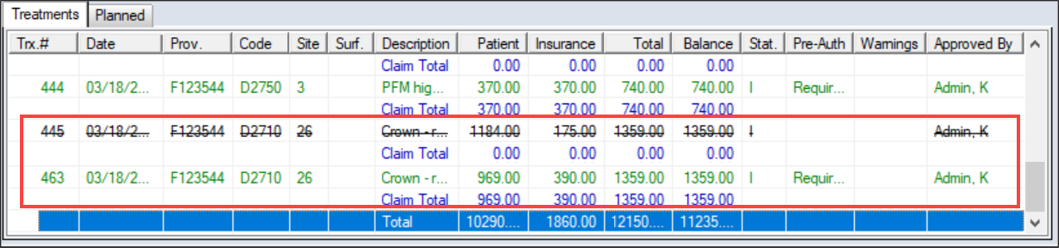
The original record is now struck out and a new record displays in the list.
|