Benefit Plan List Window
The Benefit Plan List window allows you to search for and manage the list of benefit plans for use by patients at your institution.
 Benefit Plan List - Field Definitions Benefit Plan List - Field Definitions
| Criteria
|
A text field that is used to enter your search criteria.
Tip: You can enter the first few characters of the word, or enter an underscore (_) to return all results.
|
| Show for Ins. Co.
|
A check box that, when selected, allows you to filter results based on a specific insurance company.
The ellipsis is used to display the Insurance Companies window and select an insurance company.
|
| Include Individual Subscriber Plans
|
A check box that, when selected, indicates that individual benefit plans are included in the result list.
Note: These are benefit plans that have Can have multiple Subscribers deselected.
|
| Show Deleted
|
A check box that, when selected, indicates that deleted benefit plans are included in the result list. |
| Show Expired
|
A check box that, when selected, indicates that benefit plans that have expired are included in the result list. |
| Show Future
|
A check box that, when selected, indicates that benefit plans with future start dates are included in the result list. |
| Search On
|
A drop-down list that indicates the field to search on:
- Ins.Co.
- Company Name
- Description
- Employer Name
- Group
- Division
|
Add Benefit Plan Window
(Maintenance > Insurance > Benefit Plan List)
The Add Benefit Plan window allows you to enter information about a benefit plan. It displays when you open the Benefit Plan List window and click the Add a new Record ( ) icon. ) icon.
Add Benefit Plan - Field Definitions
| Employer
|
A text field that indicates the benefit plan is tied to an employer.
The ellipsis is used to display the Employer List window and select an employer.
|
| Address
|
A disabled field that displays the address for the selected Employer.
|
| Insurance
|
A text field that indicates the insurance company that owns this policy.
The ellipsis is used to display the Insurance Companies List window and select an insurance company.
Tip: Many fields in this window auto-populate from the selected insurance company.
|
| Coverage...
|
A disabled button that is enabled in the Edit Benefit Plan window. |
| Group
|
A text field that indicates the group number for this policy. |
| Division
|
A text field that indicates the division associated for this policy. |
| Description
|
A text field that indicates the full name of the benefit plan.
Tip: Larger institutions may choose to add unique descriptors to this field to make searching easier.
|
| Coverage
|
A text field that describes the coverage of the plan.
Example: 100 / 80 / 50.
|
| Contract
|
A text field that indicates this is a contract policy.
The ellipsis is used to display the Contract Policy Codes window and select a contract policy.
|
| Fee Sch
|
A text field that indicates the fee schedule associated with this policy.
The ellipsis is used to display the Fee Schedule Codes window and select a fee schedule for the policy.
|
| Override...
|
A disabled button that is enabled in the Edit Benefit Plan window.
Note: This button was previously labeled Specialists...
|
| Plan Type
|
A drop-down list that indicates the type of benefit plan.
Tip: This field defaults based on the selected insurance company and should generally not be changed.
|
| Forms To
|
A drop-down list that indicates where the insurance forms are sent:
-
Insurance
-
Patient
-
Employer
-
Office
|
| Can have multiple Subscribers
|
A check box that, when selected, indicates that this is a benefit plan and not a single subscriber plan. |
| Charge Deduct and Pt Charge
|
A check box that, when selected, indicates that both deductibles and patient charges are charged to the patient. |
| Co-pay
|
A text field that indicates that the insurance company requires a co-payment, and displays the patient visit fee that is charged once per date. |
| Visit Fee
|
Note: This field only displays and is enabled if the insurance company has the Charge Patient Visit Fee check box selected.
A text box that indicates the visit fee to charge patients.
|
| Deduct
|
A text field that indicates the amount of the patient deductible for this policy and a drop-down list that indicates whether it is a yearly or monthly deductible. |
| Limit
|
A text field that indicates the patient coverage limit, which is enabled when the drop-down list is set to Yes or Adults only.
Note: This field is disabled when the drop-down list is set to No.
|
| Yr End __ Month __Day
|
Text fields that indicate the numerical month (e.g., January is 1) and day that marks the year end for this policy. |
| Family Deduct / Limit
|
Text fields that indicate family deductibles and limits. |
| Assignment
|
A check box that, when selected, indicates that your institution accepts assignment from the insurance company |
| Write Off
|
A check box that, when selected, indicates that the insurance company's fee schedule is higher
than the charge for non-insured patients, and axiUm bills the higher fee to insurance, but any remaining patient portion is automatically written off.
Note: An agreement between your institution and the insurance company is recommended before this option is used.
|
| Sig Req'd
|
A checkbox that, when selected, indicates this insurance company requires the policy holder
and patient's signatures on claim forms.
When deselected, the claim form will print with Signature on File in
the signature areas of the form.
|
| Start Date / End Date
|
Date fields that indicate the start and end dates of the policy. |
Edit Benefit Plan Window
(Maintenance > Insurance > Benefit Plan List)
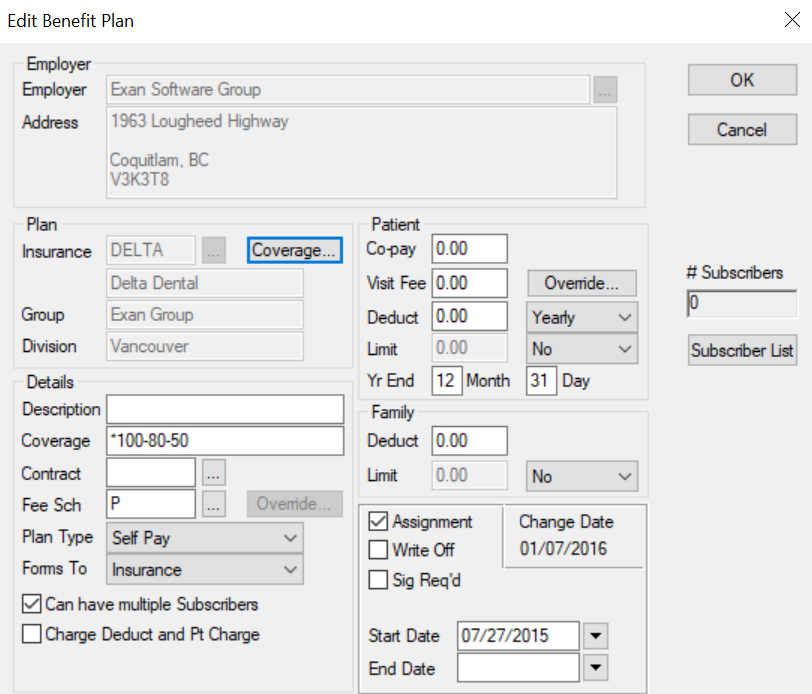
The Edit Benefit Plan window allows you to review and update information about a benefit plan. It displays when you open the Benefit Plan List window, select a listed plan and click the Edit/View Benefit Plans ( ) icon. ) icon.
Edit Benefit Plan - Field Definitions
Note: Most of the fields in the Edit Benefit Plan window are the same as the Add Benefit Plan window, with the exceptions listed below.
| Coverage...
|
A button that displays the Benefit Plan Coverage window or the Linked Coverage Template window and allows you to manage the coverage template associated with the benefit plan.
|
| Override...
|
Note: This button is only enabled if a contract plan that has a policy code is specified in the Contract field.
A button that displays the Contract Fee Schedule Overrides window and allows you to override the contract's fee schedule for specified providers.
Note: This button was previously labeled Specialists...
|
| # Subscribers
|
A disabled field that indicates the number of subscribers associated with the benefit plan.
|
| Subscriber List
|
A button that displays the Subscriber List report. |
Benefit Plan Coverage Window
(Maintenance > Insurance > Benefit Plan List > Edit Benefit Plan)
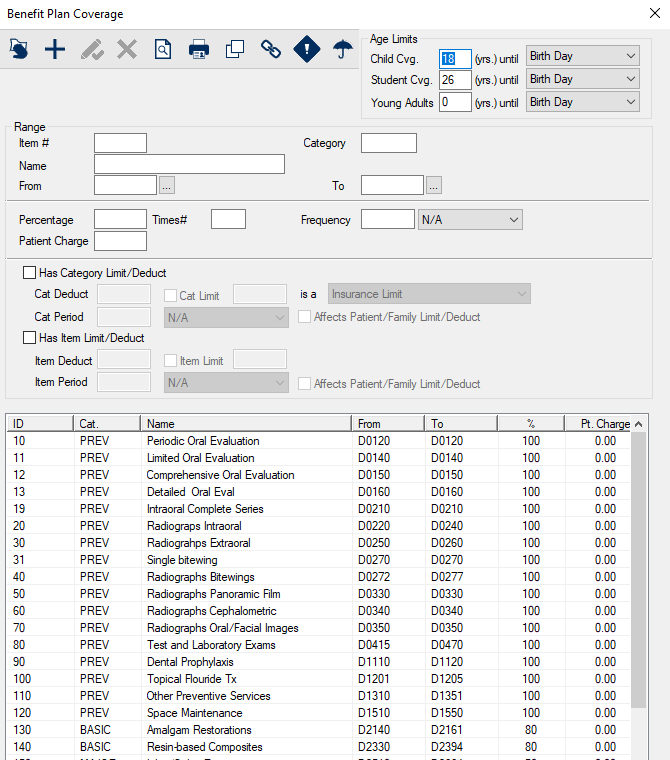
The Benefit Plan Coverage window allows you to review and manage the coverage information included in a benefit plan. It displays when you open the Edit Benefit Plan window and click the Coverage... button.
Note: This window only displays if the benefit plan is not linked to a coverage template. If linked to a template, the Linked Coverage Template window displays.
Benefit Plan Coverage - Field Definitions
| Child Cvg.
|
A text field that indicates the age limit for child coverage.
Note: For Trojan
companies this number is defaulted based on the policy information in the Trojan
update files. For other insurance companies, the default age at which
coverage ends for a dependent child is usually 18.
|
| Student Cvg.
|
A text field that indicates the age limit for student coverage.
Note: For
Trojan companies this number is defaulted based on the policy information in the
Trojan update files. For other insurance companies, the default age at which
coverage ends for a dependent child who is a full-time student is usually 21.
|
| Young Adult
|
A text field that indicates the age limit for young adult coverage. |
| Item # |
A text field that indicates the numeric item number used to sort the list. |
| Category |
A text field that indicates the category of dentistry under which this falls.
Examples:
Basic, Major, and Minor.
|
| Name |
A text field that indicates the name for the individual line, or category being defined. |
| From / To |
Text fields that indicate that the first and last ADA procedure codes for this range of procedure codes.
The ellipses are used to display the Procedure Codes List window and select a procedure code.
|
| Percentage |
A text field that indicates the coverage percentage for this range of procedures.
Note: Do not use the % sign here. Enter the percentage as a whole number.
|
| Times# |
A text field that indicates the number of times this procedure will be covered.
Note: This field is used
if the procedure range has a frequency limit.
|
| Frequency |
A text field that indicates the frequency that the procedure will be covered.
A drop-down list that indicates the frequency period that the procedure will be covered:
-
N/A
-
Month(s)
-
Year(s)
-
Policy Year(s)
-
Life time
Example: 1 per lifetime.
Note: These fields are used if the procedure range has a frequency limit. A period set as 1 per year will allow the procedure to be performed once in a 365 day
period, whereas a period set as 1 per policy year will allow the procedure to be
performed once per fiscal year. i.e., the policy year end is on 6/30 so they could have an
exam posted on 6/20 that is covered and another exam on 7/20 that will also be covered.
|
| Patient Charge |
A text field that indicates the dollar ($) amount that will be charged to the patient whenever an
item within the coverage range is entered.
This is the per procedure co-pay amount.
|
| Has Category Limit/Deduct |
A check box that, when selected, indicates that this coverage range has a category limit and / or
deductible.
|
| Cat Deduct |
A text field that indicates the dollar ($) amount of the category’s deductible.
Note: This field is only enabled if the Has Category Limit/Deduct check box is selected.
|
| Cat Limit _ is a _ |
A check box that, when selected, indicates that there is a category limit.
A text field that indicates the dollar ($) amount of the limit.
A drop-down list the indicates the type of limit:
Note: These fields are only enabled if the Has Category Limit/Deduct check box is selected.
|
| Cat Period |
A text field and drop-down list that indicate the time period for which the category deductible and limit applies:
-
N/A
-
Month(s)
-
Year(s)
-
Life time
Note: These fields are only enabled if the Has Category Limit/Deduct check box is selected.
|
| Affects Patient/Family Limit/Deduct |
A check box that, when selected, indicates that the patient or family deductible and limit
balance as well as the category deductible and limit balance are affected when a procedure in this
category is performed.
Note: This field is only enabled if the Has Category Limit/Deduct check box is selected.
|
| Has Item Limit/Deduct |
A check box that, when selected, indicates that the coverage range has an item limit and / or
deductible. |
| Item Deduct |
A text field that indicates the dollar ($) amount of the item’s deductible.
Note: This field is only enabled if the Has Item Limit/Deduct check box is selected.
|
| Item Limit |
A check box that, when selected, indicates that there is an item limit.
A text field that indicates the dollar ($) amount of the limit.
Note: This field is only enabled if the Has Item Limit/Deduct check box is selected.
|
| Item Period |
A text field and drop-down list that indicate the time period for which the item deductible and limit applies:
-
N/A
-
Month(s)
-
Year(s)
-
Life time
Note: This field is only enabled if the Has Item Limit/Deduct check box is selected.
|
| Affects Patient/Family Limit/Deduct |
A check box that, when selected, indicates that the patient or family deductible and limit
balance as well as the item deductible and limit balance are affected when a procedure in this
category is performed.
Note: This field is only enabled if the Has Item Limit/Deduct check box is selected.
|
Deductible Exemptions for Benefit Plan Window
(Maintenance > Insurance > Benefit Plan List > Edit Benefit Plan > Benefit Plan Coverage)
The Deductible Exemptions for Benefit Plan window allows you to manage deductible exemptions for the benefit plan. It displays when you open the Benefit Plan Coverage window and click the Deductible Exemptions ( ) icon. ) icon.
Deductible Exemptions for Benefit Plan - Field Definitions
| Coverage
|
A disabled field that indicates the selected benefit plan.
|
| Criteria
|
A text field that is used to enter your search criteria.
Tip: You can enter the first few characters of the word, or enter an underscore (_) to return all results.
|
| Type of Code
|
A drop-down list that indicates which type of code to search on:
- ADA: American Dental Association codes.
- CPT: Current Procedural Terminology codes.
|
| Search On
|
A drop-down list that indicates the field to search on:
|
Coverage Limited Procedures Window
(Maintenance > Insurance > Benefit Plan List > Edit Benefit Plan > Benefit Plan Coverage)
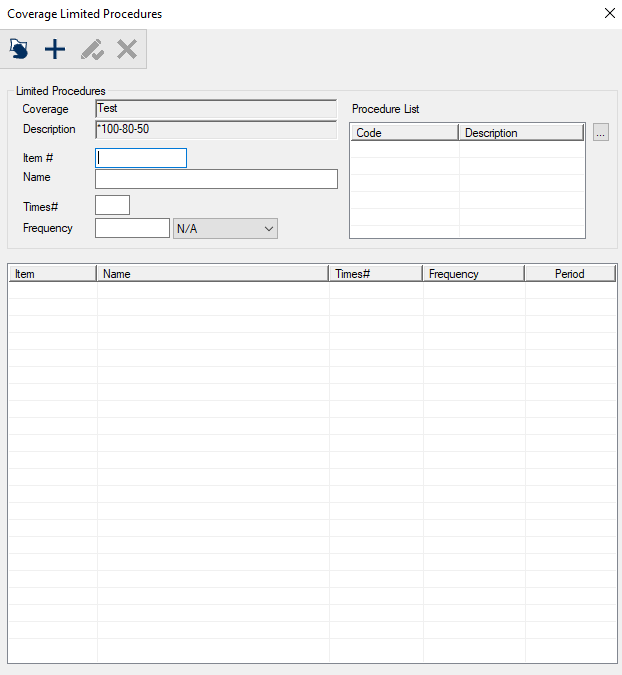
The Coverage Limited Procedures window allows you to manage benefit plans. It displays when you open the Benefit Plan Coverage window and click the Coverage Limited Procedures ( ) icon. ) icon.
Coverage Limited Procedures - Field Definitions
| Coverage
|
A disabled field that indicates the selected benefit plan.
|
| Description
|
A disabled field that describes the selected benefit plan.
|
| Item # |
A text field that indicates the numeric item number used to sort the list. |
| Name |
A text field that indicates the name for the individual line, or category being defined. |
| Times# |
A text field that indicates the number of times this procedure will be covered.
Note: This field is used
if the procedure range has a frequency limit.
|
| Frequency |
A text field that indicates the frequency that the procedure will be covered.
A drop-down list that indicates the frequency period that the procedure will be covered:
-
N/A
-
Month(s)
-
Year(s)
-
Policy Year(s)
-
Life time
Example: 1 per lifetime.
Note: These fields are used if the procedure range has a frequency limit.
A
period set as 1 per year will allow the procedure to be performed once in a 365 day
period, whereas a period set as 1 per policy year will allow the procedure to be
performed once per fiscal year. i.e., the policy year end is on 6/30 so they could have an
exam posted on 6/20 that is covered and another exam on 7/20 that will also be covered.
|
| Procedure List |
The ellipsis is used to display the Selecting Procedures (for Coverage Limited Procedures) window and select one or several procedures. |
Selecting Procedures (for Coverage Limited Procedures) Window
(Maintenance > Insurance > Benefit Plan List > Edit Benefit Plan > Benefit Plan Coverage > Coverage Limited Procedures)
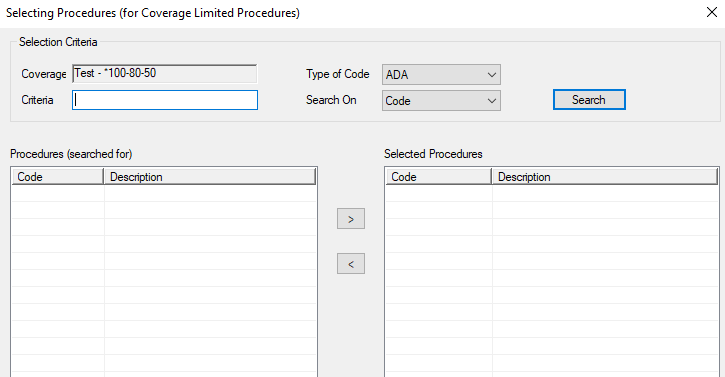
The Selecting Procedures (for Coverage Limited Procedures) window allows you to select a procedure when managing coverage limited procedures. It displays when you open the Coverage Limited Procedures window and click the Procedure List ellipsis.
Selecting Procedures (for Coverage Limited Procedures) - Field Definitions
| Coverage
|
A disabled field that indicates the selected benefit plan.
|
| Criteria
|
A text field that is used to enter your search criteria.
Tip: You can enter the first few characters of the word, or enter an underscore (_) to return all results.
|
| Type of Code
|
A drop-down list that indicates which type of code to search on:
- ADA: American Dental Association codes.
- CPT: Current Procedural Terminology codes.
|
| Search On
|
A drop-down list that indicates the field to search on:
|
Linked Coverage Template Window
(Maintenance > Insurance > Benefit Plan List > Edit Benefit Plan)
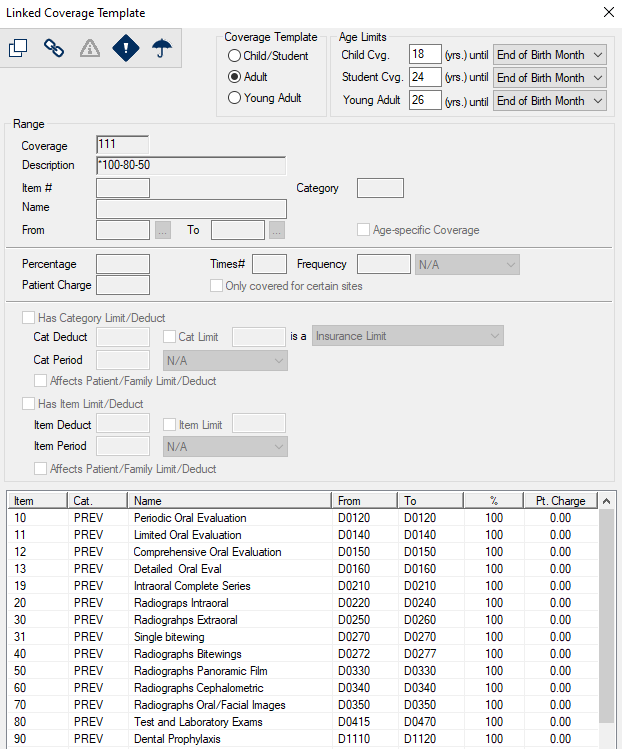
The Linked Coverage Template window allows you to review the coverage information included in a benefit plan. It displays when you open the Edit Benefit Plan window and click the Coverage... button.
Note: This window only displays if the benefit plan is linked to a coverage template. If not linked to a template, the Benefit Plan Coverage window displays.
Linked Coverage Template - Field Definitions
| Coverage Template
|
A set of radio buttons that indicates the type of coverage to which this linked coverage template applies:
|
| Child Cvg.
|
A text field that indicates the age limit for child coverage.
Note: For Trojan
companies this number is defaulted based on the policy information in the Trojan
update files. For other insurance companies, the default age at which
coverage ends for a dependent child is usually 18.
|
| Student Cvg.
|
A text field that indicates the age limit for student coverage.
Note: For
Trojan companies this number is defaulted based on the policy information in the
Trojan update files. For other insurance companies, the default age at which
coverage ends for a dependent child who is a full-time student is usually 21.
|
| Young Adult
|
A text field that indicates the age limit for young adult coverage. |
| Coverage
|
A disabled field that indicates the unique identifier for this coverage template, to which this benefit plan is linked, or from which this benefit plan is copied.
|
| Description
|
A disabled field that indicates the short description of this coverage template. |
| Item # |
A disabled field that indicates the numeric item number used to sort the list. |
| Category |
A disabled field that indicates the category of dentistry under which this falls.
Examples:
Basic, Major, and Minor.
|
| Name |
A disabled field that indicates the name for the individual line, or category being defined. |
| From / To |
Disabled fields that indicate that the first and last ADA procedure codes for this range of procedure codes. |
| Age-specific Coverage |
A disabled field that indicates that |
| Percentage |
A disabled field that indicates the coverage percentage for this range of procedures.
Note: Do not use the % sign here. Enter the percentage as a whole number.
|
| Times# |
A disabled field that indicates the number of times this procedure will be covered.
Note: This field is used
if the procedure range has a frequency limit.
|
| Frequency |
Disabled fields that indicates the frequency and frequency period that the procedure will be covered.
Example: 1 per lifetime.
Note: These fields are used if the procedure range has a frequency limit.
Frequency periods can be defined as Month(s), Year(s), Policy Year(s), or Lifetime. A
period set as 1 per year will allow the procedure to be performed once in a 365 day
period, whereas a period set as 1 per policy year will allow the procedure to be
performed once per fiscal year. i.e. the policy year end is on 6/30 so they could have an
exam posted on 6/20 that is covered and another exam on 7/20 that will also be covered.
|
| Patient Charge |
A disabled field that indicates the dollar ($) amount that will be charged to the patient whenever an
item within the coverage range is entered.
This is the per procedure co-pay amount.
|
| Only covered for certain sites |
A disabled field that indicates that |
| Has Category Limit/Deduct |
A disabled field that indicates if this coverage range has a category limit and / or
deductible.
|
| Cat Deduct |
A disabled field that indicates the dollar ($) amount of the category’s deductible. |
| Cat Limit _ is a _ |
Disabled fields that indicate whether there is a category limit, the type of limit, and the dollar ($) amount of the limit. |
| Cat Period |
Disabled fields that indicate the time period for which the category deductible and limit applies.
|
| Affects Patient/Family Limit/Deduct |
A disabled field that indicates whether to lower the patient or family deductible and limit
balance as well as the category deductible and limit balance when a procedure in this
category is performed. |
| Has Item Limit/Deduct |
A disabled field that indicates the coverage range has an item limit and / or
deductible. |
| Item Deduct |
A disabled field that indicates the dollar ($) amount of the item’s deductible. |
| Item Limit |
Disabled fields that indicate whether there is an item limit and the dollar ($) amount of the item’s limit. |
| Item Period |
Disabled fields that indicate the time period for which the item deductible and limit applies.
|
| Affects Patient/Family Limit/Deduct |
A disabled field that indicates whether to lower the patient or family deductible and limit
balance as well as the item deductible and limit balance when a procedure in this
category is performed. |
Linked Coverage Template - Tasks
| Copy Benefit Plan Coverage Template
|
- Select a listed entry and click the Copy Template (
 ) icon to display the Coverage Template List window. ) icon to display the Coverage Template List window.
- Copy as necessary and close the window. For more information, see Coverage Templates.
|
| Select Benefit Plan Coverage Template
|
- Select a listed entry and click the Use Template (
 ) icon to display the Coverage Template List window. ) icon to display the Coverage Template List window.
- Copy as necessary and close the window. For more information, see Coverage Templates.
|
| Configure Deductible Exemptions
|
- Select a listed entry and click the click the Deductible Exemptions (
 ) icon to display the Deductible Exemptions for Benefit Plan (View Only) window. ) icon to display the Deductible Exemptions for Benefit Plan (View Only) window.
- View the procedures as necessary and close the window.
|
| Configure Limited Procedures
|
- Select a listed entry and click the Coverage Limited Procedures () icon to display the Coverage Limited Procedures (View Only) window.
- View the procedures as necessary and close the window.
|
Deductible Exemptions for Coverage Template (View Only) Window
(Maintenance > Insurance > Benefit Plan List > Edit Benefit Plan > Linked Coverage Template)
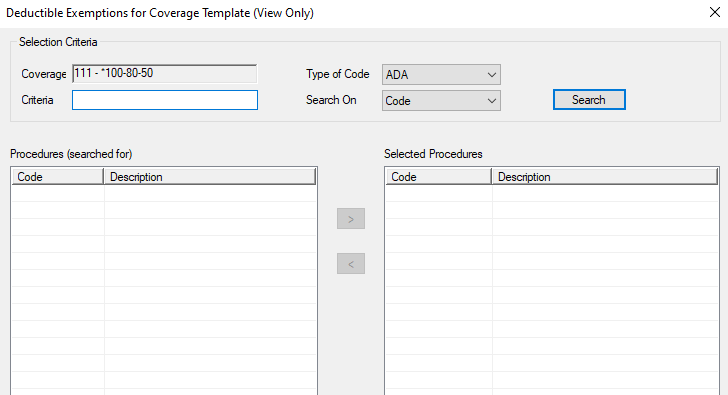
The Deductible Exemptions for Coverage Template (View Only) window allows you to review the coverage information included in a benefit plan. It displays when you open the Linked Coverage Template window and click the Deductible Exemptions () icon.
Deductible Exemptions for Coverage Template (View Only) - Field Definitions
| Coverage
|
A disabled field that indicates the selected benefit plan.
|
| Criteria
|
A text field that is used to enter your search criteria.
Tip: You can enter the first few characters of the word, or enter an underscore (_) to return all results.
|
| Type of Code
|
A drop-down list that indicates which type of code to search on:
- ADA: American Dental Association codes.
- CPT: Current Procedural Terminology codes.
|
| Search On
|
A drop-down list that indicates the field to search on:
|
Deductible Exemptions for Coverage Template (View Only) - Tasks
| Search for Exemptions
|
- Use the Criteria field and the Type of Code and Search On drop-down lists to set the search parameters.
- Click Search and review the results.
Note: If your search has more than 100 results, a prompt displays. Click Yes to continue your search or click No to stop and change your criteria to narrow the results list.
|
Coverage Limited Procedures (View Only) Window
(Maintenance > Insurance > Benefit Plan List > Edit Benefit Plan > Linked Coverage Template)
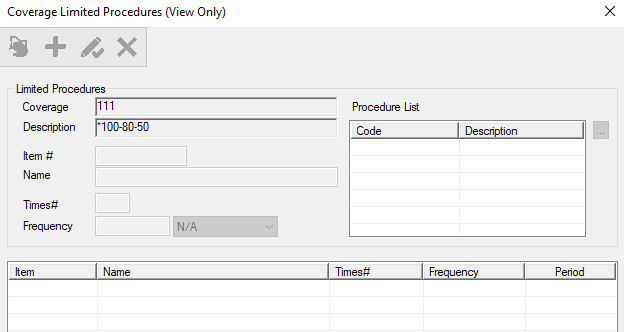
The Coverage Limited Procedures (View Only) window allows you to review the coverage information included in a benefit plan. It displays when you open the Linked Coverage Template window and click the Coverage Limited Procedures () icon.
Coverage Limited Procedures (View Only) - Field Definitions
| Coverage
|
A disabled field that indicates the selected benefit plan.
|
| Description
|
A disabled field that describes the selected benefit plan.
|
| Item # |
A disabled field that indicates the numeric item number used to sort the list. |
| Name |
A disabled field that indicates the name for the individual line, or category being defined. |
| Times# |
A disabled field that indicates the number of times this procedure will be covered.
Note: This field is used
if the procedure range has a frequency limit.
|
| Frequency |
A disabled field that indicates the frequency that the procedure will be covered.
A disabled field that indicates the frequency period that the procedure will be covered:
-
N/A
-
Month(s)
-
Year(s)
-
Policy Year(s)
-
Life time
Example: 1 per lifetime.
Note: These fields are used if the procedure range has a frequency limit.
A
period set as 1 per year will allow the procedure to be performed once in a 365 day
period, whereas a period set as 1 per policy year will allow the procedure to be
performed once per fiscal year. i.e., the policy year end is on 6/30 so they could have an
exam posted on 6/20 that is covered and another exam on 7/20 that will also be covered.
|
| Procedure List |
The disabled list box that indicates the selected procedure(s). |
Contract Fee Schedule Overrides Window
(Maintenance > Insurance > Benefit Plans > Edit Benefit Plan)
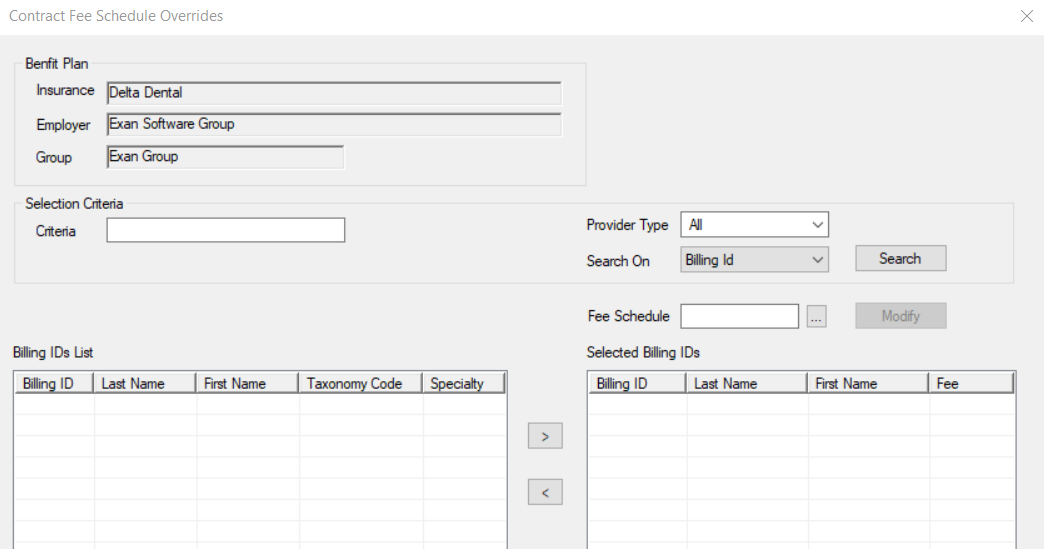
The Contract Fee Schedule Overrides window allows you to override the contract's fee schedule for specified providers for the selected contract policy. It displays when you open the Edit Benefit Plan window and click the Override... button next to the Fee Sch field.
Note: The button is only enabled if a contract plan that has a policy code is specified in the Contract field.
Contract Fee Schedule Overrides - Field Definitions
| Criteria
|
A text field that is used to enter your search criteria.
Tip: You can enter the first few characters of the word, or enter an underscore (_) to return all results.
|
| Provider Type
|
A drop-down list that indicates which Provider Type filters the results.
|
| Search On
|
A drop-down list that indicates the field to search on:
- Billing Id
- Last Name
- First Name
- Taxonomy Code
- Specialty
|
| Fee Schedule
|
A text field that indicates the selected fee schedule that will be used.
The ellipsis is used to display the Fee Schedule Codes window and select a fee schedule.
|
Contract Fee Schedule Overrides - Tasks
| Search for Billing IDs
|
- Use the Criteria and search fields to set the search parameters.
- Click Search and review the results.
|
| Add Contract Fee Schedule Overrides
|
- Search for and select one or more entries from the Billing IDs List list.
- Click the Fee Schedule ellipsis to display the Fee Schedule Codes window and select a fee schedule.
- Click the > button to move the user(s) to the Selected Billing IDs list.
|
| Edit Contract Fee Schedule Overrides
|
- Select one or more entries from the Selected Billing ID list.
- Click the Fee Schedule ellipsis to display the Fee Schedule Codes window and select a different fee schedule.
- Click Modify to save your changes.
|
| Remove Contract Fee Schedule Overrides
|
- Select one or more entries from the Selected Billing ID list.
- Click the < button to move the user(s) to the Billing IDs list.
|
Benefit Plan Merge Window
(Maintenance > Insurance > Benefit Plan List)
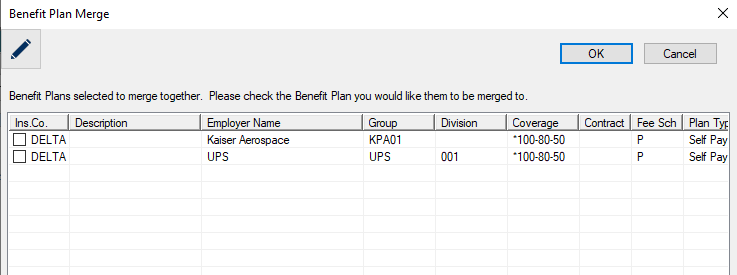
The Benefit Plan Merge window allows you to review and merge benefit plans. It displays when you open the Benefit Plan List window, select multiple listed plans and click the Merge Benefit Plans ( ) icon. ) icon.
Benefit Plan Merge - Tasks
|
Merge Benefit Plans
|
When necessary, you can merge plans into one. In this case, any subscribers are removed from the merged plan and the empty plan is deleted.
- Select the checkbox next to the benefit plan you want to merge the other benefit plan subscribers into.
Tip: You can click the Edit/View Benefit Plans (
) icon to display the Edit Benefit Plan window to review details about the benefit plan.
- Click OK.
|
|
Edit Benefit Plans
|
- Select a listed benefit plan and click the Modify Record (
 ) icon to display the Edit Benefit Plan window. ) icon to display the Edit Benefit Plan window.
Tip: You can also double-click a listed entry to display the Edit Benefit Plan window.
- Make any necessary changes and click OK.
|
Renew Benefit Plan Window
(Maintenance > Insurance > Benefit Plan List)
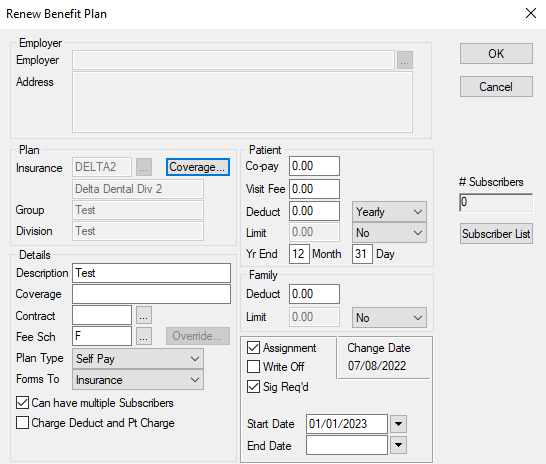
The Renew Benefit Plan window allows you to renew benefit plans prior to their expiry and set up the renewed plan with future start dates and end dates. It displays when you open the Benefit Plan List window, select a listed plan and click the Renew Benefit Plan ( ) icon. ) icon.
Renew Benefit Plan - Field Definitions
| Employer
|
A disabled field that indicates the benefit plan is tied to an employer.
|
| Address
|
A disabled field that displays the address for the selected Employer.
|
| Insurance
|
A disabled field that indicates the insurance company that owns this policy.
|
| Coverage...
|
A button that displays the Benefit Plan Coverage window or the Linked Coverage Template window and allows you to manage the coverage template associated with the benefit plan. |
| Group
|
A disabled field that indicates the group number for this policy. |
| Division
|
A disabled field that indicates the division associated for this policy. |
| Description
|
A text field that indicates the full name of the benefit plan. |
| Coverage
|
A text field that describes the coverage of the plan.
Example: 100 / 80 / 50.
|
| Contract
|
A text field that indicates this is a contract policy.
The ellipsis is used to display the Contract Policy Codes window and select a contract policy.
|
| Fee Sch
|
A text field that indicates the fee schedule associated with this policy.
The ellipsis is used to display the Fee Schedule Codes window and select a fee schedule for the policy.
|
| Override...
|
A disabled button that is enabled in the Edit Benefit Plan window.
Note: This button was previously labeled Specialists...
|
| Plan Type
|
A drop-down list that indicates the type of benefit plan.
Tip: This field defaults based on the selected insurance company and should generally not be changed.
|
| Forms To
|
A drop-down list that indicates where the insurance forms are sent:
-
Insurance
-
Patient
-
Employer
-
Office
|
| Can have multiple Subscribers
|
A check box that, when selected, indicates that this is a benefit plan and not a single subscriber plan. |
| Charge Deduct and Pt Charge
|
A check box that, when selected, indicates that both deductibles and patient charges are charged to the patient. |
| Co-pay
|
A text field that indicates that the insurance company requires a co-payment, and displays the patient visit fee that is charged once per date. |
| Visit Fee
|
Note: This field only displays and is enabled if the insurance company has the Charge Patient Visit Fee check box selected.
A text box that indicates the visit fee to charge patients.
|
| Deduct
|
A text field that indicates the amount of the patient deductible for this policy and a drop-down list that indicates whether it is a yearly or monthly deductible. |
| Limit
|
A text field that indicates the patient coverage limit, which is enabled when the drop-down list is set to Yes or Adults only.
Note: This field is disabled when the drop-down list is set to No.
|
| Yr End __ Month __Day
|
Text fields that indicate the numerical month (e.g., January is 1) and day that marks the year end for this policy. |
| Family Deduct / Limit
|
Text fields that indicate family deductibles and limits. |
| Assignment
|
A check box that, when selected, indicates that your institution accepts assignment from the insurance company |
| Write Off
|
A check box that, when selected, indicates that the insurance company's fee schedule is higher
than the charge for non-insured patients, and axiUm bills the higher fee to insurance, but any remaining patient portion is automatically written off.
Note: An agreement between your institution and the insurance company is recommended before this option is used.
|
| Sig Req'd
|
A checkbox that, when selected, indicates this insurance company requires the policy holder
and patient's signatures on claim forms.
When deselected, the claim form will print with Signature on File in
the signature areas of the form.
|
| Start Date / End Date
|
Date fields that indicate the start and end dates of the policy.
Note: The Start Date defaults to the day after the policy year ends.
|
| # Subscribers
|
A disabled field that indicates the number of subscribers associated with the benefit plan.
|
| Subscriber List
|
A button that displays the Subscriber List report. |
Transfer Benefit Plan Subscribers Window
(Maintenance > Insurance > Benefit Plan List)
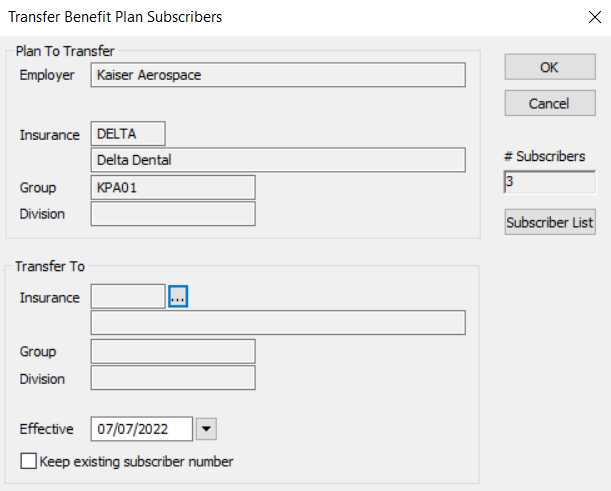
The Transfer Benefit Plan Subscribers window allows you to transfer subscribers from one benefit plan to another. It displays when you open the Benefit Plan List window, select a listed plan and click the Transfer Benefit Plan Subscribers ( ) icon. ) icon.
Transfer Benefit Plan Subscribers - Field Definitions
|
Plan To Transfer Employer
|
A disabled field that indicates the employer for the plan being transferred.
|
| Plan To Transfer Insurance |
A disabled field that indicates the insurance company that owns the policy for the plan being transferred.
|
| Plan To Transfer Group |
A disabled field that indicates the group number that identifies the policy for the plan being transferred.
|
| Plan To Transfer Division |
A disabled field that indicates the sub-group of the benefit plan number for the plan being transferred.
Note: This is used if the employer offers different benefit plans for different groups within their company.
|
| # of Subscribers
|
A disabled field that indicates the number of subscribers in the benefit plan being transferred. |
| Subscriber List
|
A button that displays the Subscriber List report. |
| Transfer To Insurance |
A disabled field that indicates the selected insurance company for the plan being transferred to.
The ellipsis is used to display the Select Benefit Plan window and select a plan.
|
| Transfer To Group |
A disabled field that indicates the selected group number that identifies the policy for the plan being transferred to.
|
| Transfer To Division |
A disabled field that indicates the selected sub-group of the benefit plan number for the plan being transferred to.
Note: This is used if the employer offers different benefit plans for different groups within their company.
|
| Effective
|
A calendar field that indicates when the policy transfer becomes effective. |
| Keep existing subscriber number
|
A check box that, when selected, indicates that the subscriber number for patients currently on this benefit plan is retained when transferred to the new plan.
Note: If the subscriber number will be different, axiUm will do the following:
-
Display the new policy subscriber number as UNKNOWN.
-
Create a sticky note to indicate that the patient has been transferred to a new policy and that the subscriber number requires updating. The sticky note will be displayed each time this patient is checked in or out until it is manually removed.
|
Select Benefit Plan Window
(Maintenance > Insurance > Benefit Plan List)
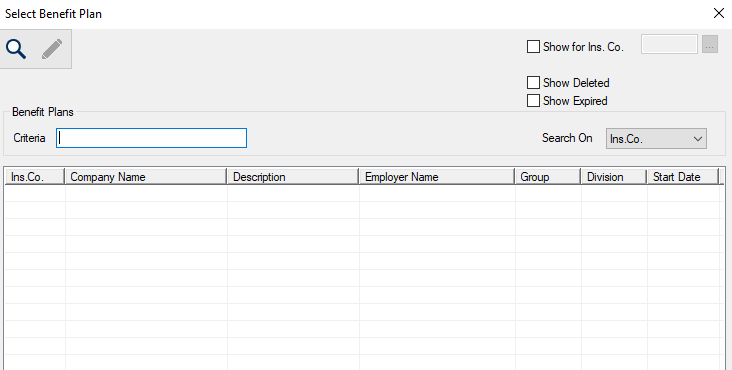
The Select Benefit Plan window allows you to select a plan when transferring subscribers from one benefit plan to another. It displays when you open the Transfer Benefit Plan Subscribers window and click the Insurance ellipsis.
Select Benefit Plan - Field Definitions
| Criteria
|
A text field that is used to enter your search criteria.
Tip: You can enter the first few characters of the word, or enter an underscore (_) to return all results.
|
| Show for Ins. Co.
|
A check box that, when selected, allows you to filter results based on a specific insurance company.
The ellipsis is used to display the Insurance Companies window and select an insurance company.
|
| Show Deleted
|
A check box that, when selected, indicates that deleted benefit plans are included in the result list. |
| Show Expired
|
A check box that, when selected, indicates that benefit plans that have expired are included in the result list. |
| Search On
|
A drop-down list that indicates the field to search on:
- Ins.Co.
- Company Name
- Description
- Employer Name
- Group
- Division
- Trojan
|
Select Benefit Plan - Tasks
| Search for Benefit Plans
|
- Use the check boxes, Criteria field, and Search On drop-down list to set the search parameters.
- Click the Search For Data (
 ) icon and review the results. ) icon and review the results.
Note: If your search has more than 100 results, a prompt displays. Click Yes to continue your search or click No to stop and change your criteria to narrow the results list.
Tip: Plans with start dates set in the future display in gray.
|
| View Benefit Plans
|
- Search for and select a listed entry.
- Click the View Benefit Plans () icon to display the Benefit Plan Details window.
- Review as necessary and click Close.
Tip: You can also double-click a listed entry to display theBenefit Plan Detailswindow.
|
|

 ) icon.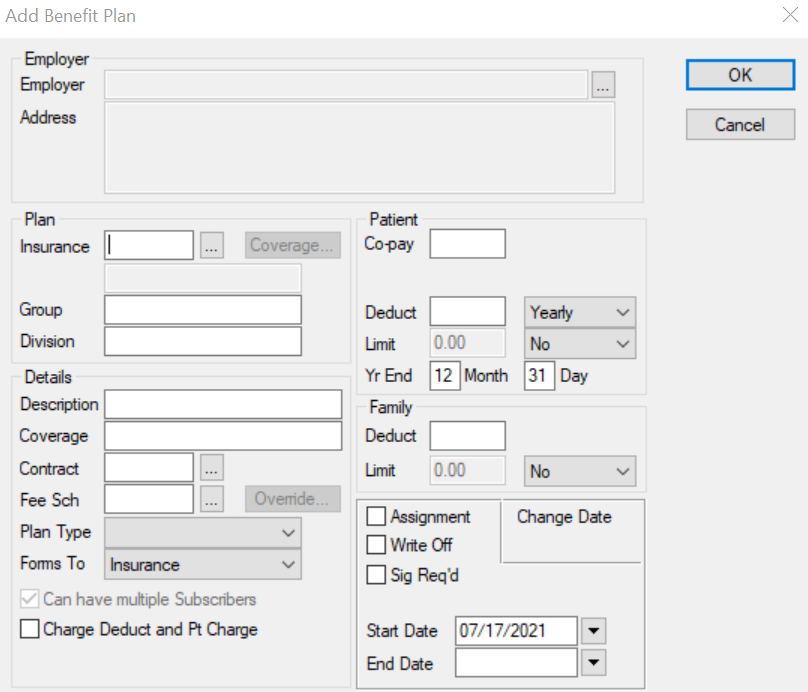
 ) icon.
  ) icon.
  ) icon.
  ) icon.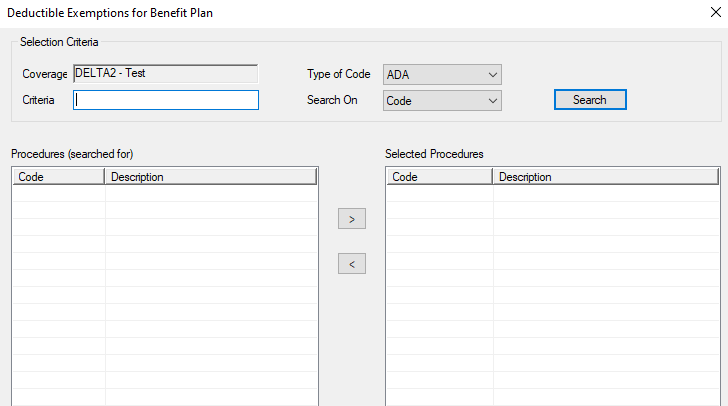
 ) button to move to the Selected Procedures list box.
 ) button to move to the Procedures (searched for) list box.