Insurance Companies List Window
[Accessed from Maintenance >Insurance > Insurance Companies]
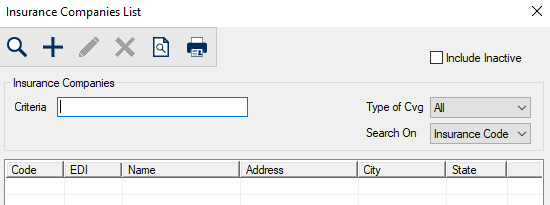
The Insurance Companies List window allows you to search for and manage the list of insurance companies for use by patients at your institution.
 Insurance Companies List - Field Definitions Insurance Companies List - Field Definitions
| Criteria
|
A text field that is used to enter your search criteria.
Tip: You can enter the first few characters of the word, or enter an underscore (_) to return all results.
|
| Include Inactive
|
A checkbox that, when selected, indicates that inactive insurance companies are included in the search results.
|
| Type of Cvg
|
A drop-down list that indicates whether results are filtered based on the type of coverage configured for the insurance company.
|
| Search On
|
A drop-down list that indicates the field to search on:
- Insurance Code
- EDI Code
- Name
- Address
- City
- State / Province
|
Insurance Company Window
[Accessed from Maintenance > Insurance> Insurance Companies List > Create a new Record ( ) icon] ) icon]
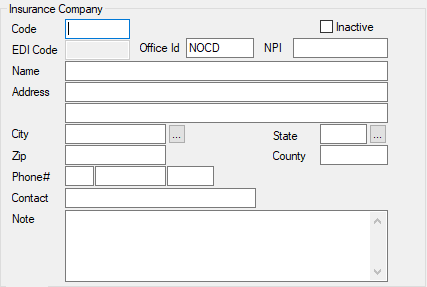
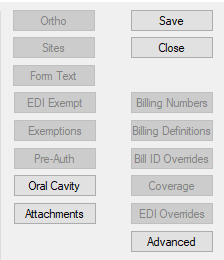
The Insurance Company window allows you to manage settings for insurance companies in axiUm. It displays when you open the Insurance Companies List window and click the Create a new Record () icon.
Insurance Company - Field Definitions
Insurance Company Section:
| Code
|
A text field that uniquely identifies the insurance company.
|
| Inactive
|
A checkbox that, when selected, indicates the insurance company is inactive and not currently in use.
|
| EDI Code
|
A text field that indicates the EDI billing code to use for this insurance company.
If this is a participating payor, this field is provided by Change Healthcare.
In this case, axiUm will automatically enter EDI code 06126 on claims for this insurance company.
|
| Office Id
|
A text field that indicates the EDI office ID assigned for this insurance company.
If this is a participating payor, this is set to NOCD. For all-payor claims, it is set to the last four digits of the Payer ID provided by Change Healthcare.
|
| NPI
|
A text field that indicates the National Health Plan Identifier (NPI) to print on insurance claims generated for this insurance company.
Note: This is a 10-digit numerical code.
In segment NM1 (Payer Name), if there is an insurance company NPI specified, NM108=XV, NM109=Ins.Co.NPI. If no insurance company NPI is specified, NM108=PI, NM109=Ins.Co.EDI Code.
|
| Name
|
A text field that indicates the name of the insurance company that prints on all claims. |
| Alternative Names
|
A button that displays the Alternative Names window and allows you to specify additional payer names if a payer name on a remittance response does not exactly match the insurance company listed in axiUm. |
|
Address / City / State / Zip / County
|
Text fields that indicate the address or location information for billing doctor.
The ellipses are used to display the City List window and State Codes window to assist users in selecting a city and state.
|
| Phone# / Contact
|
Text fields that indicate the phone number and name of the contact person for this insurance company. |
| Note
|
A text field that allows entry of additional information about the insurance company.
Example: Call before 3pm for support services.
This note only appears in this window, unless it is included in custom reports configured to display this information.
|
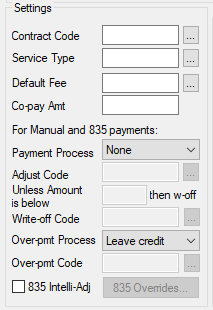
Settings Section:
| Contract Code
|
A text field that indicates the contract code for any insurance company that is controlled by any company paying on a fee schedule.
Example: The government-controlled organization Ministry of Social Services (MSS).
Setting a contract code on the insurance company will cause the system to flag the account as a contracted plan.
axiUm displays a  (contract) icon in the Patient Card window as well as in the General tab of the Transactions module. (contract) icon in the Patient Card window as well as in the General tab of the Transactions module.
The ellipsis is used to display the Contract Policy Codes window.
|
| Service Type
|
A text field that is only used in the US by medical insurance companies. These are only needed if producing claim forms for medical insurance companies.
The ellipsis is used to display the Service Type Codes window.
|
| Default Fee
|
A text field that indicates the default fee schedule for this insurance company. This fee schedule will override the usual provider fees for services billed to this payor.
The ellipsis is used to display the Fee Schedule Codes window.
|
| Co-pay Amt
|
A text field used if this insurance company requires a co-payment.
This field indicates a patient visit fee that is charged once per date. If the patient visits multiple times in one day, they are charged only once.
|
| Payment Process
|
A drop-down list that indicates how insurance payments should be processed:
Note: By default, this field applies to manual and 835 payment entries. If the 835 Intelli-Adj checkbox is selected, then this field is only used for manual payments.
|
| Adjust Code
|
Note: This field is only enabled if the Payment Process is set to Auto transfer or Auto write-off.
A text field that indicates the adjustment code to use.
The ellipsis is used to display the Adjustment Codes window.
Note: By default, this field applies to manual and 835 payment entries. If the 835 Intelli-Adj checkbox is selected, this field is only used for manual payments.
|
| Unless Amount is below ___ then w-off
|
Note: This field is only enabled if the Payment Process is set to Auto transfer.
A text field that indicates the minimum threshold before the amount should be written off instead of transferred.
Note: By default, this field applies to manual and 835 payment entries. If the 835 Intelli-Adj checkbox is selected, then this field is only used for manual payments.
|
| Write-off Code |
Note: This field is only enabled if the Payment Process is set to Auto transfer.
A text field that indicates the adjustment code to use when the transfer is too small and is written off.
The ellipsis is used to display the Adjustment Codes window.
Note: By default, this field applies to manual and 835 payment entries. If the 835 Intelli-Adj checkbox is selected, then this field is only used for manual payments.
|
| Over-pmt Process
|
A drop-down list that indicates how this insurance company deals with over-payments:
Note: By default, this field applies to manual and 835 payment entries. If the 835 Intelli-Adj checkbox is selected, then this field is only used for manual payments.
|
| Over-pmt Code
|
Note: This field is only enabled if the Over-pmt Process is set to Transfer to pt or Write-off credit.
A text field that indicates the adjustment code to use when the payment is over paid.
The ellipsis is used to display the Adjustment Codes window.
Note: By default, this field applies to manual and 835 payment entries. If the 835 Intelli-Adj checkbox is selected, then this field is only used for manual payments.
|
| 835 Intelli-Adj
|
A checkbox that, if selected, indicates that axiUm uses Intelli-Adjustments for processing 835 remittances.
|
| 835 Overrides...
|
A button that displays the Insurance 835 Remittance Overrides window. |
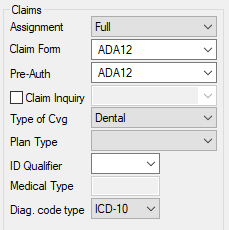
Claims Section:
| Assignment
|
A drop-down list that indicates one of the following:
- Full: Indicates this insurance company will pay regardless of whether it is the primary, secondary or subsequent insurance company for the patient.
- Primary: Indicates this insurance company does not accept assignment unless it is the primary insurance carrier for the patient.
- No: Indicates this insurance company does not accept assignment, or your institution does not accept assignment from this insurance company therefore the patient is responsible for paying the full amount of all claims.
|
| Claim Form
|
A drop-down list that identifies the type of claim form to print claims on for this insurance company.
The options in this drop-down list are defined in the Claim Form Codes window.
|
| Pre-Auth
|
A drop-down list that identifies the type of claim form to print pre-authorization claims on for this insurance company.
The options in this drop-down list are defined in the Claim Form Codes window.
|
| Claim Inquiry
|
A checkbox that, when selected, indicates there is a claim inquiry form to use for communications with this insurance company.
Note: Selecting this checkbox enables the drop-down list with records defined in the Claim Form Codes window that have the Claim Inquiry Form checkbox selected.
This checkbox and drop-down list identify the claim inquiry form to use for communications with this insurance company.
|
| Type of Coverage
|
A drop-down list that indicates the type of coverage provided by this insurance company, and displays the following options:
- Dental: This insurance company provides dental coverage.
- Medical: This insurance company provides medical coverage.
|
| Plan Type
|
A drop-down list that indicates the plan type on the HCFA claim form.
This drop-down list is hard-coded and displays the following options:
- Self Pay
- Workers Comp.
- Medicare Part B
- Medicaid
- Other Federal
- Commercial
- BC / BS
- Tricare/Champus
- Other Non-Fed. Prog.
- PPO
- POS
- EPO
- Indemnity Ins.
- HMO Medicare Risk
- Dental Maint. Org.
- Disability
- Fed. Employees Prog.
- HMO
- Liability
- Managed Care
- Self Admin. GP
- Veteran
- Mutually Defined
- Automobile Medical
- Medicare Part A
- Title V
|
| ID Qualifier
|
A drop-down list that indicates the type of license number this insurance company uses when a claim is sent to them.
This drop-down list is hard-coded and displays the following options:
- 0B: State License Number
- 1A: Blue Cross Provider Number
- 1B: Blue Shield Provider Number
- 1C: Medicare Provider Number
- 1D: Medicaid Provider Number
- 1G: Provider UPIN Number
- 1H: Tricare/Champus Identification Number
- 1J: Facility ID Number
- B3: Preferred Provider Organization Number
- BQ: Health Maintenance Organization Code Number
- EI: Employer's Identification Number
- FH: Clinic Number
- G2: Provider Commercial Number
- G5: Provider Site Number
- LU: Location Number
- N5: Provider Plan Network Identification Number
- SY: Social Security Number
- U3: Unique Supplier Identification Number
- X5: State Industrial Accident Provider Number
- ZZ: Provider Taxonomy
|
| Medical Type
|
A text field that indicates the medical type code required to preface the provider ID for this insurance company.
Note: This field is used for insurers in the state of Michigan only.
|
| Diag. code type
|
A drop-down list that identifies the type of diagnosis codes used for this insurance company:
|
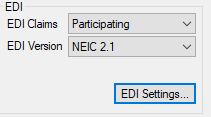
EDI Section:
| EDI Claims
|
A drop-down list that identifies EDI claim behavior:
- Not Eligible: This insurance company's claims are not submitted electronically.
- Participating: This insurance company accepts the electronic transmission of claims.
- All Payor: Indicates that this company does not accept electronic claims. When this is selected, claims can still be submitted electronically to Change healthcare and they then sort the claims that are not true EDI claims and print /submit them on your behalf.
|
| EDI Version
|
Note: This field is only enabled if the EDI Claims drop-down list is set to Participating or All Payor.
A drop-down list that indicates the EDI format to use for the electronic submission of claims:
-
N/A
- NEIC 2.1
-
NSF 2.0
-
X12N 4010 Dental
-
X12N 4010 NYMed 1.0
-
DCDS 3.00
-
NSF 2.01
-
X12N4010 NYMed 2.1
-
X12N4010 Medical
-
X12N5010 Dental
-
X12N5010 Medical
-
X12N5010 NYMed 2.1
-
X12N4010 NYMed(D)
-
X12N5010 NYMed(D)
|
| EDI Settings...
|
A button that displays the EDI Settings window and allows you to specify additional EDI options. |
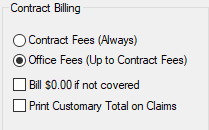
Contract Billing Section:
| Contract Fees (Always) / Office Fees (Up to Contract Fee) |
A set of radio buttons that identifies the fees that the insurance company will pay:
- Contract Fee (Always): This option, when selected, indicates that this insurance company will always pay the government fees even if they exceed the usual fee charged by your institution (office fee).
- Office Fees (Up to Contract Fees): This options, when selected, indicates that this insurance company will pay only the lowest fee of either the office fee or the contract fee.
|
| Bill $0.00 if not covered
|
A checkbox that, when selected, indicates the fee will be billed as $0.00 if the procedures are not in the default fee schedule for this company, or the fee guide amount is $0.00.
When de-selected, the regular office fees will be billed for procedures that are not in the default fee schedule for this insurance company.
|
| Print Customary Total on Claims
|
A checkbox that, when selected, indicates the office's customary total is to be printed when a claim is generated rather than the discounted fee used for the treatment.
|
Insurance 835 Remittance Overrides Window
[Accessed from Maintenance > Insurance > Insurance Companies List > Insurance Company > 835 Overrides... button]
835 remittance overrides can apply to individual payees, or specific claim adjustment reason codes.
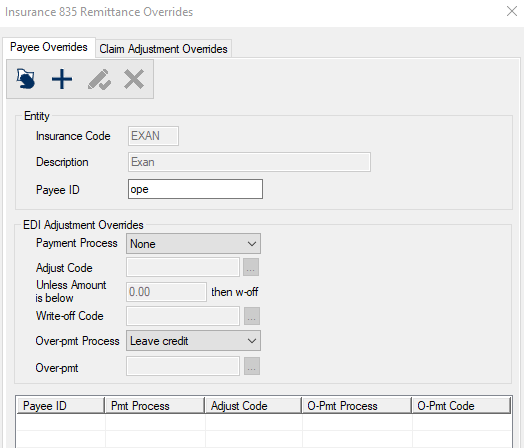
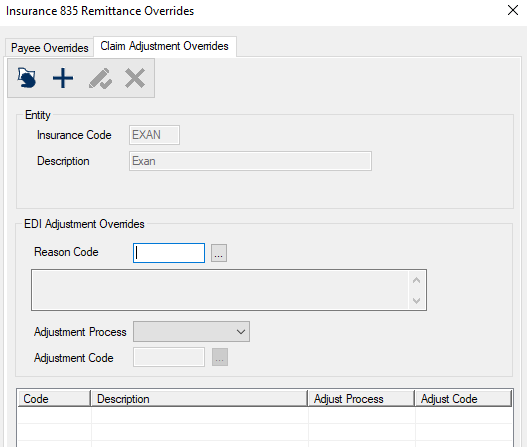
The Insurance 835 Remittance Overrides window allows you to manage 835 overrides for a specific insurance company. It displays when you open the Insurance Company window and click the 835 Overrides... button.
Insurance 835 Remittance Overrides - Field Definitions
Payee Overrides tab:
| Insurance Code / Description
|
Read-only fields that identify the selected insurance company.
|
| Payee ID
|
A text field that specifies either the practice's NPI or Tax ID, or an individual Billing ID. |
| Payment Process
|
A drop-down list that identifies the auto-payment process:
- None: This option does not make any adjustments and allocates only the payment.
- Auto transfer: This option transfers any unpaid balance to the patient.
- Auto write-off: This option transfers any unpaid balance to the patient.
- Intelli-adjustments: This option uses Intelli-adjustments.
Note: If selected, the Over-pmt Process field will automatically be set to Intelli-adjustments and all other fields will be disabled.
|
| Adjust Code
|
Note: This field is only enabled if the Payment Process is set to Auto transfer or Auto write-off.
A text field that identifies the adjustment code to use.
The ellipsis is used to display the Adjustment Codes window.
|
| Unless Amount is below ___ then w-off
|
Note: This field is only enabled if the Payment Process is set to Auto transfer.
A text field that indicates the minimum threshold before the amount should be written off instead of transferred.
|
| Write-off Code
|
Note: This field is only enabled if the Payment Process is set to Auto transfer .
A text field that indicates the adjustment code to use when the transfer is too small and is written off.
The ellipsis is used to display the Adjustment Codes window.
|
| Over-pmt Process
|
A drop-down list that indicates how this insurance company deals with over-payments:
|
| Over-pmt
|
Note: This field is only enabled if the Over-pmt Process is set to Transfer to pt or Write-off credit.
A text field that indicates the adjustment code to use when the payment is over paid.
The ellipsis is used to display the Adjustment Codes window.
|
Claim Adjustment Overrides tab:
| Insurance Code / Description
|
Read-only fields that identify the selected insurance company. |
| Reason Code
|
A text field that identifies the claim adjustment reason code that this override applies to.
The ellipsis is used to display the Claim Adjustment Reason Codes window.
|
| Adjustment Process
|
A drop-down list that identifies the auto-adjustment process:
- <blank> (leave balance)
- Transfer (to Pt)
- Write-off
|
| Adjustment Code
|
A text field that identifies the adjustment code to use.
Tip: We recommend you select an adjustment code that is unique to a group of reason codes.
The ellipsis is used to display the Adjustment Codes window.
|
Insurance 835 Remittance Overrides - Tasks
| Add 835 Remittance Overrides
|
- Click the Payee Overrides or Claim Adjustment Overrides tab.
- Click the Clear Data (
 ) icon. ) icon.
- Complete the fields as necessary and click the Add a new Record () icon.
|
| Edit 835 Remittance Overrides
|
- Click the Payee Overrides or Claim Adjustment Overrides tab.
- Select a listed entry.
- Make any necessary changes and click the Modify Record (
 ) icon. ) icon.
|
| Delete 835 Remittance Overrides
|
- Click the Payee Overrides or Claim Adjustment Overrides tab.
- Select a listed entry and click the Delete Record (
 ) icon. ) icon.
- When prompted, click Yes to confirm the deletion.
|
EDI Settings Window
[Accessed from Maintenance > Insurance > Insurance Companies List > Insurance Company > EDI Settings... button]
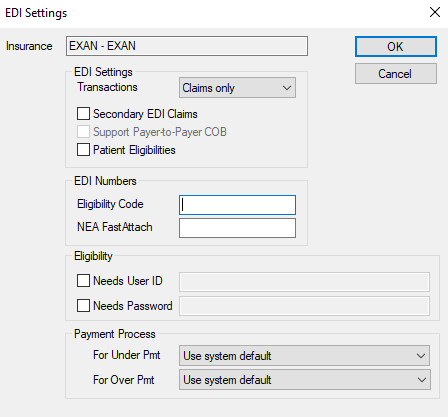
The EDI Settings window allows you to specify EDI settings for the selected insurance company. It displays when you open the Insurance Company window and click the EDI Settings... button.
EDI Settings - Field Definitions
| Insurance
|
A read-only field that identifies the selected insurance company.
|
| Transactions
|
A drop-down list that indicates the type of transactions support for this insurance company:
- No Transactions: The insurance company does accept any EDI transactions
- Claims only: The insurance company accepts only claims electronically.
- Claims/Preauths: The insurance company accepts both claims and pre-authorizations electronically.
|
| Secondary EDI Claims
|
A checkbox that, when selected, indicates the insurance company accepts secondary insurance claims electronically.
|
| Support Payer-to-Payer COB
|
A checkbox that, when selected, indicates the insurance company performs a COB (co-ordination of benefits) with the primary insurance company when it is the patient's secondary insurance.
Note: This checkbox is enabled when the Secondary EDI Claims checkbox is selected.
|
| Patient Eligibilities
|
A checkbox that, when selected, indicates the insurance company allows patients to be checked for eligibility. |
| Eligibility Code
|
A text field that identifies the ChangeHealthcare code for the insurance company. |
| NEA Fast Attach
|
A text field that identifies the FastAttach Master ID for the insurance company.
Note: This information can be looked up in FastAttach by selecting Payor Information.
|
| <Eligibility> Needs User ID
|
A checkbox that, when selected, indicates the insurance company requires a user ID (provided by the insurance company) for eligibility checks.
Note: If selected, the text field is enabled for entry of the User ID.
|
| <Eligibility> Needs Password
|
A checkbox that, when selected, indicates the insurance company requires a password (provided by the insurance company) for eligibility checks.
Note: If selected, the text field is enabled for entry of the password.
|
| <Payment Process> For Under Pmt
|
A drop-down list that indicates the payment process to use for under payments:
- Use system default
- Add payment, no adjustments
- Change tx to match (may leave balances)
- Change tx total to match (never leaves balances)
- Adjust (based on Ins)
|
| <Payment Process> For Under Pmt
|
A drop-down list that indicates the payment process to use for over payments:
- Use system default
- Add payment, no adjustments
- Change tx to match (may leave balances)
- Change tx total to match (never leaves balances)
- Adjust (based on Ins)
|
Alternative Names Window
[Accessed from Maintenance > Insurance > Insurance Companies List > Insurance Company > Alternative Names button]
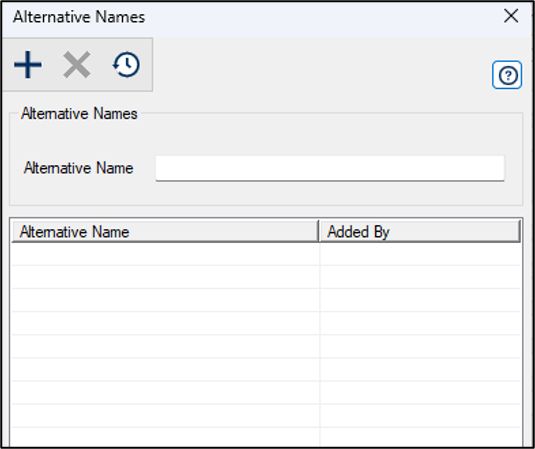
The Alternative Names window allows you to specify additional payer names for the selected insurance company if the payer name on a remittance response does not exactly match the insurance company listed in axiUm. It displays when you open the Insurance Company window and click the Alternative Names button.
Alternative Names - Tasks
| Add Alternative Names
|
-
Complete the field as necessary and click the Add a new Record () icon.
-
When prompted to confirm, click Add Alternative Name.
|
| Delete Alternative Names
|
Warning: You cannot delete an alternative name if a response from the payer has already been processed
- Select a listed entry and click the Delete Record () icon.
- When prompted, click Yes to confirm the deletion.
|
| Show History
|
- Click the Show History (
 ) icon to display the Alternative Names History window. ) icon to display the Alternative Names History window.
- Review the historic records and close the window.
|
Ortho Billing Information Window
[Accessed from Maintenance > Insurance > Insurance Companies List > Insurance Company > Ortho button]
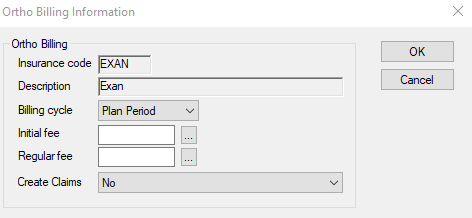
The Ortho Billing Information window allows you to specify ortho billing settings for the insurance company. It displays when you open the Insurance Company window and click the Ortho button.
Ortho Billing Information - Field Definitions
| Insurance code / Description
|
Read-only fields that identifies the selected insurance company.
|
| Billing Cycle
|
A drop-down list that indicates the schedule for billing to the insurance company:
- Plan Period: Claims should be sent once per payment plan period.
- Monthly: Claims should be sent every month.
- Quarterly: Claims should be sent four times a year.
- Semi-annually: Claims should be sent twice a year.
Note: Most institutions submit claims monthly or quarterly.
|
| Initial fee
|
A text field that indicates the procedure code to print on the claim form when an ortho claim is initially sent to insurance for payment.
The ellipsis is used to display the Procedure Codes List window.
|
| Regular fee
|
A text field that indicates the procedure code to print on the claim form when an ortho claim is subsequently sent to insurance for payment.
The ellipsis is used to display the Procedure Codes List window
|
| Create Claims
|
A drop-down list that indicates when and how claims are created:
- No: Claims are not created for payment plan items.
-
With plan fee amount: Create claims and use the payment plan installment as the claim amount.
-
With treatment total: Create claims and use the treatment total as the claim amount.
-
Tx total on first claim, plan fee thereafter: The first claim is sent to the insurance company with the total amount of the treatment, and subsequent claims use the amount of the payment plan installment.
-
First claim with treatment total only: A single claim is sent to the insurance company with the
|
Claim Form Exceptions Window
[Accessed from Maintenance > Insurance > Insurance Companies List > Insurance Company > Sites button]
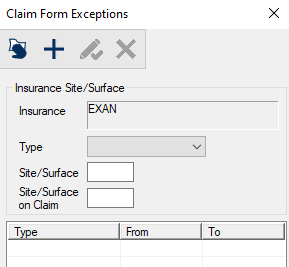
The Claim Form Exceptions window is used when the insurance company requires site and surface information to display differently than what is used in the EHR. It displays when you open the Insurance Company window and click the Sites button.
Claim Form Exceptions - Field Definitions
| Insurance
|
A read-only field that identifies the selected insurance company.
|
| Type
|
A drop-down list that identifies the type of exception:
- Site: Indicates this is an exception to axiUm's site numbering.
- Surface: Indicates this is an exception to axiUm's surface numbering / lettering.
- All Surfaces: Indicates this is an exception to axiUm's indicator for All Surfaces.
|
| Site / Surface
|
A text field that indicates that indicates the site or surface as it displays in axiUm.
Note: This field is disabled if the Type drop-down list is set to All Surfaces.
|
| Site / Surface on Claim
|
A text field that indicates how the site or surface information should display on the claim. |
Claim Form Exceptions - Tasks
| Add Site / Surface Exceptions
|
- Click the Clear Data () icon.
- Complete the fields as necessary and click the Add a new Record () icon.
|
| Edit Site / Surface Exceptions
|
- Select a listed entry.
- Make any necessary changes and click the Modify Record () icon.
|
| Delete Site / Surface Exceptions
|
- Select a listed entry and click the Delete Record () icon.
- When prompted, click Yes to confirm the deletion.
|
Claim Form Comments Window
[Accessed from Maintenance > Insurance > Insurance Companies List > Insurance Company > Form Text button]
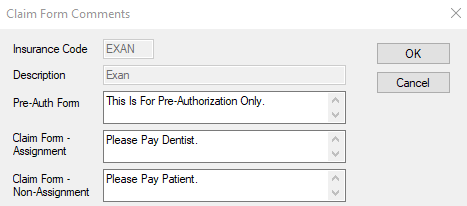
The Claim Form Comments window allows you to specify comments to print on claims. It displays when you open the Insurance Company window and click the Form Text button.
Claim Form Comments - Field Definitions
| Insurance Code / Description
|
Read-only fields that identify the selected insurance company.
|
| Pre-Auth Form
|
A text field that indicates the default text to display on pre-authorization claim forms.
|
| Claim Form - Assignment
|
A text field that indicates the default text to display on assignment claim forms.
|
| Claim Form - Non-Assignment
|
A text field that indicates the default text to display on non-assignment claim forms. |
Selecting Procedures (for EDI Exemptions) Window
[Accessed from Maintenance > Insurance > Insurance Companies List > Insurance Company > EDI Exempt button]
The Selecting Procedures (for EDI Exemptions) window allows you to specify procedures that are exempt from EDI submission. It displays when you open the Insurance Company window and click the EDI Exempt button.
Selecting Procedures (for EDI Exemptions) - Field Definitions
| Type
|
A read-only field that indicates that this window relates to procedures for EDI Exemptions.
|
| Insurance
|
A read-only field that indicates the selected insurance company.
|
| Criteria
|
A text field that is used to enter your search criteria.
Tip: You can enter the first few characters of the word, or enter an underscore (_) to return all results.
|
| Type of Code
|
A drop-down list that indicates which type of code to search on:
- ADA: American Dental Association codes.
- CPT: Current Procedural Terminology codes.
|
| Search On
|
A drop-down list that indicates the field to search on:
|
Selecting Procedures (for Exemptions) Window
[Accessed from Maintenance > Insurance > Insurance Companies List > Insurance Company > Exemptions button]
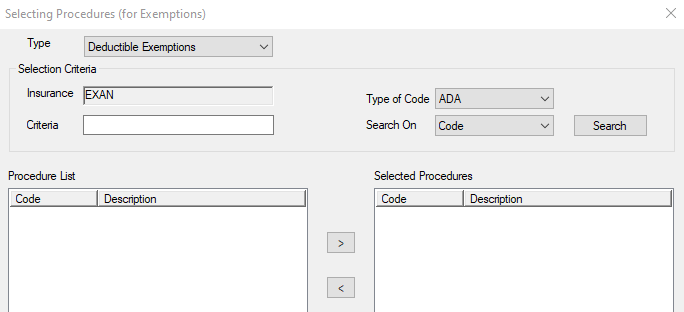
The Selecting Procedures (for Exemptions) window allows you to specify procedures that are exempt from deductibles and co-pay amounts. It displays when you open the Insurance Company window and click the Exemptions button.
Selecting Procedures (for Exemptions) - Field Definitions
| Type
|
A drop-down list that indicates which type of exemption being defined:
- Deductible Exemptions
- Co-pay Exemptions
|
| Insurance
|
A read-only field that indicates the selected insurance company.
|
| Criteria
|
A text field that is used to enter your search criteria.
Tip: You can enter the first few characters of the word, or enter an underscore (_) to return all results.
|
| Type of Code
|
A drop-down list that indicates which type of code to search on:
- ADA: American Dental Association codes.
- CPT: Current Procedural Terminology codes.
|
| Search On
|
A drop-down list that indicates the field to search on:
|
Selecting Procedures (for Preauthorization) Window
[Accessed from Maintenance > Insurance > Insurance Companies List > Insurance Company > Pre-Auth button]
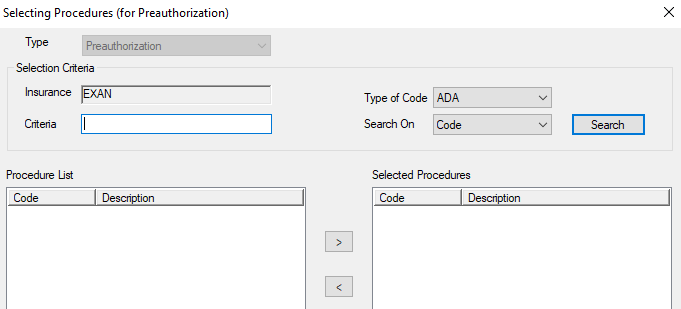
The Selecting Procedures (for Preauthorization) window allows you to specify the procedures that require preauthorization. It displays when you open the Insurance Company window and click the Pre-Auth button.
Selecting Procedures (for Preauthorization) - Field Definitions
| Type
|
A read-only field that indicates that this window relates to procedures that require Preauthorization.
|
| Insurance
|
A read-only field that indicates the selected insurance company.
|
| Criteria
|
A text field that is used to enter your search criteria.
Tip: You can enter the first few characters of the word, or enter an underscore (_) to return all results.
|
| Type of Code
|
A drop-down list that indicates which type of code to search on:
- ADA: American Dental Association codes.
- CPT: Current Procedural Terminology codes.
|
| Search On
|
A drop-down list that indicates the field to search on:
|
Selecting Procedures (for Oral Cavity Mapping) Window
[Accessed from Maintenance > Insurance > Insurance Companies List > Insurance Company > Oral Cavity button]
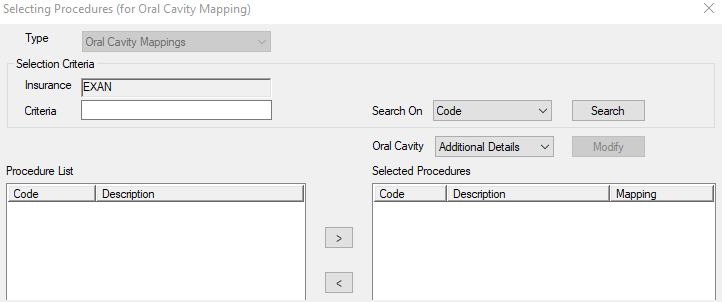
The Selecting Procedures (for Oral Cavity Mapping) window allows you to specify the procedures that require mapping to an ISO Arch or ISO Quadrant, or procedures that require additional site information to be entered. It displays when you open the Insurance Company window and click the Oral Cavity button.
Selecting Procedures (for Oral Cavity Mapping) - Field Definitions
| Type
|
A read-only field that indicates that this window relates to procedures for Oral Cavity Mapping.
|
| Insurance
|
A read-only field that indicates the selected insurance company.
|
| Criteria
|
A text field that is used to enter your search criteria.
Tip: You can enter the first few characters of the word, or enter an underscore (_) to return all results.
|
| Search On
|
A drop-down list that indicates the field to search on:
|
| Oral Cavity
|
A drop-down list that indicates the type of information required:
- ISO Arch
- ISO Quad
- Additional Details
|
Selecting Procedures (for Required Attachments) Window
[Accessed from Maintenance > Insurance > Insurance Companies List > Insurance Company > Attachments button]
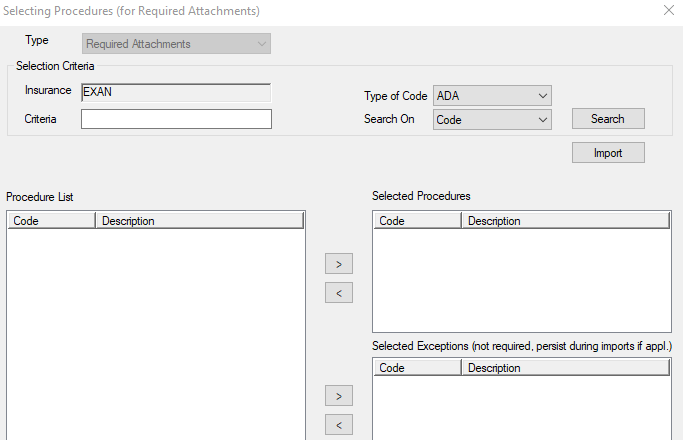
The Selecting Procedures (for Required Attachments) window allows you to import and define attachment requirements when using NEA FastAttach. It displays when you open the Insurance Company window and click the Attachments button.
Selecting Procedures (for Required Attachments) - Field Definitions
| Type
|
A read-only field that indicates that this window relates to procedures that Required Attachments .
|
| Insurance
|
A read-only field that indicates the selected insurance company.
|
| Criteria
|
A text field that is used to enter your search criteria.
Tip: You can enter the first few characters of the word, or enter an underscore (_) to return all results.
|
| Type of Code
|
A drop-down list that indicates which type of code to search on:
- ADA: American Dental Association codes.
- CPT: Current Procedural Terminology codes.
|
| Search On
|
A drop-down list that indicates the field to search on:
|
| Import |
A button that allows users to import attachment requirements for the selected insurance company. |
Billing Number Window
[Accessed from Maintenance > Insurance > Insurance Companies List > Insurance Company > Billing Numbers button]
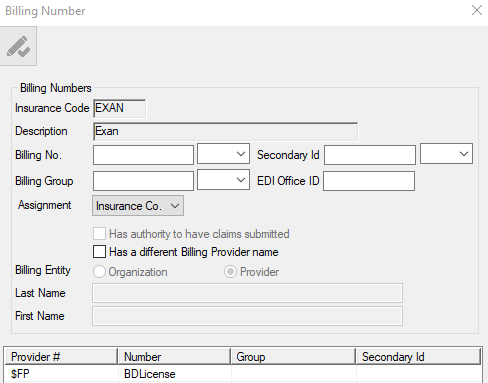
Billing numbers are the unique billing numbers to use for specific providers when billing claims to this insurance company.
The Billing Number window is used to manage situations when the billing information on a claim needs to be different than what is displayed in axiUm. It displays when you open the Insurance Company window and click the Billing Numbers button.
Note: Every billing doctor / fee schedule in the system will be in the lower list when the window opens.
Billing Number - Field Definitions
| Insurance Code / Description
|
Read-only fields that identify the selected insurance company.
|
| Billing no.
|
A text field that indicates the billing number to use for claims sent to the insurance company where the selected provider performed the service.
The drop-down list to the right indicates the type of billing number.
|
| Secondary Id
|
A text field that indicates the alternative billing ID. This is used if the billing entity has an ID different from their usual ID that they need to use for the insurance company.
The drop-down list to the right indicates the type of alternative ID.
|
| Billing Group
|
A text field that indicates the billing group ID. This is used if the billing entity has a billing group ID that needs to be used for the insurance company.
The drop-down list to the right indicates the type of billing group entered in the field.
|
| EDI Office ID
|
A text field that indicates the EDI office ID assigned for this insurance company. For Participating payers, this is set to NOCD; for all-payor claims it is set to the last four digits of the Payer ID provided by Change Healthcare.
To accommodate different billing doctors in the same office, EDI claims need to specify the Billing Doctor's Office ID in this field instead of the Practice Office Id.
This number will print in the Billing Details REF*G5 segment. If it has not been specified, the Practice Office ID will print in this segment.
Note: This is only applicable to Medical and Dental EDI claims. It does not apply to Institutional claims.
|
| Assignment
|
A drop-down list that identifies the type of assignment:
- Insurance Company: Assignment is to be based on the insurance company's assignment flag.
- Yes: Assignment is always accepted for the insurance company by this billing entity.
- No: Assignment is never accepted for this insurance company by this billing entity.
|
| Has authority to have claims submitted
|
A checkbox that, when selected, indicates that this provider has special license with this insurance company and is authorized to submit claims to them.
Note: This field is only enabled if the insurance company requires special license. That is, the Insurance Company window’s Claim Form is set to one that is defined in the Claim Form Codes window with the Use Approval Faculty On Claim (where applicable) checkbox selected.
|
| Has a different Billing Provider name
|
A checkbox that, when selected, indicates that a name other than the one associated with the Billing Doctor is to be explicitly printed for claims sent for this provider.
|
| Billing Entity
|
A set of radio buttons that displays the following options:
Note: This field is only enabled if the Has authority to have claims submitted checkbox is selected.
|
| Last Name / First Name
|
Text fields that indicate the first and last names of the provider associated with this billing number.
Note: This field is only enabled if the Has authority to have claims submitted checkbox is selected and Billing Entity radio button is set to Provider.
|
| Organization
|
A text field that indicates the name of the organization associated with this billing number.
Note: This field is only enabled if the Has authority to have claims submitted checkbox is selected and Billing Entity radio button is set to Organization.
|
Billing Number - Tasks
| Manage Billing Number information
|
- Select a listed entry.
- Make any necessary changes and click the Modify Record () icon.
|
Billing Entity Definitions Window
[Accessed from Maintenance > Insurance > Insurance Companies List > Insurance Company > Billing Definitions button]
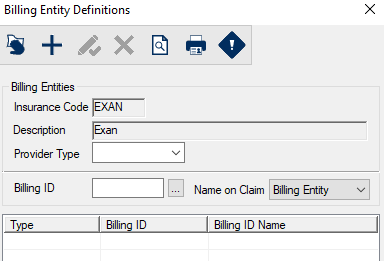
The Billing Entity Definitions window allows you to customize the billing entities and billing entity exceptions for an insurance company. It displays when you open the Insurance Company window and click the Billing Definitions button.
If a specific provider type is performing the work, a billing doctor other than the usual billing doctor for the provider will be used on the claim form.
Billing Entity Definitions - Field Definitions
| Insurance Code / Description
|
Read only fields that identify the selected insurance company.
|
| Provider Type
|
A drop-down list of Provider Types, used to identify the provider type associated with this billing entity. |
| Billing ID
|
A text field that indicates the billing ID to use when this type of provider performs the work.
The ellipsis is used to display the Providers List window.
|
| Name on Claim
|
A drop-down list that identifies the name that displays on the claim:
|
Billing Entity Exceptions Window
[Accessed from Maintenance > Insurance > Insurance Companies List > Insurance Company > Billing Definitions > Billing Entity Exceptions ( ) icon] ) icon]
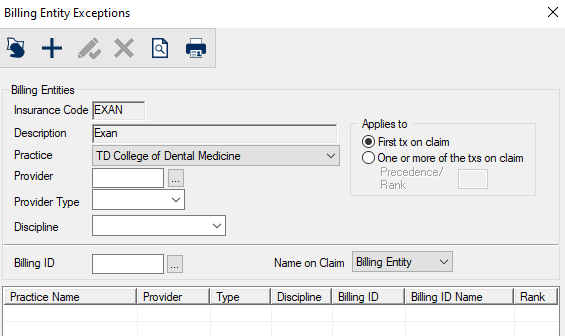
The Billing Entity Exceptions window allows you to create billing exceptions for a provider, provider type, practice, discipline, or for any combination. It displays when you open the Billing Definitions window and click the Billing Entity Exceptions() icon.
Billing Entity Exceptions - Field Definitions
| Insurance Code / Description
|
Read-only fields that identify the selected insurance company.
|
| Practice
|
A drop-down list of Practices that indicates the practice associated to this exception.
|
| Provider
|
A text field that indicates the provider associated to this exception.
The ellipsis is used to display the Providers List window.
|
| Provider Type
|
A drop-down list of Provider Types, used to indicate the provider type associated with this exception. |
| Discipline
|
A drop-down list of Tx Disciplines, used to indicate the treatment discipline associated with this exception. |
| Applies to
|
A drop-down list that identifies how the exception is applied:
- First tx on claim: This exception is applied if the first treatment on the claim matches the criterion.
- One or more of the txs on claim: This exception is applied if one or more treatments on the claim match the criterion.
|
| Precedence / Rank
|
A text field that prioritizes the exception list so that if a provider or provider type is part of the claim, their billing ID is used based on their ranking.
Note: This field is only enabled if the Applies to field is set to One or more of the txs on claim.
|
| Billing ID
|
A text field that indicates the Billing ID to use for this exception.
The ellipsis is used to display the Providers List window.
|
| Name on Claim
|
A drop-down list that identifies the name that displays on the claim:
|
Insurance Billing ID Overrides Window
[Accessed from Maintenance > Insurance > Insurance Companies List > Insurance Company > Billing ID Overrides button]
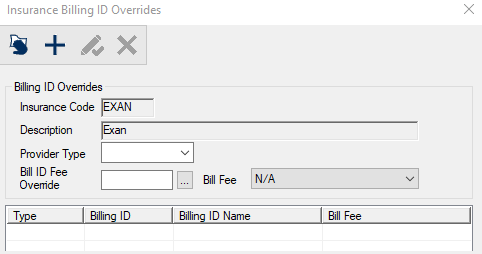
The Insurance Billing ID Overrides window allows you to specify a fee schedule to use when treatment is performed by a specific provider type. It displays when you open the Insurance Company window and click the Billing ID Overrides button.
Insurance Billing ID Overrides - Field Definitions
| Insurance Code / Description
|
Read-only fields that identify the selected insurance company.
|
| Provider Type
|
A drop-down list of Provider Types, used to indicate the provider type associated with this exception. |
| Bill ID Fee Override
|
A text field that indicates the Billing ID to use for this override.
The ellipsis is used to display the Providers List window.
|
| Bill Fee
|
A drop-down list that indicates when this override is used:
- N/A: Indicates the override is not actively in use.
- Always: Indicates the override is always used for the selected Provider Type.
- Unless Practice Override: Indicates the override is used when there is no practice billing override in effect.
|
Insurance Billing ID Overrides - Tasks
| Add Billing ID Overrides
|
- Click the Clear Data () icon.
- Complete the fields as necessary and click the Add a new Record () icon.
|
| Edit Billing ID Overrides
|
- Select a listed entry.
- Make any necessary changes and click the Modify Record () icon.
|
| Delete Billing ID Overrides
|
- Select a listed entry and click the Delete Record () icon.
- When prompted, click Yes to confirm the deletion.
|
Insurance Company Default Coverage Window
[Accessed from Maintenance > Insurance > Insurance Companies List > Insurance Company > Coverage button]
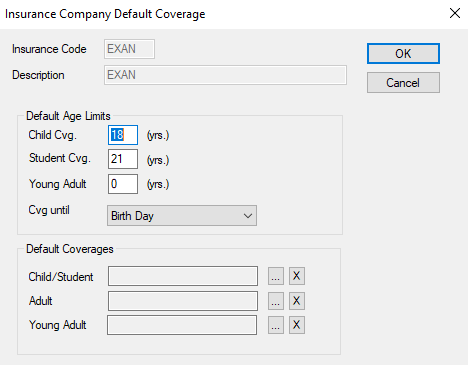
The Insurance Company Default Coverage window allows you to specify default age limits and coverages used for this insurance company. It displays when you open the Insurance Company window and click the Coverage button.
Insurance Company Default Coverage - Field Definitions
| Insurance Code / Description
|
Read-only fields that identify the selected insurance company.
|
| Child Cvg. __ (yrs.)
|
A text field that indicates the age limit for child coverage.
The default value for this field is 18.
|
| Student Cvg. __ (yrs.)
|
A text field that indicates the age limit for student coverage.
The default value for this field is 21.
|
| Young Adult __ (yrs.)
|
A text field that indicates the age limit for young adult coverage (if applicable).
The default value for this field is 0.
|
| Cvg until
|
A drop-down list that indicates when the coverage ends for dependent coverage:
- Birth Day
- End of Birth Month
- End of Birth Year
|
| Child / Student
|
A text field that indicates the default coverage template used for children and students covered under this insurance plan.
The ellipsis is used to display the the Coverage Template List.
The X is used to clear the selected coverage template.
|
| Adult
|
A text field that indicates the default coverage template used for adults covered under this insurance plan.
The ellipsis is used to display the Coverage Template List.
The X is used to clear the selected coverage template.
|
| Young Adult
|
A text field that indicates the default coverage template used for young adults covered under this insurance plan.
The ellipsis is used to display the Coverage Template List.
The X is used to clear the selected coverage template.
|
EDI Procedure Code Overrides Window
[Accessed from Maintenance > Insurance > Insurance Companies List > Insurance Company > EDI Overrides button]
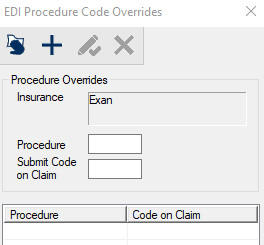
The EDI Procedure Code Overrides window allows you to specify procedures that require a different code to be displayed in claims for this insurance company. It displays when you open the Insurance Company window and click the EDI Overrides button.
EDI Procedure Code Overrides - Field Definitions
| Insurance
|
A read-only field that identifies the selected insurance company.
|
| Procedure
|
A text field that indicates the procedure code that is entered in axiUm.
|
| Submit Code on Claim
|
A text field that indicates the procedure code that is submitted on the claim. |
EDI Procedure Code Overrides - Tasks
| Add Procedure Code Overrides
|
- Click the Clear Data () icon.
- Complete the fields as necessary and click the Add a new Record () icon.
|
| Edit Procedure Code Overrides
|
- Select a listed entry.
- Make any necessary changes and click the Modify Record () icon.
|
| Delete Procedure Code Overrides
|
- Select a listed entry and click the Delete Record () icon.
- When prompted, click Yes to confirm the deletion.
|
Insurance Company Advanced Options Window
[Accessed from Maintenance > Insurance > Insurance Companies List > Insurance Company > Advanced button]
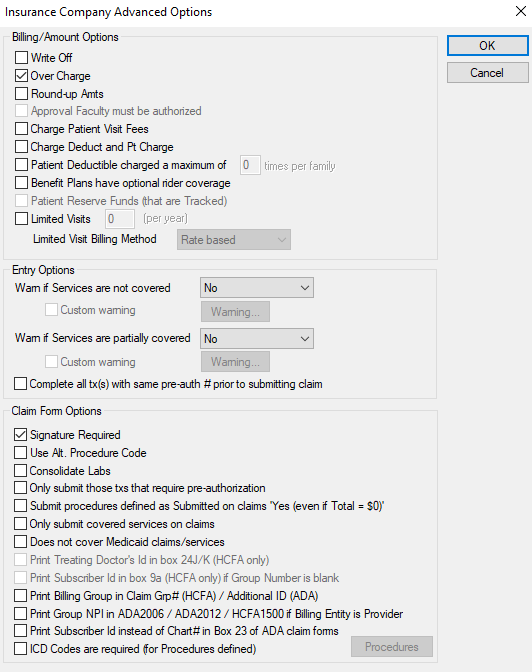
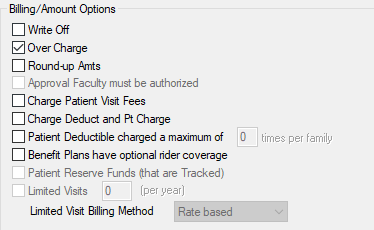
The Insurance Company Advanced Options window allows you to manage additional insurance company settings. It displays when you open the Insurance Company window and click the Advanced button.
Insurance Company Advanced Options - Field Definitions
Billing / Amount Options Section:
| Write Off
|
A checkbox that, when selected, indicates that the insurance company's fee schedule is higher than the charge for non-insured patients and clinic(s) bill the higher fee for patients covered by this insurance company.
In this situation the insurance company is billed their amount, and the patient portion is automatically written off.
Example: If the regular fee amount is $40, but insurance covers 60% of $100, then the insurance company is billed $60 and the patient billed $0.
This flag is a default to the insurance policy information in the Patient Info window, and can be overridden by deselecting the Write Off checkbox.
Note: Generally an agreement between the clinic and the insurance company is required before this option is used.
This functionality requires that the Transactions Options window’s Auto Discount checkbox is selected and the Bill Option is set to Higher Fee, the procedure does not have an individual charge, and the patient does not have a fee schedule specified in the Patient Info window.
|
| Over Charge
|
A checkbox that, when selected, indicates that the insurance company will pay more for dual coverage claims when they are the secondary policy being billed.
When selected, axiUm estimates that company2 pays the difference between the total submitted and what company1 paid.
When deselected, axiUm estimates that company2 pays the difference between their eligible amount and what company1 paid.
|
| Round-up Amts
|
A checkbox that, when selected, indicates that insurance estimates will be rounded up to the
nearest penny.
If deselected, estimates will be rounded down.
|
| Approval Faculty must be authorized
|
A checkbox that, when selected, indicates that this insurance company requires billing doctors that submit to
them, to have an authorized ID under which to submit the claims.
Note: This field is only enabled if the Use Approval Faculty On Claim checkbox is selected in the Claim Form Code.
|
| Charge Patient Visit Fees
|
A checkbox that, when selected, indicates that patients using this insurance company are charged patient visit fees.
|
| Charge Deduct and Pt Charge
|
A checkbox that, when selected, indicates that patients using this insurance company are charged deductibles and patient charges. |
| Patient Deductible charged a maximum of ___ times per family
|
A checkbox that, when selected, indicates that patients using this insurance company have a deductible cap based on the number of family members.
Selecting this checkbox enables the field to indicate the maximum number of times the deductible can be charged.
|
| Benefit Plans have optional rider coverage
|
A checkbox that, when selected, indicates that this insurance company offers options benefit plan rider coverage the subscribers can purchase and use in addition to their linked benefit plan. |
| Patient Reserve Funds (that are Tracked)
|
A checkbox that, when selected, indicates that this insurance company tracks and applies reserve funds.
|
| Limited Visits __ (per year)
|
A checkbox that, when selected, indicates that patients using this insurance company are only covered for a limited number of visits per year.
Selecting the checkbox enables the field that indicates the number of visits allotted per year, as well as the Limited Visit Billing Method drop-down list.
This checkbox is enabled for insurance companies with Plan Type set to Medicaid. Additionally, you may need to ensure that Practices > Medicaid Settings have been configured.
|
| Limited Visit Billing Method
|
A drop-down list that specifies the type of limited visit billing method:
|
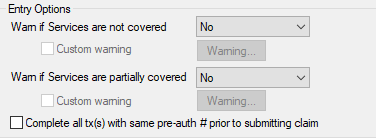
Entry Options Section:
| Warn if Services not covered
|
A drop-down list indicates when users are warned that services are not covered by this insurance company, and displays the following options:
- No: No warning displays.
- On add: A warning that procedures are not covered displays when the procedure is added to a treatment plan or entered from the EHR or Transactions module.
- On approval: A warning that procedures are not covered displays when the procedure is approved.
- Both: The warning is displayed twice, once on add and once on approval.
|
| Custom warning
|
A checkbox that, when selected, indicates that a custom message should display when warning a user that a procedure is not covered by insurance.
This checkbox is enabled when the Warn if Services are not covered drop-down list is set to anything other than No.
If selected, the Warning... button is enabled. Click the Warning... button to display the Services Not Covered Text dialog and enter the custom message to display to user.
|
| Warn if Services are partially covered
|
A drop-down list indicates when users are warned that services are only partially covered by this insurance company, and displays the following options:
- No: No warning displays.
- On add: A warning that procedures are only partially covered displays when the procedure is added to a treatment plan or entered from the EHR or Transactions module.
- On approval: A warning that procedures are only partially covered displays when the procedure is approved.
- Both: The warning is displayed twice, once on add and once on approval.
|
| Custom warning
|
A checkbox that, when selected, indicates that a custom message should display when warning a user that a procedure is only partially covered by insurance.
This checkbox is enabled when the Warn if Services are partially covered drop-list is set to anything other than No.
If selected, the Warning... button is enabled. Click the Warning... button to display the Services Partially Covered Text dialog and enter the custom message to display to user.
|
| Complete all tx(s) with same pre-auth # prior to submitting claim
|
A checkbox that, when selected, prevents a claim from being submitted until all procedures that have approved pre-authorizations have been completed.
Note: This field is disabled if Limited Visits is selected.
|
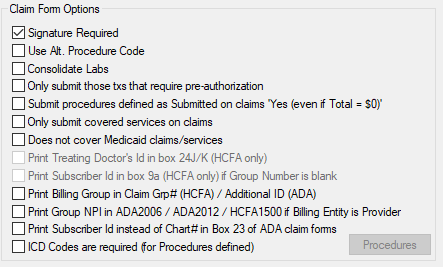
Claim Form Options Section:
| Signature Required
|
A checkbox that, when selected, indicates that this insurance company requires the policy holder's signature on claim forms.
When deselected, Signature on File is printed on the claim form in the signatures area.
|
| Use Alt. Procedure Code
|
A checkbox that, when selected, indicates that an alternate procedure code is to be printed on the
claim form for procedures submitted to this insurance company.
When selected, all procedures that are submitted to this insurance company must have
an alternate code defined in the Procedure Code.
|
| Consolidate Labs
|
A checkbox that, when selected, indicates that the procedure code fee and associated lab fee should be combined as a single entry on claims.
|
| Only submit those txs that require pre-authorization
|
A checkbox that, when selected, indicates that only treatments that require pre-authorization are included into pre-authorization claims.
The EDI Claims process and pre-authorized claim for printing excludes treatment that are not applicable for printing or batching based on this flag.
|
| Submit procedures defined as Submitted on claims 'Yes (even if Total = $0'
|
A checkbox that, when selected, indicates that Procedure Codes configured with the Submitted on Claims drop-down list set to Yes (even if Total= $0) are submitted for this insurance company.
|
| Only submit covered services on claims
|
A checkbox that, when selected, indicates that only procedures that are covered by this insurance company should be included on claims. |
| Does not cover Medicaid claims / services
|
A checkbox that, when selected, indicates that this insurance company does not cover any Medicaid-covered procedures.
Note: This field only displays for US institutions that have Practices > Medicaid Settings configured.
|
| Print Treating Doctor's Id in box 24J/K (HCFA only)
|
A checkbox that, when selected, indicates that this insurance company displays the treating doctor’s information on HCFA claim forms.
On the HCFA form, box 24K displays the value defined in the Billing No. field of the Billing Number window, for the treating doctor.
On the HCFA 2006 form, box 24J displays in one of two ways, depending on how the claim form is set up to print. The top half of box 24J can display the value defined in the Billing No. field of the Billing Number window, or the bottom half of box 24J can display the NPI, for the treating doctor.
|
| Print Subscriber Id in box 9a (HCFA only) if Group Number is blank
|
A checkbox that, when selected, indicates that the Subscriber Id should be used for box 9a of the HCFA form if the Group Number is blank. |
| Print Billing Group in Claim Grp# (HCFA) / Additional ID (ADA)
|
A checkbox that, when selected, indicates to print the value defined in the Billing Group field of
the Billing Number window, for the billing doctor, in either box 33b of the HCFA 2006 claim or box 52a of the ADA 2006 claims form.
If deselected, the value defined in the Billing No. field of the Billing Number window for the
billing doctor is used.
|
| Print Group NPI in ADA2006 / ADA2012 / HCFA1500 if Billing Entity is Provider
|
A checkbox that, when selected, indicates that the billing doctor's NPI2 number should display box 49 of the ADA
2006, ADA 2012, and HCFA forms, if the Name on Claim drop-down list is set to Billing Entity in the Claim Information area of the Billing
Doctor & Fee Schedules window.
|
| Print Subscriber Id instead of Chart# in Box 23 of ADA claim forms
|
A checkbox that, when selected, indicates that the Subscriber Id should be printed in box 23 of the ADA claim forms.
When deselected, the patient's chart number is used.
|
| ICD Codes are required (for Procedures defined)
|
A checkbox that, when selected, indicates that medical procedures (and dental procedures billed on a medical claim), require ICD and place-of-service codes
to be recorded on the claim.
Selecting this checkbox enables the Procedures button, used to specify the procedure(s) that require ICD information.
Note: The ICD codes will be included in the 5010 EDI format, and printed on the
ADA2012 form, section 34a and the ADA2006 form, Remarks section.
|
| Procedures
|
Note: This button is only enabled when ICD Codes are required (for Procedures defined) is selected.
A button that displays the Selecting Procedures (requiring ICD codes) Window and allows you to specify the procedure codes that require ICD Codes.
|
Selecting Procedures (requiring ICD codes) Window
[Accessed from Maintenance > Insurance > Insurance Companies List > Insurance Company > Insurance Company Advanced Options > Procedures button]
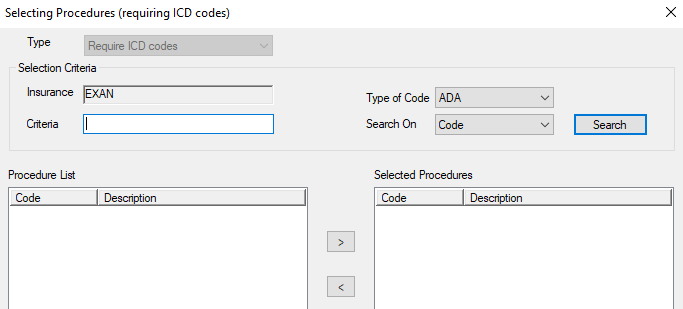
The Selecting Procedures (requiring ICD codes) window allows you to specify procedures that require medical diagnosis information on dental claim forms. It displays when you open the Insurance Company Advanced Options window and click the Procedures button.
Selecting Procedures (requiring ICD codes) - Field Definitions
| Type
|
A read-only field that displays Require ICD codes.
|
| Insurance
|
A read-only field that indicates the selected insurance company.
|
| Criteria
|
A text field that is used to enter your search criteria.
Tip: You can enter the first few characters of the word, or enter an underscore (_) to return all results.
|
| Type of Code
|
A drop-down list that indicates which type of code to search on:
- ADA: American Dental Association codes.
- CPT: Current Procedural Terminology codes.
|
| Search On
|
A drop-down list that indicates the field to search on:
|
|
 ) icon and review the results.
  ) icon to display the
  ) icon.
  ) icon.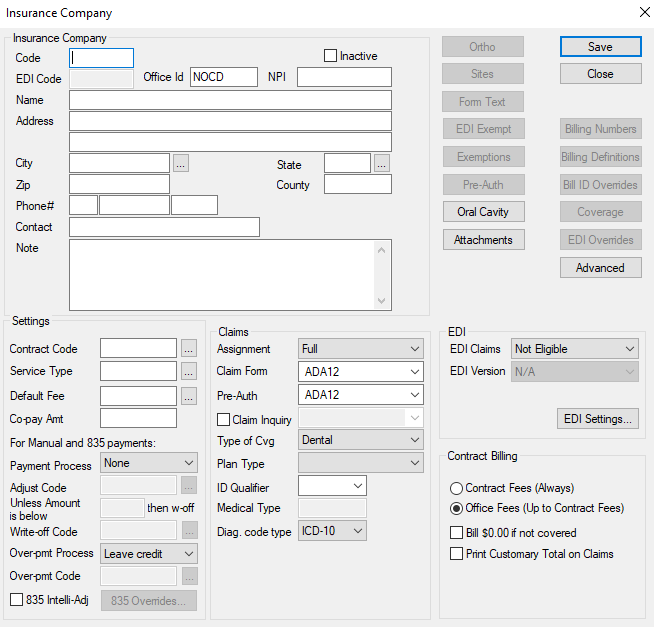
 ) button to move to the Selected Procedures pane.
 ) button to move to the Procedure List pane.