Add Planned Treatments to Appointments
|
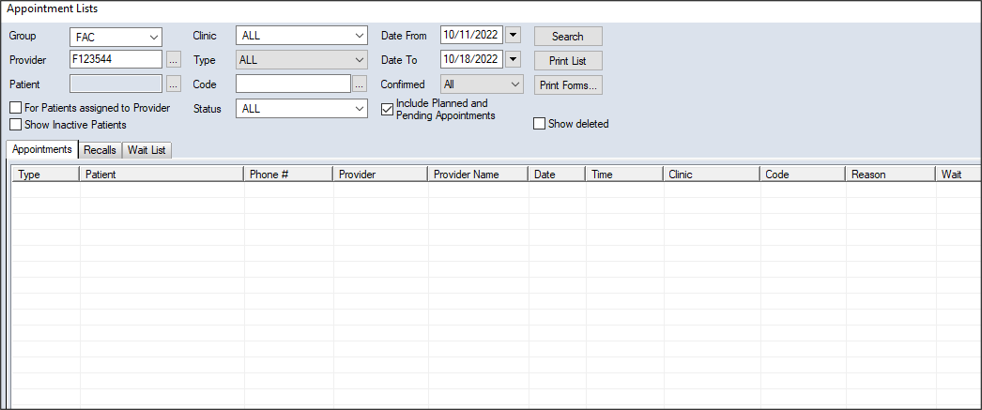
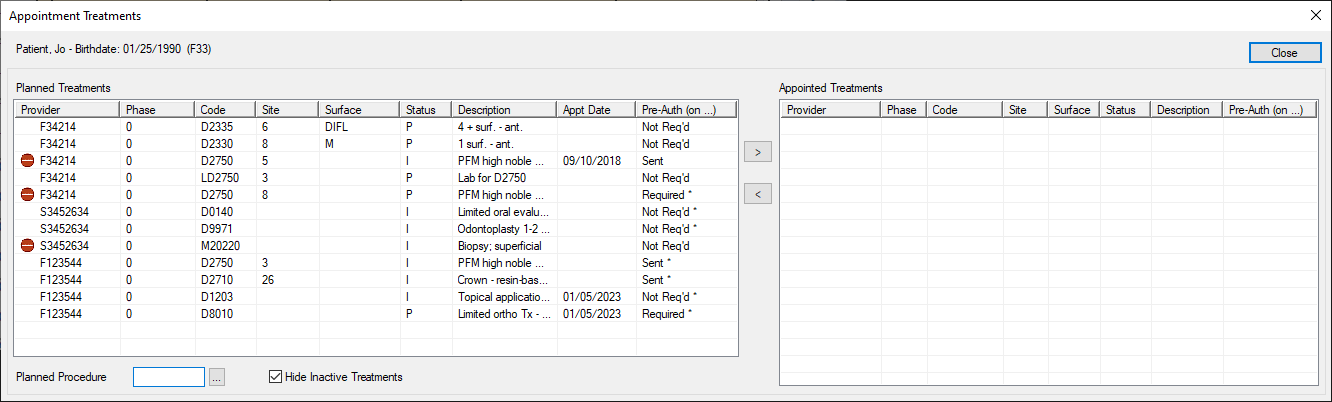
You can add a patient's planned treatment to an appointment from the Scheduler > Active, Weekly, or Pending tab and the Appointment Lists window > Appointments or Wait List tab. To add planned treatment to an appointment:
 Locate on the Active Tab
Locate on the Weekly Tab
Locate on the Pending Tab
Locate in the Appointment Lists Window Locate on the Active Tab
Locate on the Weekly Tab
Locate on the Pending Tab
Locate in the Appointment Lists Window
Note: Only approved planned treatments display. Tip: If you want to display all planned treatments, deselect the Hide Inactive Treatments checkbox. Tip: If necessary, you can select a listed treatment and click the < button to remove from the appointment.
|
 ) icon to display the Appointment Lists window.