Access Patient Approvals
|
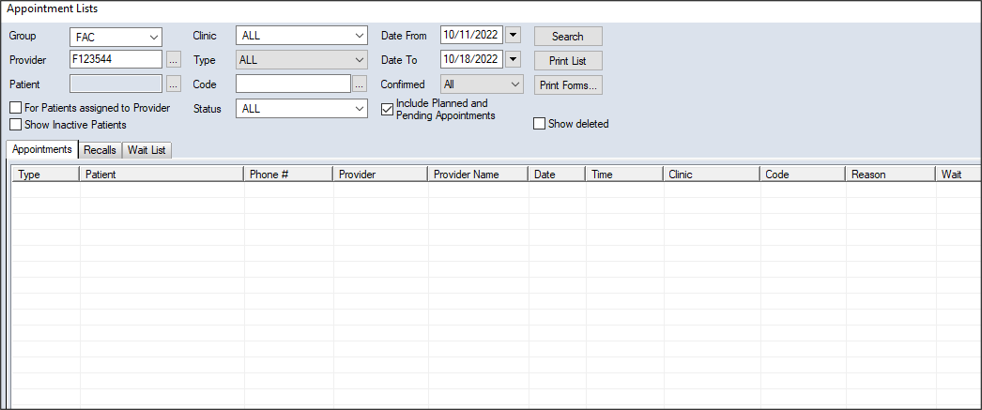
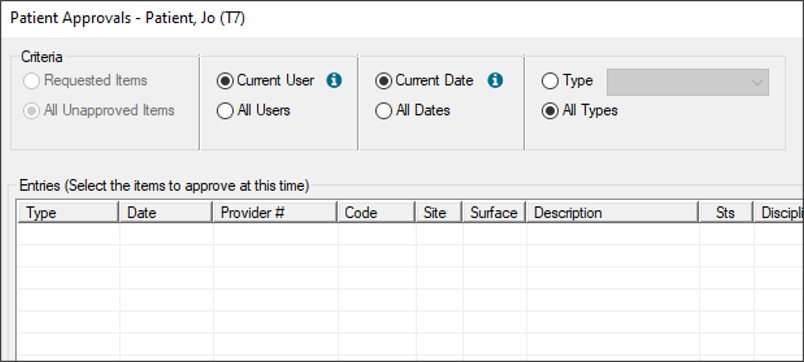
The Patient Approvals window is used to review and approve work done by student providers. It must be reviewed and approved by an instructor or faculty member. While the Patient Approvals window is generally accessed via the patient’s chart number on the status bar, you can also access the window from the Scheduler > Active or Pending tab and the Appointment Lists window > Appointments tab. To access Patient Approvals:
 Locate on the Active Tab
Locate on the Pending Tab
Locate in the Appointment Lists Window Locate on the Active Tab
Locate on the Pending Tab
Locate in the Appointment Lists Window
Note: When you first open the Patient Approvals window, the Criteria filters default based on the following: |
 ) icon to display the Appointment Lists window.