Desktop
|
This section explores how to open axiUm, navigate the axiUm desktop, and use the desktop to complete common tasks. After login, the desktop displays. All activity in axiUm occurs in or from the desktop. It acts as a central location that allows you to complete a variety of actions:
 Access the axiUm Desktop Access the axiUm Desktop
The axiUm desktop displays when you first launch axiUm. To access the axiUm desktop, you must select the database (if applicable) and authenticate yourself in the system. Note: If the axiUm LiveUpdater is configured on your machine and a patch is available when you launch axiUm, the axiUm LiveUpdater process may run before you can log in. Select the Database
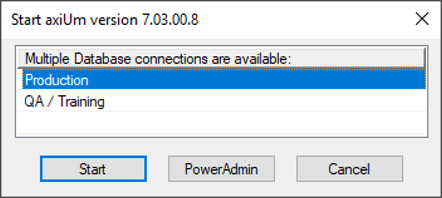
If you have access to multiple axiUm databases on your workstation, you can select which database to connect to. Example: You have access to both Production and Training databases. To select the database:
A pop-up displays, allowing you to select the database connection. Note: The database connection listed in the axium.ini file is the selected connection by default.
Notes: Run the axiUm LiveUpdater Utility
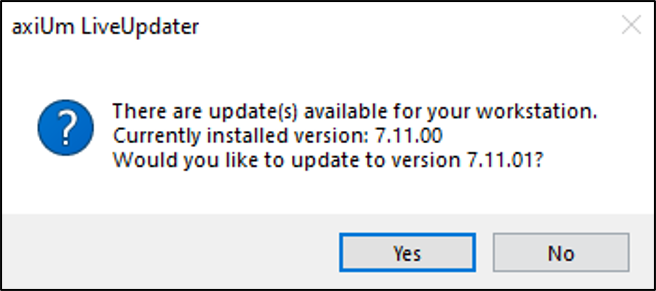
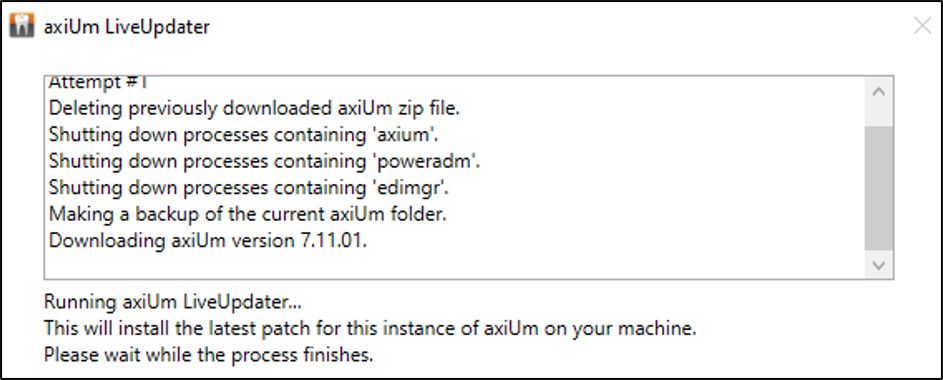
The axiUm LiveUpdater utility allows you to immediately access and install axiUm patches to an instance on your workstation as they become available. If configured and a patch is available when you launch axiUm, the axiUm LiveUpdater process begins:
When the update is complete, axiUm opens and you can log in. Note: For workstation instances that do not use axiUm LiveUpdater, the previous update methods such as manually copying files or using the auto-update folder can still be used. Log In to axiUm
You must use your credentials to authenticate yourself and open axiUm.
The axiUm desktop opens. Note: If your level or workstation has a default module configured, that module loads. Log In to axiUm via Organization Sign-In
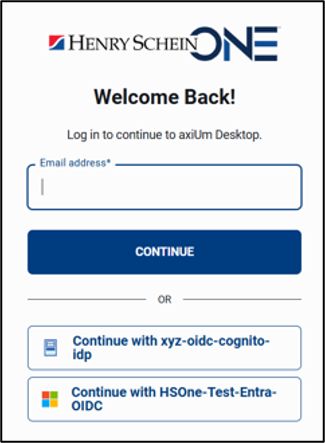
Important: This feature is only available if enabled for your institution and Auth Service is installed. For more information, contact axiUm Support. Organization-based sign-in is an optional authentication method that allows you to log in to axiUm using your organization's Identity Provider (IdP) with SAML or OIDC and multi-factor authentication (MFA). If enabled, axiUm securely redirects to your organization's sign-in page in your default browser and provides a splash screen that runs in the background to guide you through the authentication process in real-time. Tip: If sign-in takes longer than expected, the Auth Service is unavailable, or your account has not been set up, axiUm offers options to retry, troubleshoot, or try a different account. You must authenticate yourself to open axiUm. To log in via organization sign-in:
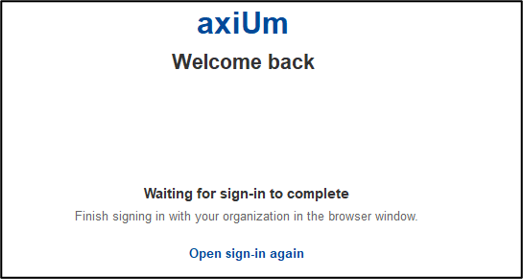
After axiUm loads, a splash screen displays and indicates that it is connecting to your organization. When successfully connected, the splash screen indicates you must complete sign-in from a browser window and automatically opens your organization's sign-in page in your default browser.
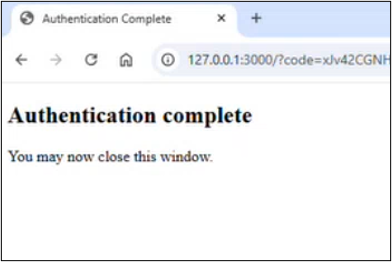
Note: The welcome text displays axiUm Web when logging in from a web app and axiUm Desktop when signing in from a workstation. The browser indicates that authentication is complete, allowing you to return to axiUm and begin your work from the axiUm desktop. Tip: If your level or workstation has a default module configured, that module loads.
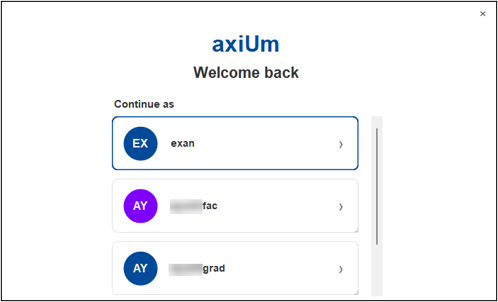
Note: Users that are linked with multiple axiUm accounts will return to the splash screen and are prompted to select an account from their available options.
Exit axiUm
When finished in axiUm, or if another user needs to use axiUm, you will need to log out of axiUm or close the application. Note: Depending on configuration, if left inactive for a set period of time, axiUm auto-closes or returns you to the log in screen. There are a variety of ways you can end your axiUm session:
Example: An administrator must perform a task in axiUm that you cannot. Example: Another user may need to use axiUm directly after you. Example: Your session is finished, and no other users require the program. If you used organization-based sign-in to log in to axiUm with Single Sign-On (SSO) is enabled, you will not be signed out of IdP when you close axiUm. Your authentication tokens will securely persist in Windows secure storage as long as your IdP session is still valid and you can relaunch axiUm while still within the session with no need to re-enter credentials or complete MFA. If your session has expired, you will be prompted to sign in as usual. If SSO is disabled, tokens are held in application memory only. Closing axiUm performs a full sign-out and clears all your authentication and browser cookies. The next time you open axiUm, you will need to complete the full sign-in and MFA process. Note: SSO is controlled on a per-workstation basis through an SSOEnabled Station Option. For more information, refer to the Desktop Setup Guide. Note: If configured, this option may also return you to the log in screen. axiUm Desktop Organization
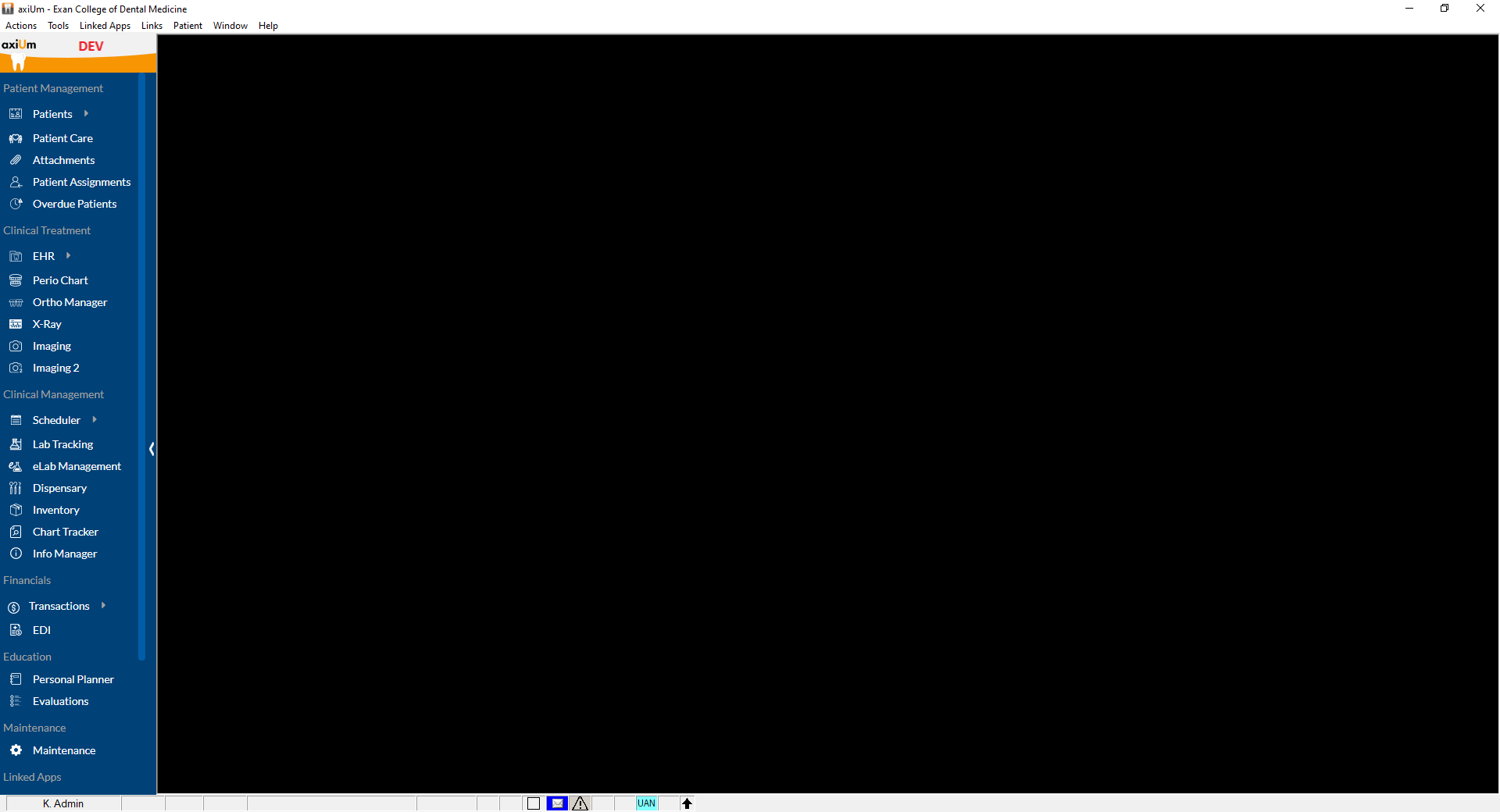
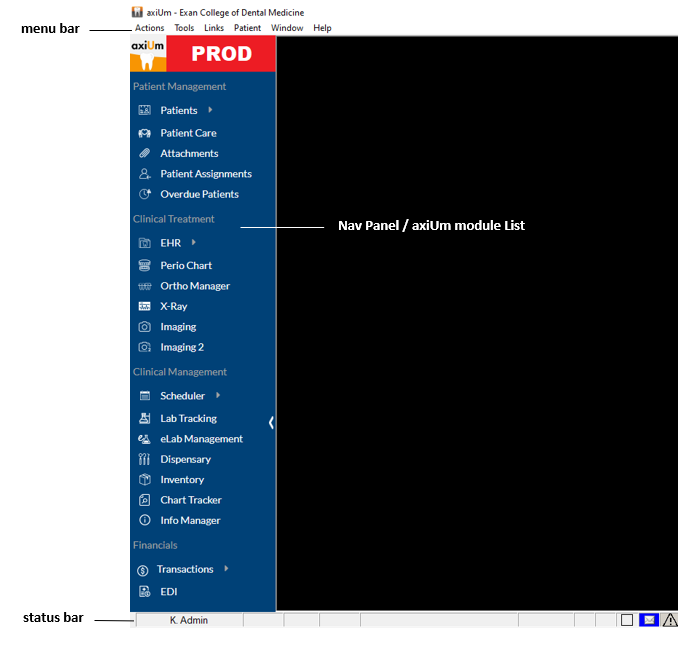
The axiUm desktop has three main parts: Nav Panel, menu bar, and status bar. Note: axiUm has user and workstation settings that control what displays according to the logged in user and the location they work from.
The Nav Panel displays on the left side of axiUm. It lists all available modules. Certain modules may also have sub-menus that open specific areas in the module. Important: The number of displayed modules depends on your security level.
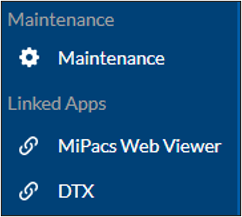
Tip: If needed, you can click the ( If present, a customized DB image displays next to the axiUm logo. Note: When minimized, only the axiUm logo displays. At the bottom of the Nav Panel, a Linked Apps section may display a list of software applications that have been integrated with axiUm. If configured, you can select a linked app to launch the configured URL or command line application and automatically pass information from axiUm to the app. Example: MiPacs Web Viewer
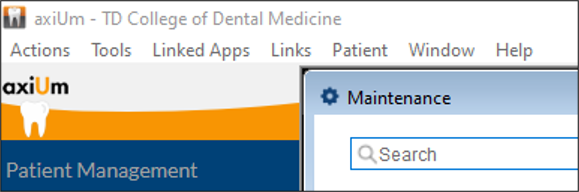
The menu bar displays along the top of axiUm. Each menu contains a set of options. It offers another method to open modules and use tools. It also lists patients and allows you to open Help.
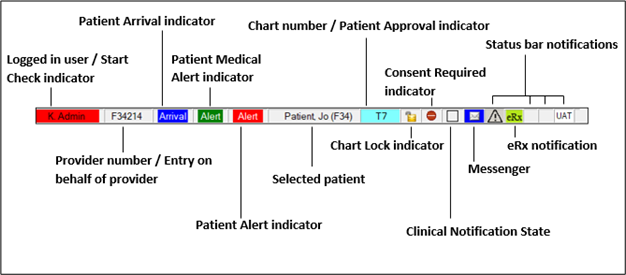
The status bar displays along the bottom of axiUm and includes the logged in user, the selected patient, and a variety of indicators that convey additional information.
|
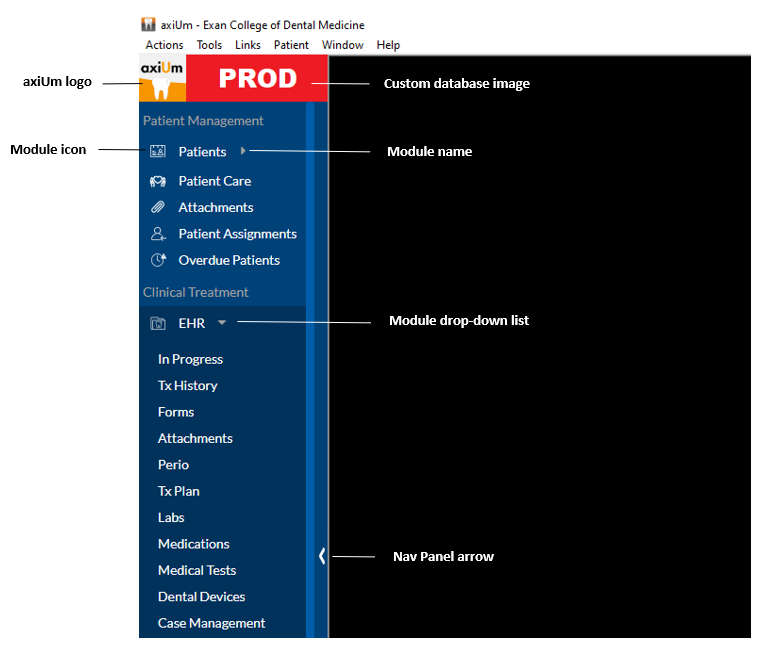
 ) icon to minimize the Nav Panel so that only the icons display. If minimized, the sub-menus are not available.