Preview Imported Responses

If responses are not auto-processed to allocate insurance payments when the remittance response is first imported into axiUm, you can choose to preview the imported payments in a report before processing them.

Note: Previewing is only necessary if the payments are not processed when they are imported.

To preview imported responses:

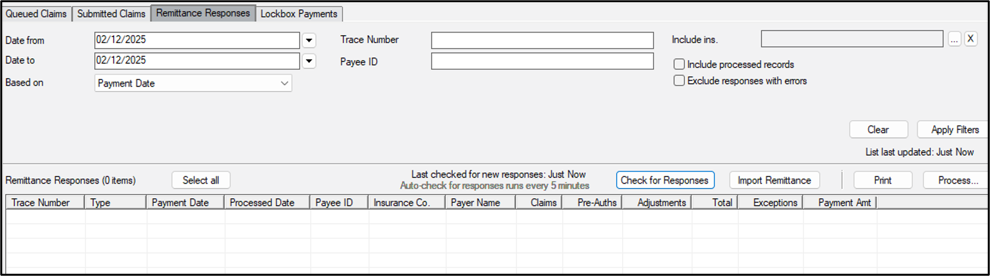
  1. Open the Claims module and click the Remittance Responses tab.
  2. Search for and locate the imported response.
  3. Next to each response you want included, select the checkbox.
  4. Tip: Click Select all to quickly select all responses.

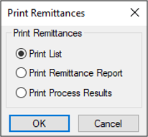
  5. Click Print to display the Print Remittances window.
  6. Note: The Print List option allows you to preview/print the list of selected payments. ThePrint Process Results option displays the results of a payment after it has been processed.

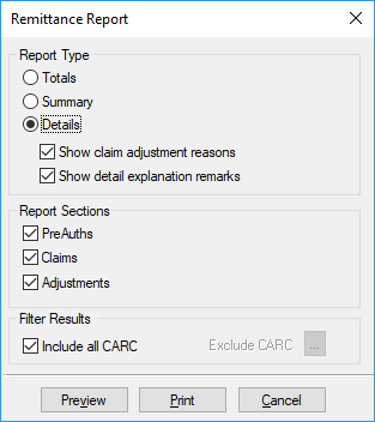
  7. Select the Print Remittance Report radio button and click OK to display the Remittance Report window.
  8. Under Report Type, select the applicable radio button:
    • Totals: Lists the total for each included section.
    • Summary: Lists a summary for each included section.
    • Details: Lists all details for each included section.
    • Note: The Show claim adjustment reasons and Show detail explanation remarks checkboxes are only enabled if you select Details.

      • Show claim adjustment reasons: Displays the adjustment reasons in the report.
      • Show detail explanation remarks: Displays the explanation remarks in the report.
  9. Under Report Sections, select the checkbox for each section you want included in the report:
    • PreAuths
    • Claims
    • Adjustments
  10. Under Filter Results, complete any of the following:
    • Include all CARC: Select the checkbox to include all Claim Adjustment Reason Codes in the results.
    • Exclude CARC: Click the ellipsis to select any Claim Adjustment Reason Codes that should be excluded from the results.
    • Note: This field is only enabled if the Include all CARC check box is deselected.

  11. Click Preview.
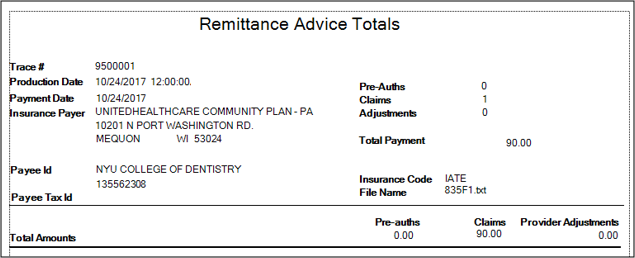
  12. The Crystal Report displays with the applicable information.

  13. Review the report as necessary and close the report.