Manage Treatments
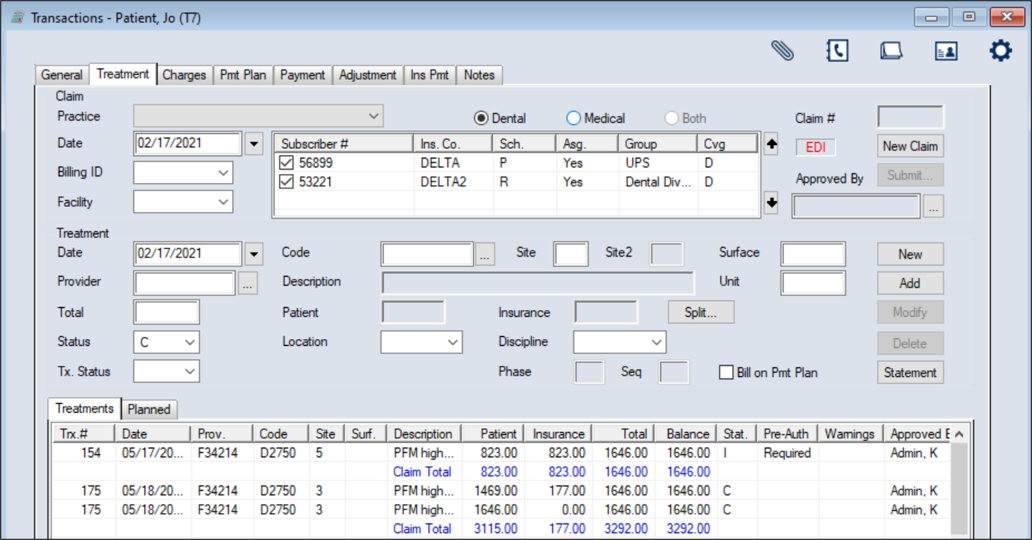
 Edit Treatments Edit Treatments
Treatments that have not yet been batched and/or submitted to insurance on a claim can be easily modified. Note: Batched treatments that are ready for insurance submission must be unbatched before you can edit them. Submitted treatments must be rebilled after you make changes. Delete Treatments
If a treatment was entered in error and requires deletion, any payments or adjustments applied to it will be unallocated prior to deletion. Important: Batched treatments that are ready for insurance submission must be unbatched before you can delete them. Suspend/Unsuspend Treatments
When necessary, you can suspend in process treatments to prevent users from completing the treatment. Example: A patient is not expected to return to complete an in process treatment. If the treatment was suspended in error or the patient returns to the institution, you can also unsuspend in process treatments. The treatment is suspended. An S displays in the Stat. column and on the upper pane next to the Status field. The treatment is unsuspended, and the S is removed from the Stat. column and the upper pane next to the Status field. View Treatment History
Note: One of the Ins. Payment History window, Adjustment History window, or Payment History window displays, depending on whether you select an insurance, adjustment, or payment record. Display Allocations
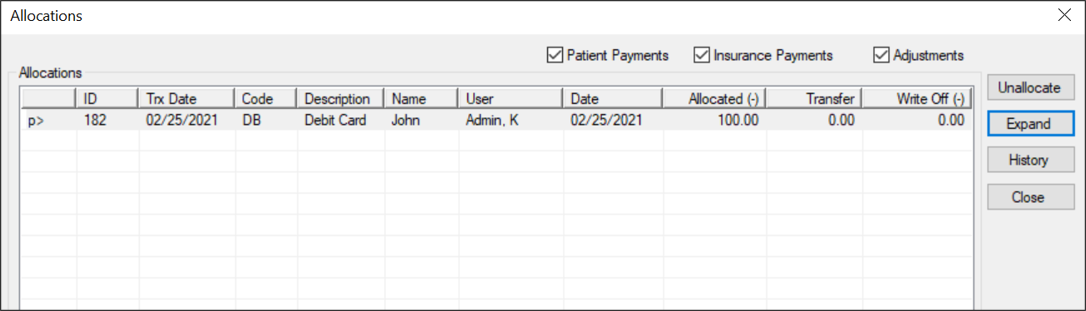
Allocations are the list of payments and adjustments that have been applied to a selected record.
View Financial Warnings
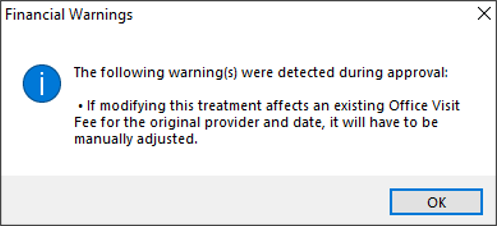
When necessary, you can review financial warnings that are associated with a specific treatment. This allows you to address financial issues as necessary. Note: Financial warnings associated with the treatment may also have displayed when it was approved. Tip: Treatments that have a warning associated with them display Yes in the Warnings column.
Print Fee Estimates
Tip: You can press Ctrl button to multi-select treatments or click Select All / Deselect All as necessary. Example: Upper Composite Fillings A preview displays for the signers to review. View Estimate History
View Tx Consent History
Tip: To include deleted records, select the Show Deleted checkbox. Manage Disputed Treatments
When necessary, you can indicate that certain treatments are under dispute. Example: A patient is not satisfied with the treatments they received and refuses payment. Note: You can only dispute in process and completed treatments. Planned treatments have not occurred yet and cannot be disputed. Tip: You should record the reason a treatment was disputed using a patient note. A disputed treatment cannot be billed until the dispute is settled. Any associated treatment costs are excluded from the patient’s expected total but are still included in the accounts receivable. Once settled, you can take the treatment off hold and submit it on a claim or write off, if applicable. Note: Disputed records display in red text. Assign Tx Status
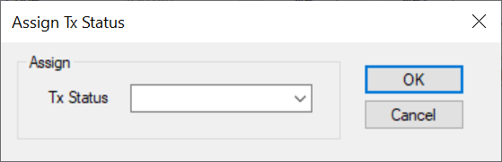
When necessary, you can assign a specific status to a planned, in process, or completed treatment. Example statuses: Reactivated and Redo Procedure. Note: The available statuses are configured by your institution during module setup.
Add Student Evaluations
Print the Treatments and Claims List
|