Edit EOBs
|
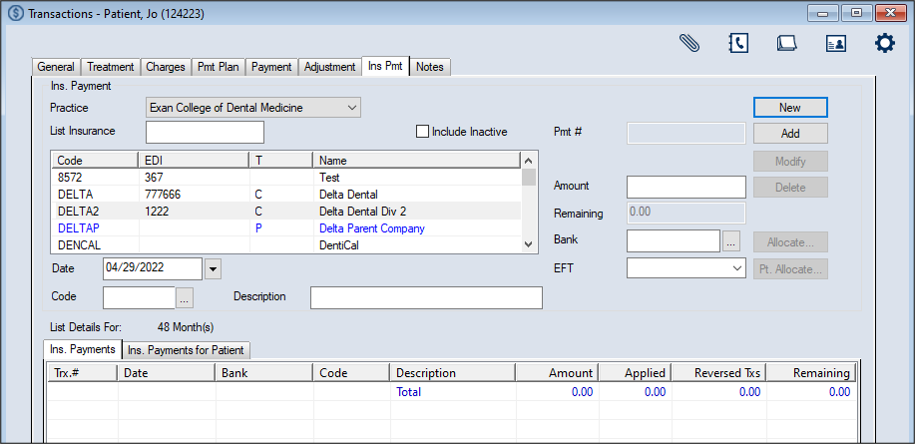
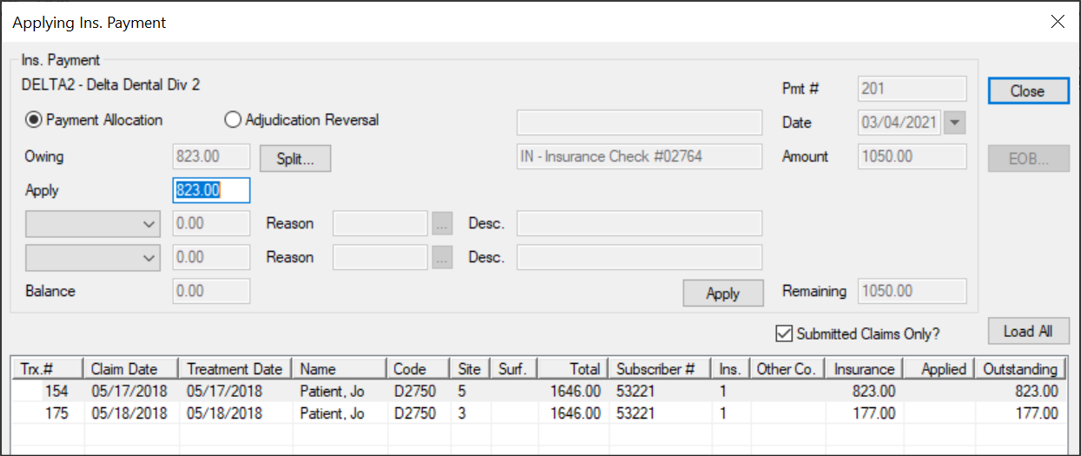
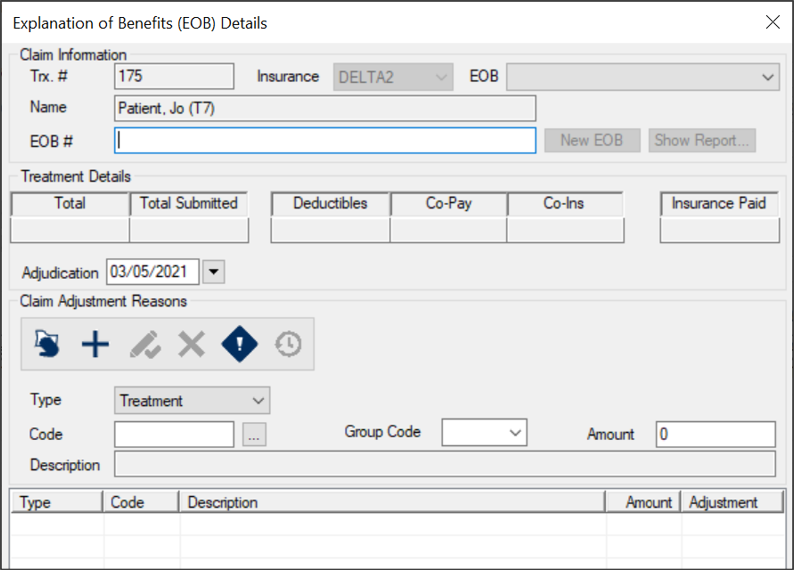
If necessary, you can manually edit an EOB on a treatment in a claim from the Transactions module > Insurance Payment tab. To edit an EOB:
Note: The full list displays if the Load all Ins. companies in list checkbox is selected in the Transaction Options window > Payment Options section. Tip: You can enter an underscore (_) to display all results within the column. Note: You can select the Include Inactive checkbox to include inactive insurance companies in the search.
Note: The available fields display differently depending on which button is used to open the window.
 Add Claim Adjustment Reasons Add Claim Adjustment Reasons
Add Remittance Advice Remarks
Note: If necessary, you can also edit and delete remittance advice remarks using the applicable icons. Edit Claim Adjustment Reasons
Delete Claim Adjustment Reasons
|
 ) icon.
 ) icon.
 ) icon to display the Claim Remittance Advice Remarks window.
 ) icon.
 ) icon.