| Provider |
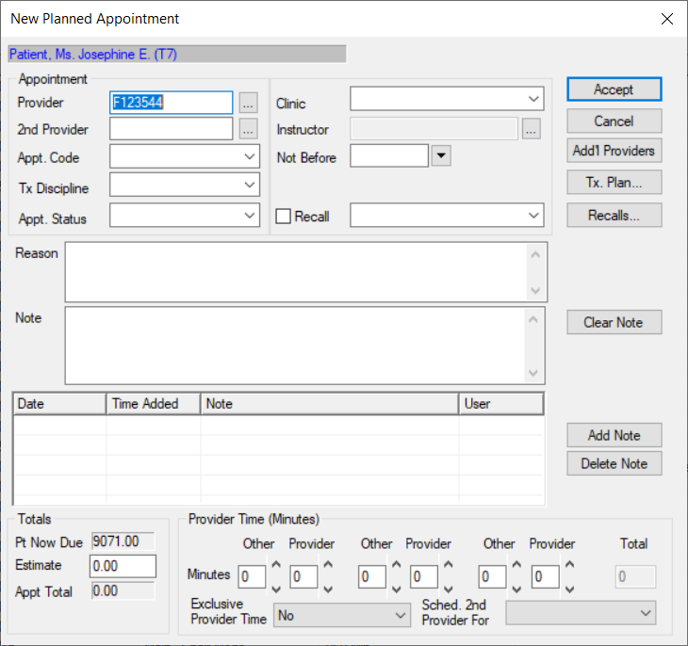
This indicates the provider assigned to the planned appointment.
If necessary, click the ellipsis to display the Providers List window and select another provider.
|
| 2nd Provider
|
This indicates the secondary provider assigned to the planned appointment.
If necessary, click the ellipsis to display the Providers List window and select another secondary provider.
|
| Appt. Code
|
Select the appointment code for the planned appointment from the drop-down list to indicate the appointment type and length.
|
|
Tx Discipline |
Select the discipline associated with the planned appointment from the drop-down list.
|
| Appt. Status |
Select the status of the planned appointment from the drop-down list.
|
| Clinic |
Select the clinic this appointment will be booked at from the drop-down list.
|
| Instructor |
Click the ellipsis to display the Instructor List window and select the instructor assigned to this appointment. |
| Not Before |
If necessary, select the earliest date this appointment can be booked from the calendar drop-down.
|
| Reason |
Enter the reason for the planned appointment.
|
| Recall |
-
Select the checkbox if the planned appointment will be associated with a recall appointment reminder.
Tip: If the Appt. Code field is set to a recall code, the checkbox is selected automatically.
-
Click Recalls… to display the Patient Recalls window.
-
Double-click to select a listed recall appointment reminder.
|
| Add’l Providers |
If a primary provider has additional assistants/providers attending the appointment, you can assign them to the appointment. This prevents them from being booked into appointments at the same time but does not book them into a chair.
Tip: This is useful in clinics when there is one treating provider and multiple observing providers.
-
Click the button to display the Appointment Additional Providers window and select any additional providers beyond the primary and secondary that will be part of the appointment.
-
To add a provider, search for and select a listed provider and click the > button to move it to the Selected Providers pane.
Tip: To remove a provider, select a listed provider and click the < button.
-
Click OK.
In the Scheduler > Active tab, the additional providers/assistants have horizontal lines display down the left side of the appointment block and they are indicated in the appointment with a + icon.
|
| Tx. Plan… |
-
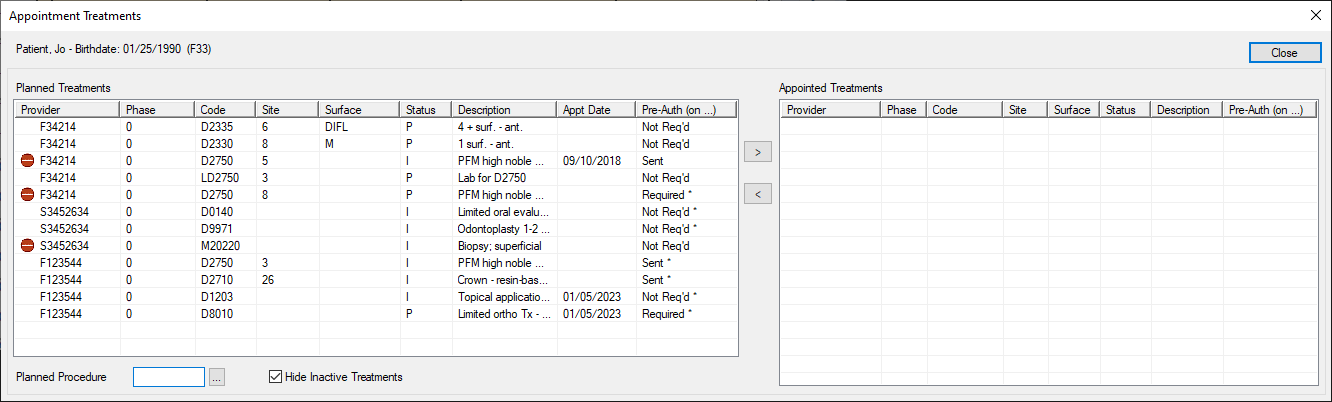
Click the button to display the Appointment Treatmentswindow and select planned treatment(s) for the planned appointment.
Planned treatments for the patient display in the left pane and planned treatments that have been assigned to an appointment display in the right pane.
Note: Only approved planned treatments display.
Tip: If you want to display all planned treatments, deselect the Hide Inactive Treatments checkbox.
-
Complete any of the following:
-
To add a planned treatment to the appointment request, select the listed treatment and click the > button to move it to the Appointed Treatments pane.
-
To add a new planned treatment to the appointment request, click the Planned Procedure ellipsis to display the Procedure Codes List window and select a procedure.
Tip: Adding planned procedures to an appointment can allow you to auto-request dispensary items, if configured at your institution.
|
| Note |
Enter any additional information about the appointment request and click Add Note.
Tip: If necessary, you can click Clear Note to remove the text. If you want to remove an added note, click the listed note and click Delete Note.
|
| Note: The following fields only display if the Scheduler Options window > Appt Entry Window field is set to Advanced or Ortho. |
| Pt Now Due |
A disabled field that indicates the total amount the patient owes to date.
|
| Estimate |
A field that indicates the estimate for treatment attached to the appointment. |
| Appt Total |
A disabled field that indicates the total amount of the treatment in this planned appointment. |
| Minutes |
The Other and Provider fields represent the time in minutes that will be used by the secondary and primary providers for this planned appointment. The minutes entered will display in the Provider, Other, and Total fields of the Scheduler > Add Appointment or Edit Appointment windows.
Enter values to indicate how many minutes each provider is required for the appointment. You can define up to three sets of secondary and primary provider time.
Tips:
Example: If the Minutes fields display 30-10-20 for a hygiene recall, the hygienist/CDA (the secondary provider) is required for the first 30 and final 20 minutes of an appointment. The dentist (the primary provider) is only required for the 10 minutes in between.
Note: You cannot indicate there is a time where both providers are exclusively required unless you do so for the whole appointment.
|
| Exclusive Provider Time |
This field displays the exclusivity rule used for this appointment code for the primary provider.
Tip: The option that displays by default is managed from the Appointment Code window > Primary Exclusive Time field.
If necessary, select another option from the drop-down list:
-
No: This indicates that when this appointment code is selected, the provider can be double-booked for other appointments, assuming this breaks no other rules.
-
Yes (Appt. Time): This indicates that when this appointment code is used, the entire duration of the appointment is exclusive. This total time includes minutes indicated in the Provider and Other fields.
-
Yes (Prov. Time): This indicates that when this appointment code is used, only the provider portion of the time is exclusive. This time refers to the minutes indicated in the Provider fields only.
|
| Sched. 2nd Provider For |
Select how doctor/assistant time will be treated when there is a secondary provider for the appointment set in the 2nd Provider field:
-
<blank>: This indicates there is no secondary provider.
-
Other Time: This indicates the secondary provider will default to an assistant’s time.
-
Provider Time: This indicates the secondary provider will default to a provider’s time.
-
Total Time: This indicates if the secondary provider will default to be present during the entire duration of the appointment.
|
 ) icon to display the Select Patient window.