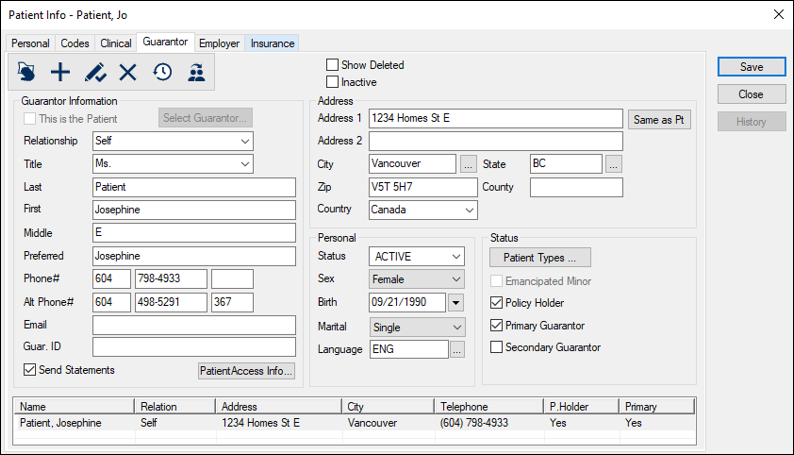
Delete Guarantors

Occasionally you may need to delete the guarantor from axiUm.

Example: Duplicate guarantor records.

When deleting a guarantor, we advise you to identify which guarantor record must be removed before removing the record.

Tip: Modify an obvious field such as the phone number or name that clearly identifies it as the record you want to delete.

Deleting a guarantor is much more permanent than removing the guarantor from a record. To delete a guarantor, you must convert the guarantor to a patient, then delete the patient record.

To delete a guarantor:

  1. Select a patient and open the Patient Info window > Guarantor tab.
  2. Select a listed guarantor.
  3. In the First, Last, or Phone# field, modify the contents to distinguish clearly from other records and click the Modify Record () icon.
  4. Select the modified guarantor entry from the lower list, and click the Convert to Patient () icon.
  5. Return to the Patients window and search by guarantor name to see the list of associated patients (if any).
  6. Note: If the patient is a guarantor for other patient(s), and you attempt to delete without removing them as guarantor from the other records, you will get an error message telling you that you cannot delete a patient who is another patient’s guarantor.

  7. If the guarantor is present on other patient records, remove the guarantor:
    1. Open an associated patient record and click the Guarantor tab.
    2. Identify and select the modified guarantor record, then click the Delete Record () icon.
    3. When prompted, click Yes to confirm your deletion.
    4. Repeat the steps as necessary.
  8. Delete the modified patient record.
    1. Return to the Patients window, search for the modified patient record, and click the Delete Record () icon.
    2. When prompted, click Yes to confirm your deletion.
    3. The patient is deleted from axiUm.