Add Online Request Notes

When necessary, notes can be added to an online request.

You can add notes for online requests from the Personal Planner > Lists tab > Online Requests sub-tab.

To add notes to online requests:

  1. Open the Personal Planner module to the Lists tab and click the Online Requests sub-tab.
  2. Modify the search criteria as necessary and click the Search for Data () icon to display your list of online requests.
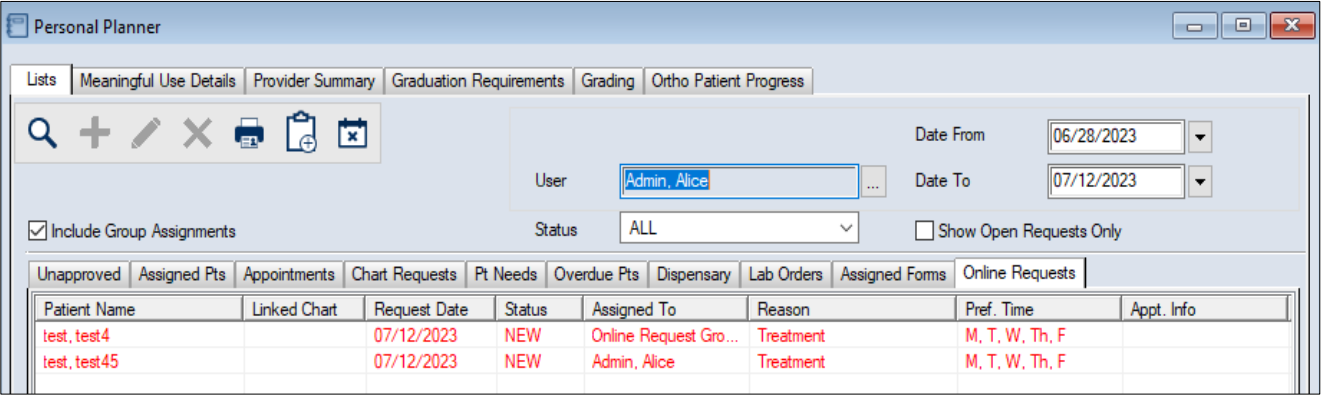
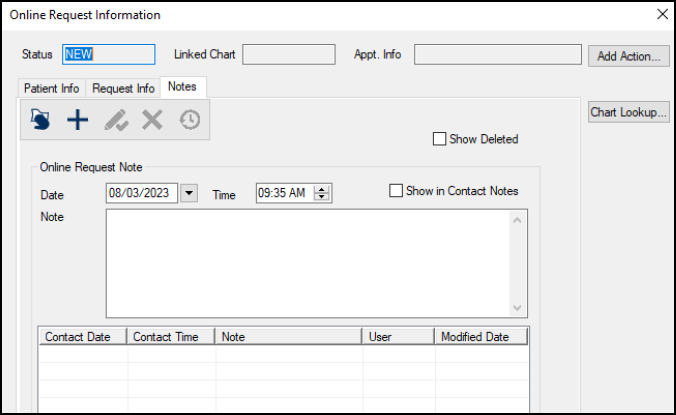
  3. Right-click a listed entry and select View Request… to display the Online Request Information window.
  4. Tip: You can also double-click a request to display this window.

  5. Click the Notes tab and review any notes associated with the online request.
  6. Tip: You can also add notes from the Add Online Request Action window.

    Note: If necessary, you can select the Show Deleted checkbox to display deleted notes in the list.

  7. Click the Clear Data () icon.
  8. Complete the fields as necessary and click the Add a new Record () icon.
  9. Field Description

    Date / Time

    These read-only fields identify the date and time that the note was last modified.

    Show in Contact Notes

    Select the checkbox to include the note in the patient’s contact notes.

    Note: If the request has not been added to a patient record, any notes with this selected will be added to the contact notes when the request is added to a patient chart.

    Tip: If a note also displays in contact notes, any changes are reflected in both places regardless of where the change was made.

    Note

    Enter the contents of the note.

    Note: This field can store a maximum of 4000 characters.