Repackage External Orders
|
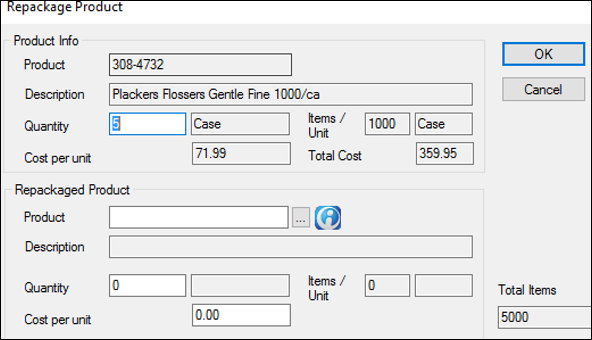
Products are shipped in units which vary depending on product code and quantity. Repackaging orders is the process of separating a larger order into smaller units, giving them another product code and description. After an external order has been received, it is sometimes necessary to repackage the order shipment products into smaller unit sizes for distribution to smaller inventory locations. This is typically done if an order’s contents cannot be used at one location within a reasonable amount of time. Example: Gloves may be shipped by boxes or cases. A box may hold 100 gloves, but a case may hold 10 boxes. If you receive an order for 10 cases of gloves, you might repackage the order as 100 boxes of gloves. This assigns the item a different product code and description because it carries the same product, but holds a different quantity. To repackage an order:
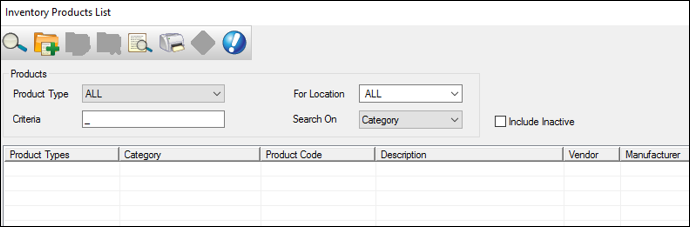
Example: If you want to repackage five cases of floss and you know there are ten boxes in each case, you must select the product code which relates to boxes of floss and input 50 boxes. Note: Read the product descriptions carefully. It is easy to select a product code for the correct product, but the wrong unit. Example: If you are repackaging five cases of floss and you know there are ten boxes in each case, enter 50 in the Quantity field. Under the Received tab, the balance column changes to 0, and under the Product Levels tab, the newly added product’s balance shows a quantity increase. |