Place External Orders for Single Vendors
|
You can place an external order from a single vendor. For this type of order, you select products from a list of all the products that a specific vendor sells. This type of order requires a PO number. To place an external order to a single vendor:
Note: Typically, this will be your institution’s main warehouse. Examples: External, Henry Schein. Tip: You can also begin typing a vendor name in the Form field and select from the list. Important: You need this number later to receive an external order.
Note: Double-click a product line to select one product only and close the Requests for Vendor window. The product(s) display in the lower list as part of the inventory order. The ordered products(s) become visible in the Pending External Orders tab with a status of Ordered. |
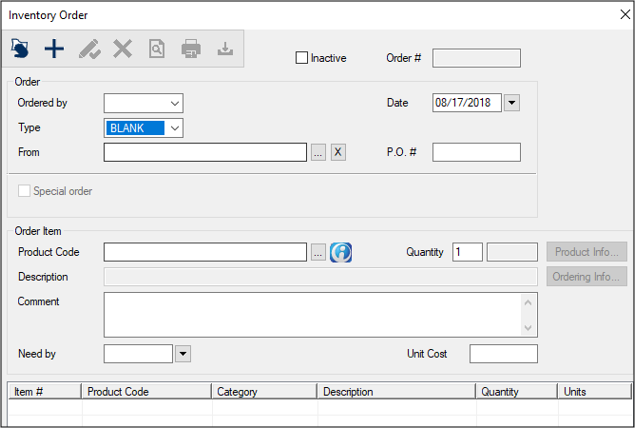
 ) icon to display the Requests for Vendor window.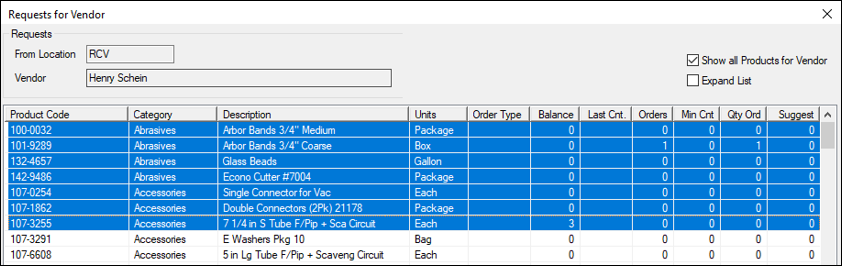
 ) icon.