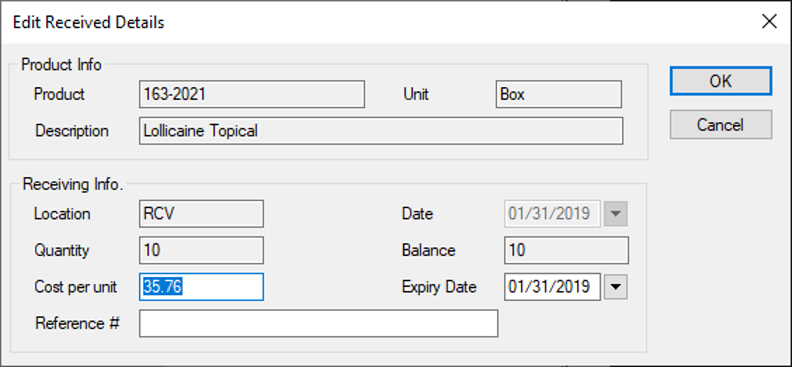
Edit Received Order Details

If necessary, you can modify the details of the items you received in an external order.

Examples: Item costs and expiry dates.

  1. Open the Inventory module, and click the Received tab.
  2. Enter the appropriate search criteria and click Search.
  3. Right-click a line and select Edit Received Details to display the Edit Received Details window.
  4. Modify the fields as necessary and click OK.
    • Cost per unit: Enter a new per-unit cost.
    • Example: You want to apply a discount to the product or charge fees for a rush order.

      Note: This field overrides the regular product price set in the Inventory Product window > Product Details section > Cost per unit field. If changed, this price affects this order only.

    • Expiry Date: Enter a different expiry date.
    • Notes:

      • This field overrides the expiry date set in the Receipt of Goods window > Expiry Date field. If changed, this affects this order only.
      • Only items that require an expiry date display this field.
    • Reference #: Enter a different reference number.
    • Note: This field overrides the reference number set in the Receipt of Goods window > Reference # field. If changed, this affects this order only.