Manage EDI Remittances
|
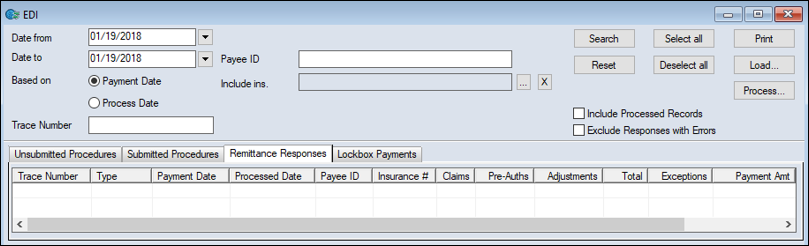
The Remittance Responses tab allows you to work with EDI remittance files, which are formatted as standard HIPAA-defined 5010 835 files. Note: Each insurance EDI remittance file contains information about the payee, the payer, the claims adjudicated, the EOB, the amount, and other identifying payment information. It may contain pre-authorization responses, claim reversals, and (claim-independent) provider-level adjustments. To manage EDI remittances:
 Search for EDI Remittance Payments Search for EDI Remittance Payments
You can search for EDI remittance payments stored in axiUm.
Load EDI Remittance Files
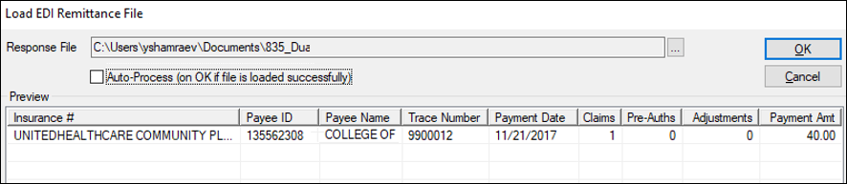
When your institution receives an EDI remittance file, you must load the file into axiUm. Note: An EDI remittance file may contain multiple payments. When you load an EDI remittance file: Note: You can load and process the EDI remittance file in a single step. To load EDI remittance files:
If you selected the Auto-Process (on OK if file is loaded successfully) checkbox, all successfully loaded payments are processed and you can skip the following sections and proceed to Manage EDI Remittances. If you did not select the Auto-Process (on OK if file is loaded successfully) checkbox, all successfully loaded payments are now available to be previewed and processed. Preview Loaded Remittance Payments
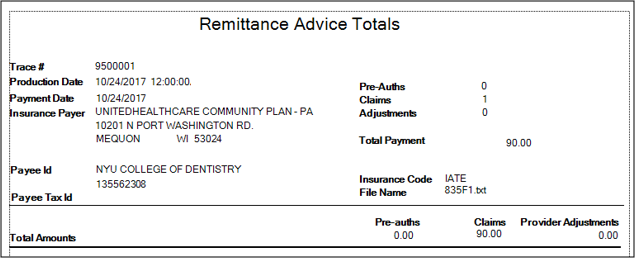
After you have loaded the EDI payment file(s) into axiUm, you can preview the remittance payments in a report, prior to processing them. Note: This assumes you didn’t automatically process them when loading the payment. To preview remittance payments:
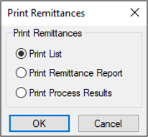
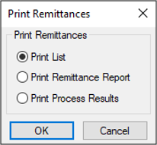
Note: The Print List radio button allows you to preview/print the list of selected EDI payments. ThePrint Process Results radio button displays the results of a payment after it has been processed.
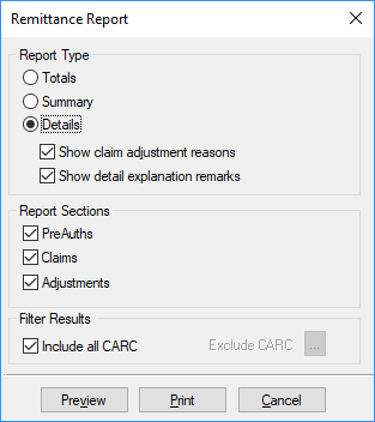
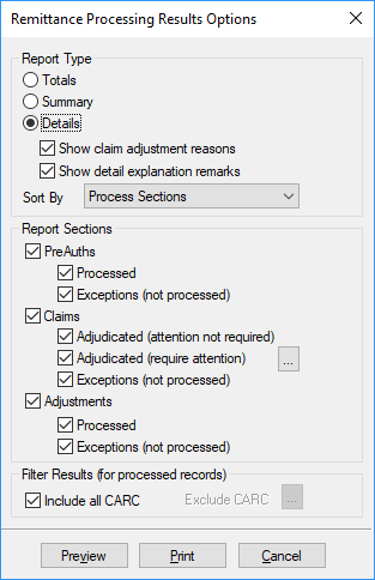
Note: The Show claim adjustment reasons and Show detail explanation remarks checkboxes are only enabled if you select Details. Note: This field is only enabled if the Include all CARC check box is deselected. The Crystal report displays with the applicable information.
Process Remittance Payments
Tip: You can load and process an EDI remittance file in a single step. When you process a remittance payment, axiUm: To process remittance payments: Tip: If you are processing all the listed payments, click Select all to select all checkboxes. The selected payment(s) are processed and allocated. Print Process Results Reports
Once you have processed the remittance payments, you can print reports to display the results, and indicate any issues that may require your attention. To print remittance payment reports:
Note: The Show claim adjustment reasons and Show detail explanation remarks checkboxes are only enabled if you select Details. Note: This field is only enabled if the Include all CARC check box is deselected. The Crystal report prints with the applicable information.
|