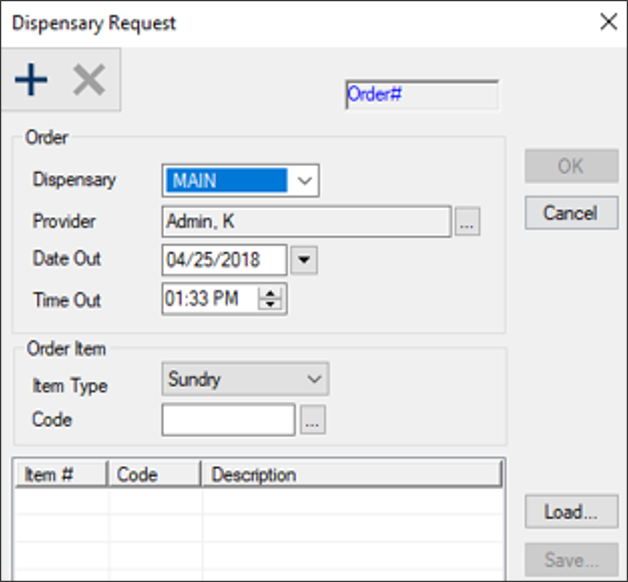
Submit Manual Dispensary Requests

  1. Open one of the following modules to display the Dispensary Request window:
  2. Complete the fields as necessary and click the Create a new Record () icon.
  3. Tip: Request templates allow you to submit dispensary requests more quickly. If defined, click Load to open and select an existing template.

    Field

    Description

    Dispensary

    Select a clean dispensary location from the drop‑down list.

    Provider

    This field defaults to the logged‑in user but represents the provider this request is for.

    If making the request for another provider, click the ellipsis to change the provider.

    Date Out / Time Out

    Select the date and time the provider requires the kit(s).

    Item Type

    Select one of the following from the drop‑down list:

    • Sundry: A one‑time use disposable product.
    • Note: If selected, the Code ellipsis displays disposable product codes.

    • Kit: A reusable item or group of items.
    • Note: If selected, the Code ellipsis displays disposable product codes.

    Code

    Click the ellipsis to select a sundry or kit type code.

  4. Repeat Step 2 for each kit/sundry you are adding to the request.
  5. (Optional) Remove dispensary item(s).

    1. Select a listed item and click the Delete () icon.

    2. When prompted, click Yes to confirm the deletion.

  6. (Optional) Click Save… to save the list of items as a dispensary request template.

  7. Click OK to submit your request.

  8. When prompted to print the kit request receipt, click Yes or No as necessary.