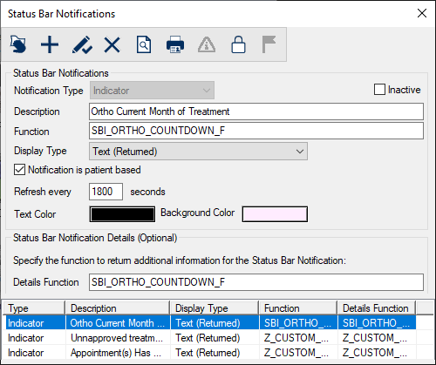
Status Bar Notifications Window
[Accessed from Maintenance > System > Status Bar Notifications]
The Status Bar Notifications window allows you to configure a status bar notification to display on the status bar, pop-up with a warning, or display an error to prevent users from completing an action. Status bar notifications are designed to alert users when information requires their attention.
 Status Bar Notifications - Field Definitions Status Bar Notifications - Field Definitions
| Notification Type
|
A drop-down list that indicates the type of status bar notification:
-
Indicator: Displays information to the user on the status bar or from a pop-up window.
-
Intervention: Displays information to the user and includes a severity and implies that action is required. They display warning messages or error messages to prevent the user from performing a certain action.
|
| Inactive
|
A checkbox that, when selected, indicates the record is inactive and not in use.
|
| Description
|
A text field that describes what the indicator or intervention does.
|
| Function
|
A text field that indicates the Oracle function name which will be called for this indicator or intervention.
|
| Display Type
|
A drop-down list that indicates how the indicator displays:
-
Image: The indicator will display an image (bitmap) based on the function’s return value.
-
Text (Mapped): The indicator will display text (up to three characters) based on the function’s return value.
-
Text (Returned): The indicator will display text returned by the function. This option displays the Text Color and Background Color fields below.
Note: This field only displays if the Notification Type field is set to Indicator.
|
| Notification is patient based
|
A checkbox that, when selected, indicates that the indicator applies to the currently selected patient.
Note: This field only displays if the Notification Type field is set to Indicator.
|
| Refresh every ____ seconds |
A text field that indicates the numeric value for how often this indicator refreshes (runs again).
Note: This field only displays if the Notification Type field is set to Indicator.
|
| Text Color
|
A color bar that indicates the text color to display for this indicator.
Note: This field only displays if the Notification Type field is set to Indicator. It is only enabled if the Display Type field is set to Text (Returned).
|
| Background Color
|
A color bar that indicates the background color to display for this indicator.
Note: This field only displays if the Notification Type field is set to Indicator. It is only enabled if the Display Type field is set to Text (Returned).
|
| Type of Events
|
A drop-down list that indicates the event used for the intervention:
-
User based (always on login): These apply to the logged in user.
-
Patient based: These apply to the currently selected patient.
-
Controllable events: These are triggered before an event occurs to prevent potential issues before they arise.
-
Notification events: Ignore this type.
Note: This field only displays if the Notification Type field is set to Intervention.
|
| Input Data
|
A drop-down list that indicates the input parameters:
-
Patient Id
-
Treatment
-
Appointment
-
Approval Request
Note: This field 's functionality varies based on the Type of Events field. If set to Controllable events, you can select an entry. If set to User based (always on login), the field does not display. If set to Patient based, the field is read-only and Patient Id is selected.
|
| Extra Data Parameters
|
A checkbox that, when selected, indicates that the following parameters will be passed:
Note: This field only displays if the Notification Type field is set to Intervention and the Input Data field is set to Treatment or Appointment.
|
| Refresh
|
A drop-down list that indicates whether this intervention refreshes to check for changes to the intervention status:
Note: This field only displays if the Notification Type field is set to Intervention. It does not display if the Type of Events field is set to Controllable events.
|
| Frequency
|
A drop-down list that indicates how often the intervention runs:
Note: This field only displays if the Notification Type field is set to Intervention and the Refresh field is set to Yes.
|
| Details Function
|
A text field that indicates the name of the Oracle function that will return additional information for the indicator or intervention.
|
Indicator Values Window
[Accessed from Maintenance > System > Status Bar Notifications > Status Bar Notification Values ( ) icon] ) icon]
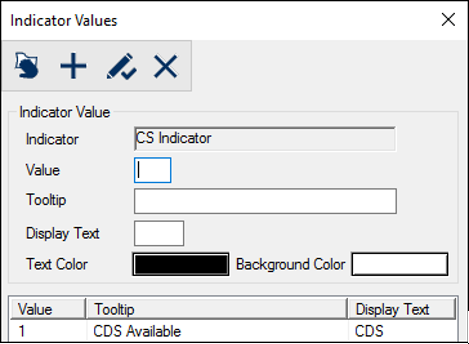
The Indicator Values window allows you to configure values that can be returned by the function associated with a status bar indicator. If the indicator's Display Type field is set to Image or Text (Mapped), you may also configure colors and display text.
The window displays when you open the Status Bar Notifications window, select a listed indicator, and click the Status Bar Notification Values () icon.
Indicator Values - Field Definitions
| Indicator
|
A read-only field that indicates the indicator that these values apply to.
|
| Value
|
A text field that indicates the returned (numeric) value from the Oracle function.
|
| Tooltip
|
A text field that indicates the text that displays in the tooltip when users hover over the indicator.
|
| Display Text
|
A text field that indicates the text (up to three characters) to display for the specified value.
Note: This field only displays for Text (Mapped) indicators.
|
| Text Color
|
A color bar that indicates the text color to display for this indicator.
Tip: You can select different colors to indicate level of severity.
Note: This field only displays for Text (Mapped) indicators.
|
| Background Color |
A color bar that indicates the background color to display for this indicator.
Tip: You can select different colors to indicate level of severity.
Note: This field only displays for Text (Mapped) indicators.
|
|
Display Symbol
|
The ellipsis is used to select the image file for this indicator value.
Tip: The recommended size is 27 x 18 pixels.
Note: This field only displays for Image indicators.
|
Intervention Values Window
[Accessed from Maintenance > System > Status Bar Notifications > Status Bar Notification Values () icon]
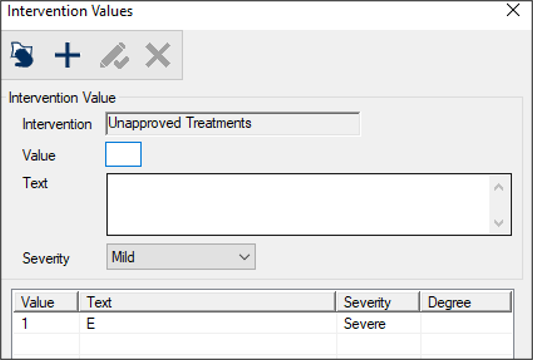
The Intervention Values window allows you to configure values that can be returned by the function associated with a status bar intervention and configure what will display to the user.
The window displays when you open the Status Bar Notifications window, select a listed intervention, and click the Status Bar Notification Values () icon.
Intervention Values - Field Definitions
| Intervention
|
A read-only field that indicates the intervention that these values apply to.
|
| Value
|
A text field that indicates the returned (numeric) value from the Oracle function.
|
| Text
|
A text field that indicates the text to display to the user when this value is returned.
|
| Severity
|
A drop-down list that indicates how the intervention displays:
Note: This field is only enabled if the Type of Events field is set to Controllable events.
Tip: Errors and warnings cannot be modified for different user levels. If you want a situation to display as an error for students and as a warning for faculty, you must specify two different interventions and grant access accordingly.
|
Indicator Access Window
[Accessed from Maintenance > System > Status Bar Notifications > Level Access ( ) icon] ) icon]
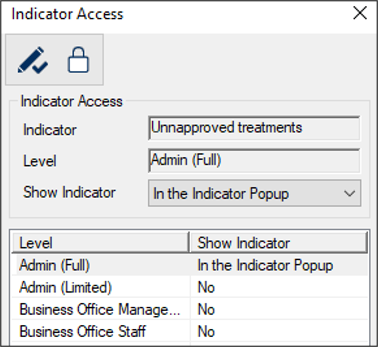
The Indicator Access window allows you to manage access to the status bar indicator. It displays when you open the Status Bar Notifications window, select a listed indicator, and click the Level Access () icon.
Indicator Access - Field Definitions
| Indicator
|
A read-only field that indicates the selected indicator.
|
| Level
|
A read-only field that indicates the selected user level(s).
Tip: You can use the SHIFT and CTRL keys to select multiple levels or double-click a level to display the Indicator Access by Level window and manage all indicators.
|
| Show Indicator
|
A drop-down list that indicates access for the selected user level(s):
- No: No indicator displays on the status bar.
- On Status Bar: An indicator displays on the status bar.

- In the Indicator Popup: An arrow indicator displays on the status bar which you can click to open a pop-up window.

|
Indicator Access - Tasks
| Configure Indicator Access
|
-
Select one or more user levels that should have the same access.
-
Set the access fields as necessary and click the Modify Record ( ) icon. ) icon.
-
Repeat the steps for all necessary user levels.
|
Intervention Access Window
[Accessed from Maintenance > System > Status Bar Notifications]
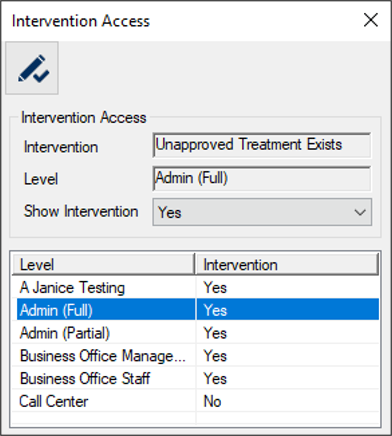
The Intervention Access window allows you to manage access to the status bar intervention. It displays when you open the Status Bar Notifications window, select a listed intervention, and click the Level Access () icon.
Intervention Access - Field Definitions
| Intervention
|
A read-only field that indicates the selected intervention.
|
| Level
|
A read-only field that indicates the selected user level(s).
Tip: You can use the SHIFT and CTRL keys to select multiple levels.
|
| Show Intervention
|
A drop-down list that indicates access for the selected user level(s):
- No: No intervention displays.
- Yes: An intervention displays.
|
Intervention Access - Tasks
| Configure Intervention Access
|
-
Select one or more user levels that should have the same access.
-
Set the access fields as necessary and click the Modify Record () icon.
-
Repeat the steps for all necessary user levels.
|
Intervention Events Window
[Accessed from Maintenance > System > Status Bar Notifications > Events ( ) icon] ) icon]
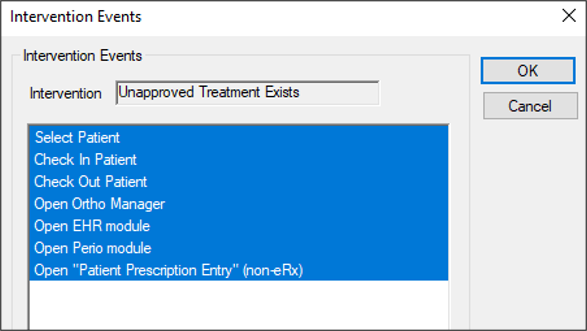
The Intervention Events window allows you to configure when the intervention should run. Specific events are associated to interventions that are patient-based or set to be controllable events. The result(s) of the intervention will determine whether an intervention displays to the user.
Multiple events may be selected, but event options vary based on the type of intervention.
-
Patient-based Events: Allow you to specify the action that has been performed and triggers the intervention.
Patient-based events include:
-
Selecting, checking in, or checking out patients.
-
Opening the Ortho Manager, EHR, or Perio modules.
-
Opening a non-eRx prescription.
-
Controllable Events: Allow you to specify the performed activity that triggers the intervention check. Unlike patient-based events that wait for an event to happen, controllable events display before the event occurs when a user attempts to perform an event.
Controllable events include:
-
Adding planned, in-progress, or completed treatments.
-
Creating an appointment.
-
Requesting approval for work completed during an appointment.
The window displays when you open the Status Bar Notifications window, select a listed intervention, and click the Events () icon.
Intervention Events - Tasks
| Add Events
|
-
Select one or more events.
Note: The available intervention events vary depending on whether the Type of Events is set to Patient based or Controllable events.
-
When ready, click OK.
|
| Remove Events
|
-
Deselect one or more events.
Note: The available intervention events vary depending on whether the Type of Events is set to Patient based or Controllable events.
-
When ready, click OK.
|
|
 ) icon.
  ) icon.
 ) icon.
  ) icon.
  ) icon.