| Name
|
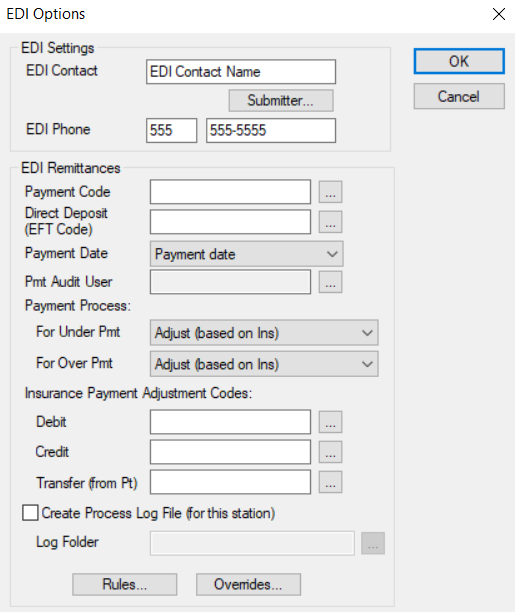
A text field that indicates the user at your institution that can be contacted for claim processing issues.
|
| Submitter...
|
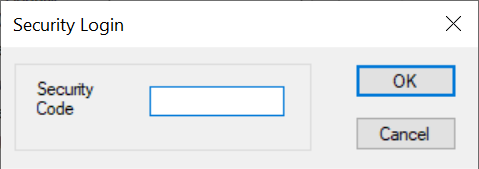
A button that displays the Security Login window and allows you to enter your submitter ID as part of the EDI setup.
|
| Phone #
|
A text field that indicates the phone number of the user specified in Name field.
|
| Submission Method
|
A drop-down list that indicates the claim submission method:
-
Create a submission file: A submission file that can be used to manually export or batch files will be created on claim submission.
-
Send to clearinghouse: Claims will be automatically sent to DentalXChange or another supported clearinghouse on claim submission.
-
Prompt: Users will be prompted with a Claims Submission Option window to choose a method on claim submission.
|
| Enable automatic checks for new response files
|
A checkbox that, when selected, indicates that axiUm checks for and imports automatically remittance responses. |
| Auto-check every |
A drop-down list that indicates the interval for how often axiUm checks for remittance responses:
-
5 minutes
-
15 minutes
-
30 minutes
-
1 hour
Note: The field is set to 5 minutes by default.
|
| Payment Code
|
A text field that indicates the insurance payment code used for remittance payments.
The ellipsis is used to display the Payment Codes window and select a payment code.
|
| Direct Deposit (EFT Code)
|
A text field that indicates the insurance payment code used for direct deposit remittance payments.
The ellipsis is used to display the Payment Codes window and select a payment code.
|
| Payment Date
|
A drop-down list that indicates how the remittance payment date displays in the Transactions module:
-
Payment date: The date of the payment, as indicated in the remittance file.
-
System date: The date the payment was processed in axiUm.
|
| Pmt Audit User
|
A text field that indicates the audit user for the payment and allocations.
The ellipsis is used to display the Users List window and select a user.
|
| For Under Pmt
|
A drop-down list that indicates how axiUm deals with underpayments on claims:
-
Add payment, no adjustments: axiUm adds the insurance payment allocation and leaves the debit balance unadjusted.
Note: This option prevents axiUm from applying adjustments, so users must apply adjustments manually.
-
Change tx to match: axiUm rebills the treatment and the treatment fee to match what the insurance paid.
Note: This option prevents axiUm from applying adjustments, but permits axiUm to automatically rebill treatments for the amount that insurance covered (preventing manual adjustments).
-
Adjust (based on Ins): axiUm transfers the balance to the patient or writes off the balance, as specified in the insurance company setup.
Note: This option allows axiUm to use adjustments or Intelli-adjustments.
|
| For Over Pmt
|
A drop-down list that indicates how axiUm deals with over payments on claims:
-
Add payment, no adjustments: axiUm adds the insurance payment allocation and leaves the debit balance unadjusted.
Note: This option prevents axiUm from applying adjustments, so users must apply adjustments manually.
-
Change tx to match: axiUm rebills the treatment and the treatment fee to match what the insurance paid.
Note: This option prevents axiUm from applying adjustments, but permits axiUm to automatically rebill treatments for the amount that insurance covered (preventing manual adjustments).
-
Adjust (based on Ins): axiUm transfers the balance to the patient or writes off the balance, as specified in the insurance company setup.
Note: This option allows axiUm to use adjustments or Intelli-adjustments.
|
| Debit
|
A text field that indicates the adjustment code used for debit insurance payment adjustments.
The ellipsis is used to display the Adjustment Codes window and select an adjustment code.
|
| Credit
|
A text field that indicates the adjustment code used for credit insurance payment adjustments.
The ellipsis is used to display the Adjustment Codes window and select an adjustment code.
|
| Transfer (from Pt)
|
A text field that indicates your universal transfer balance adjustment code.
The ellipsis is used to display the Adjustment Codes window and select an adjustment code.
Note: If you use Intelli-adjustments, this code must be set. For other adjustment methods, leave this field blank.
|
| Create Process Log File (for this station)
|
A checkbox that, when selected, indicates that axiUm creates a log file for the Auto Remittance process. |
| Log Folder
|
A text field that indicates the location where the log file is stored.
The ellipsis is used to navigate to and select the folder path.
|
| Rules...
|
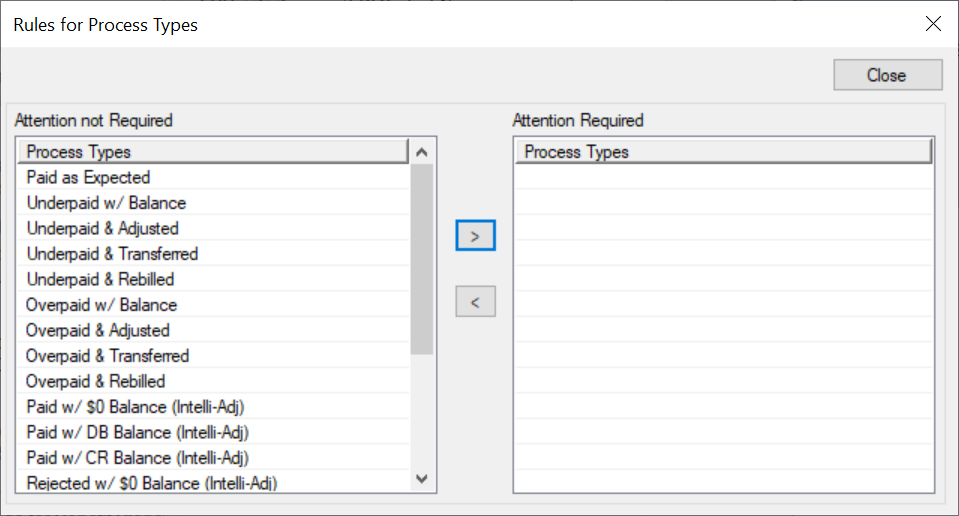
A button that displays the Rules for Process Types window and allows you to specify which Process Types should display in the report as requiring attention.
|
| Overrides...
|
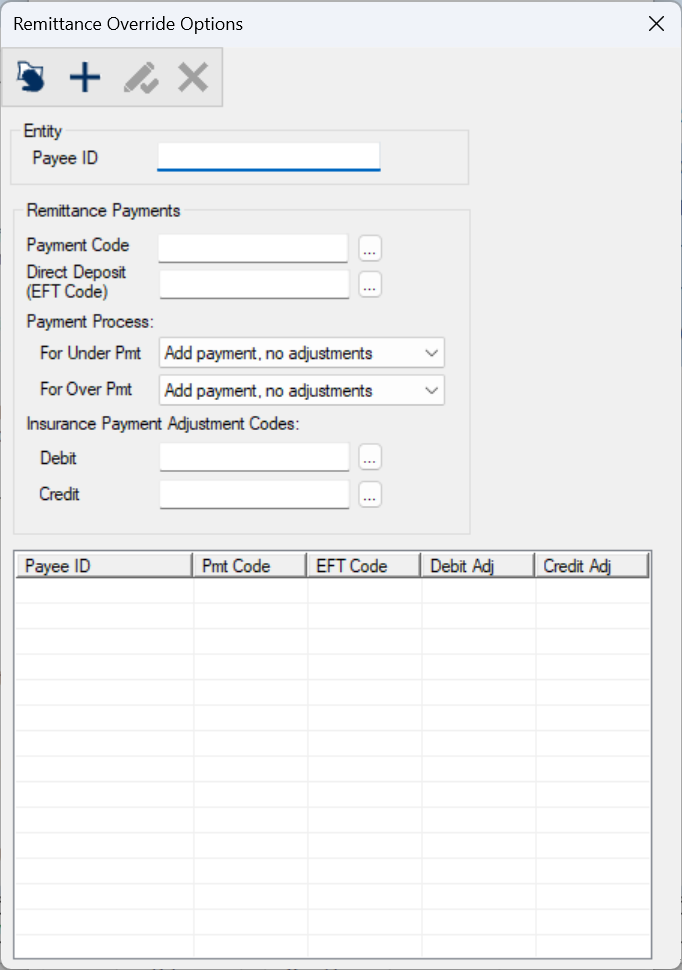
A button that displays the Remittance Override Options window and allows you to specify any payee related overrides.
|
 EDI (Claims) Options - Field Definitions
 ) icon.
 ) icon.
 ) icon.
 ) icon.