Print the Appointment Report

When necessary, you can print the contents of the Scheduler module > Active tab as the Appointment report.

Note: The Appointment report uses the apptform.rpt file in your SReports folder.

To print the appointment report:

  1. Open the Scheduler module and click the Active tab.

  2. click the Print View () icon to display the Appointment Report window.
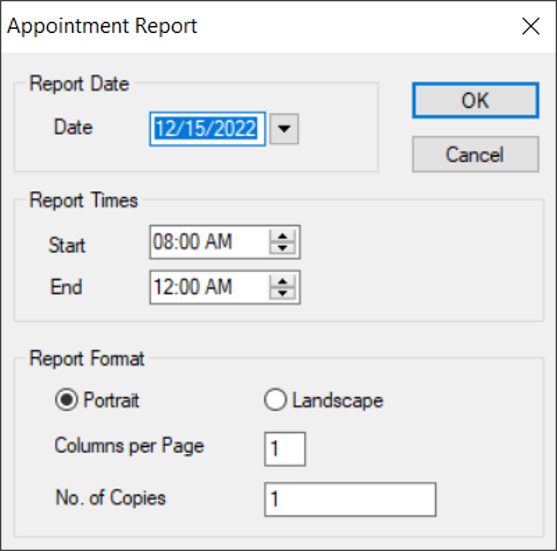
  3. Note: When working in any other Scheduler tab, the Print View () icon saves/prints a screen shot of the current tab.

  4. Complete the fields as necessary and click OK.

  5. Field Description
    Date

    The date defaults to today’s date.

    If necessary, you can select another date from the calendar drop-down.

    Start / End

    Enter start and end times for the report.

    Portrait / Landscape

    Select a radio button indicate the page orientation.

    Columns per Page

    Enter a value to indicate how many columns will display in the report.

    Note: axiUm can display up to eight columns in portrait format and 10 columns in landscape format.

    No. of Copies Enter a value to indicate the number of copies to print.