Make Chairs Unavailable

Sometimes you may need to make a chair unavailable for use in a clinic.

Example: The chair requires maintenance.

In some cases, chairs can be made unavailable because of a recurring reason.

Example: The clinic is closed every second Friday for classes.

Important: If making a chair unavailable for a range of dates, confirm the dates are correct. Chairs can only be made available again one at a time on each individual date.

To make a chair unavailable:

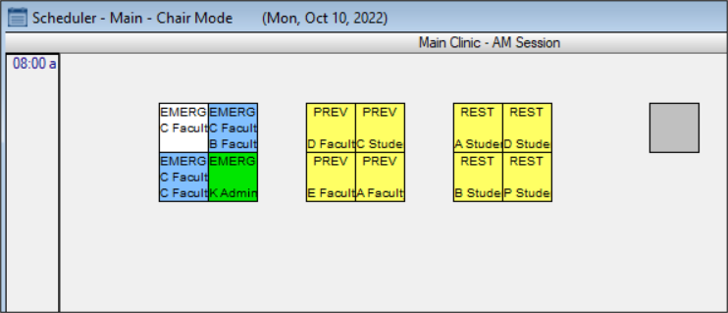
  1. Open the Scheduler module and click the Chair tab.
  2. Review the clinic layout.
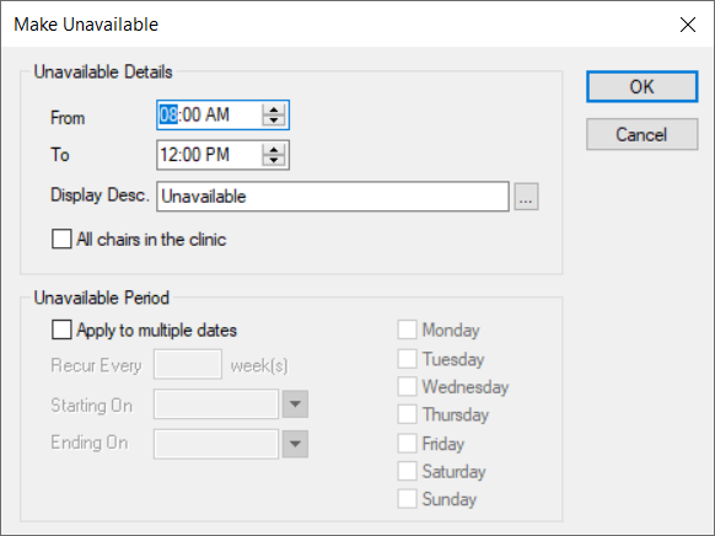
  3. Right-click a chair and select Make Unavailable to display the Make Unavailable window.

  4. Under Unavailable Details, complete the fields as necessary.

  5. Field Description
    From / To

    Enter the start and end times that the chair will be unavailable.

    Display Desc.

    Click the ellipsis to display the Closure Reasons window and select the reason the chair is unavailable.

    All chairs in the clinic

    Select the checkbox to indicate if the closure reason applies to all chairs in the clinic.

  6. If the chair will be unavailable for recurring dates, under Unavailable Period, complete the fields as necessary.
  7. Field Description
    Apply to multiple dates

    Select the checkbox to indicate that the chair(s) are unavailable over multiple dates.

    Note: If selected, all other fields in this section are enabled.

    Recur Every __ week(s)

    Enter a value to indicate how many weeks until the cycle repeats.

    Starting On / Ending On

    Select the start/end dates of the date range from the drop-down calendar.

    Monday – Sunday Select the checkbox for each day that the chair(s) will be unavailable.