Change Books
|
When working in the Scheduler, you can change which book you are viewing from the Active tab. Note: Books are not applicable when working in Availability mode. Books are only applicable for clinics that use Book mode to schedule appointments. There are two types of books you can work with when a clinic is set to Book mode:
Example: An Emergency Clinic has three chairs, each displayed as a column and appointments are scheduled into each chair. Example: A faculty practice lists six provider codes, each displayed as a column and appointments are scheduled below them. If necessary, you can change the book to lay out and view appointment information differently. To change the book:
Note: The (
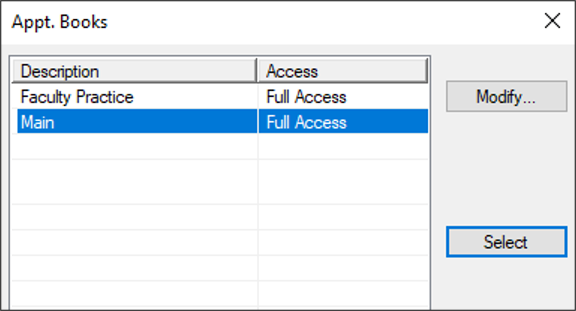
Note: Depending on your role, you may also be able to access the Books window from the Modify… button and add, modify, or delete books. In most cases, this button will be disabled via PowerAdmin. Important: The contents of the Active tab do not change. |
 ) icon to display the Appt. Books window.