Clinic Layouts
|
Note: Book mode does not require clinic layouts for clinics, but they can be used if a clinic is set to Book by Chair. Clinic layouts are a way to convey information in the Scheduler. This includes a floor plan of available chairs in the clinic, as well as other identifying information, such as which types of appointments and/or providers should be booked into each chair. Clinic layouts are created and managed from the Chair tab. There are two different types of layouts available:  Session Layouts Session Layouts
Session layouts allow you to stamp chairs with instructor, discipline, and provider group information for a session. Important: If using session layouts to control instructor schedules, ensure that instructor schedules are not configured from Maintenance as this may cause scheduling conflicts. Each clinic can use only one set schedule. Note: When working in Availability mode, provider group information cannot be added to the session layout. Daily Layouts
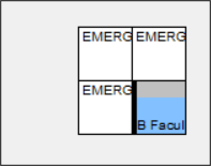
Daily layouts allow you to stamp chairs with instructor, discipline, and provider group information for a day. They also allow you to create chair reservations for providers. Chair reservations allow you to assign a provider to a chair for a specific date and time. Tip: Daily layouts can be used as an override for session layouts. Note: When working in Availability mode, provider group information and chair reservations cannot be added to the daily layout. Tip: If working in Book or Chair mode, you can configure a station option to enforce any stamped provider group settings so that a warning message displays when a user attempts to reserve a chair for a provider not in the group stamped on the chair. This is configured from the Scheduler Options window > Warn if Reserving Chair Assigned to other Provider Group field. Chairs can display in a clinic layout in different colors based on their status. Chair Colors
The following may also display on chairs:
Tip: A black band signifies that there are no appointments with set statuses. Note: Appointment backgrounds must be configured to use appointment status colors in the Scheduler > Active tab. This is configured from the Scheduler Options window > Appt Background Color field and Show Appt Status Colors on Chair Tab field.
|
 ): This indicates the chair is not reserved.
 ): This indicates the chair is reserved for a provider other than the current user, but no appointments are scheduled.
 ): This indicates the chair has an appointment, and the provider scheduled an appointment.
 ): This indicates the chair is reserved for the currently logged in provider.
 ): This indicates the chair is reserved for another provider and a staff member scheduled an appointment.
 ): This indicates the chair is unavailable.
 ): This indicates the chair is unavailable due to a clinic holiday.