Add Patient Need Requests

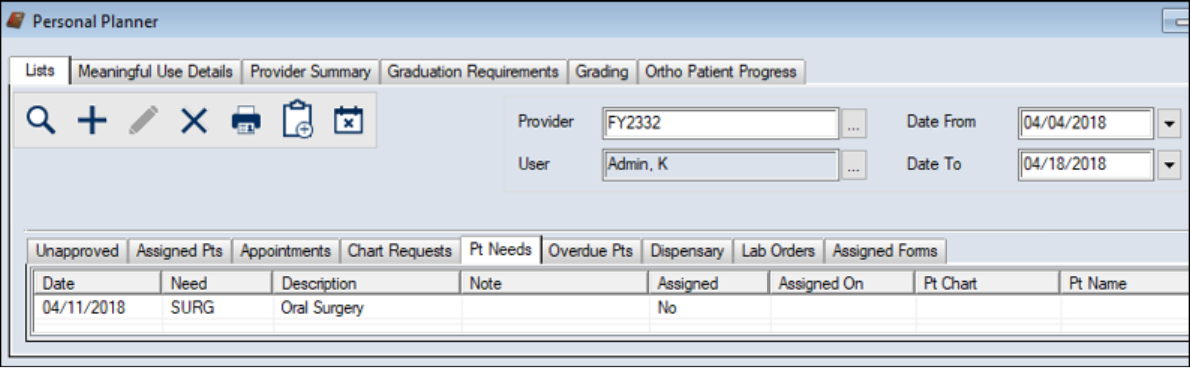
You can add patient need requests from the Personal Planner > Lists tab > Pt Needs sub-tab.

To add a patient need request:

  1. Open the Personal Planner to the Lists tab and click the Pt Needs sub-tab.
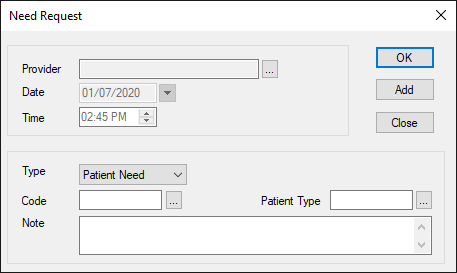
  2. Click the Create a new Record () icon to display the Needs Request window.
  3. Complete the fields as necessary and click OK.

    Tip: If you plan to add multiple needs, click the Add button. This allows you to continue adding needs.

    Field Description
    Provider

    This indicates which user is making the need request.

    If enabled, you can click the ellipsis to change the

    user and make the need request for someone else.

    Date / Time

    Read-only fields indicating the date/time of the request.

    Type

    Select one of the following from the drop-down list:

    • Patient Need: The need is for a patient’s need.
    • Note: If selected, the Code ellipsis displays need codes.

    • Tx Procedure: The need is for a specific treatment.
    • Note: If selected, the Code ellipsis displays

      procedure codes.

    Code

    Click the ellipsis to select a need or procedure code being

    added.

    Example Need Codes: Crown, Complete Denture,

    Consult Required.

    Example Procedure Codes: D1110. Prophy – child,

    D0330. Panoramic film

    Patient Type

    Click the ellipsis to select a patient type.

    Examples: Faculty Practice patient, Typodont.

    Note

    If applicable, enter a note describing any details about this

    request.