Add Chart Requests
|
Chart requests control access to paper charts so only one person may use a chart at one time. There are two chart request types:
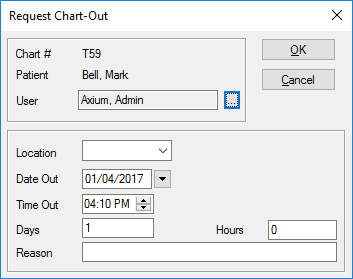
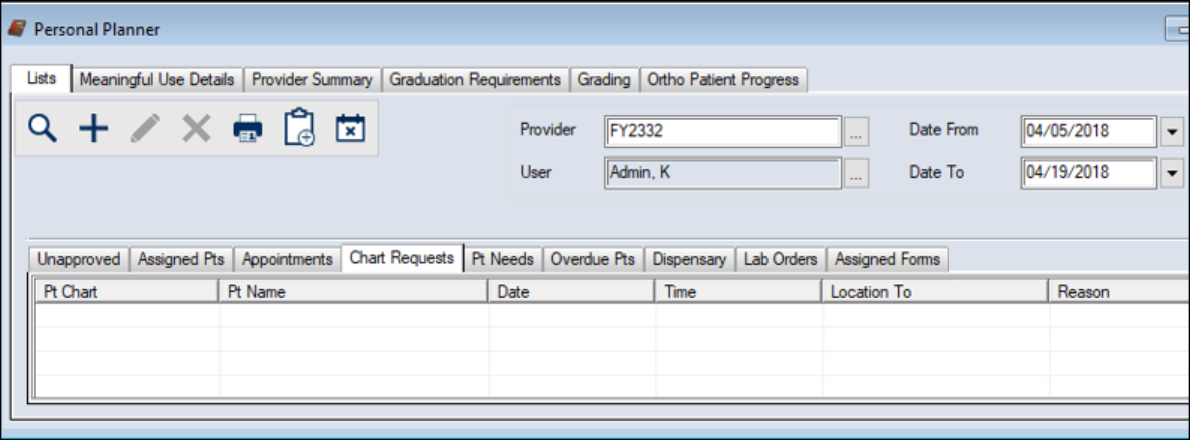
The person responsible for dispersing charts ensures the user receives the chart at the specified date and time. You can add both electronic and paper chart requests from the Patients module and the Personal Planner > Lists tab > Chart Requests sub-tab. Note: After you submit a chart request, you can view, modify, or delete it from the Chart Tracker module or the Personal Planner module. Tip: Staff responsible for chart allocations can view requests in the Chart Tracker module. To add a chart request:
 Access from the Patients module Access from the Patients module
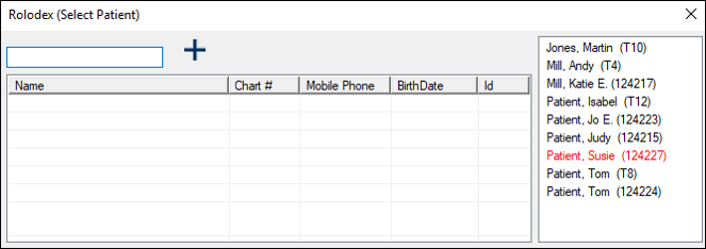
Note: If the patient has an electronic chart, a warning appears and asks if you want to continue. Click Yes or No as necessary. Access from the Personal Planner module
Note: If the patient has an electronic chart, a warning appears and asks if you want to continue. Click Yes or No as necessary.
Note: If another user has already made a chart request for the same date/time period, an error displays.
|
 ) icon to display the Select Patient window.