Review / Edit Perio Status and PSR Scores
|
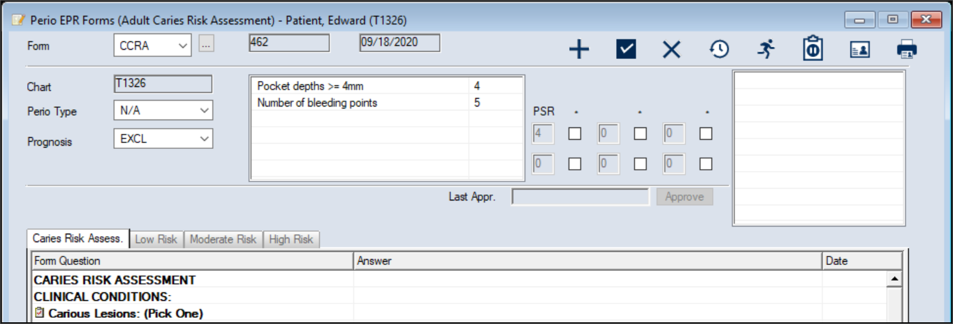
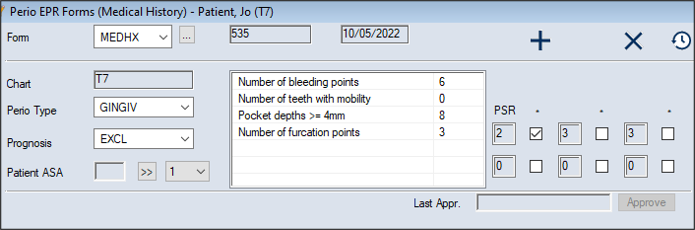
You can view the patient’s current perio status, listed conditions, and current PSR scores at the top of the Perio EPR Forms window. Each PSR score box represents an intraoral sextant. Intraoral sextants are designated S1-S6 beginning in the maxillary upper right sextant (S1), proceeding in a clockwise manner, and finishing in the mandibular lower right sextant (S6). When necessary, you can modify the information to keep it current with the patient’s progress. Note: Depending on your setup and institution’s requirements, axiUm may calculate the patient’s PSR scores automatically or you may need to enter scores manually. To review / edit the perio status and PSR scores:
Note: If the patient does not have any perio exams on file yet, the fields are blank.
Note: This field only displays if the form is configured to trigger ASA values at the page level. Note: Any changes are saved automatically.
|
 ) icon to display the Perio EHR Forms window.