Add Procedures / Findings

You can add procedures and findings related to periodontics to a patient record to ensure the patient record is complete. Findings are previously performed procedures, and pre-existing conditions and materials.

Tip: Materials display on the chart with a status of E and conditions display with a status of A.

To add a procedure or finding:

  1. Select a patient and open the Perio Chart module.
  2. Click the Perio Treatment History () icon to display the Perio Tx History window.
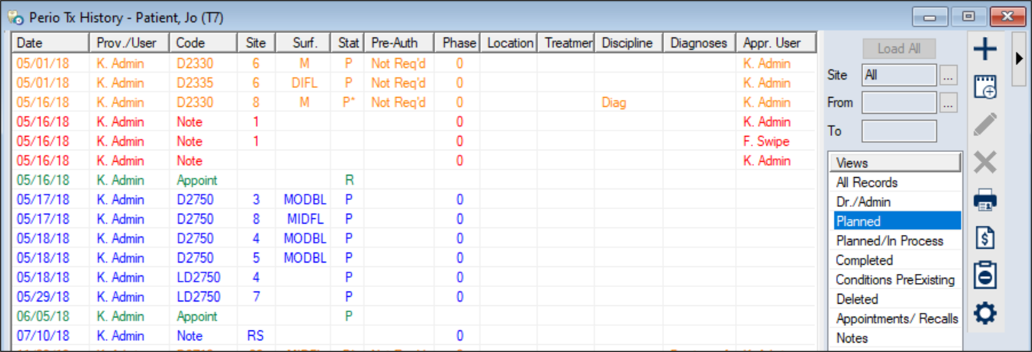
  3. Click the Create a new Record () icon to display the Add Treatment window.
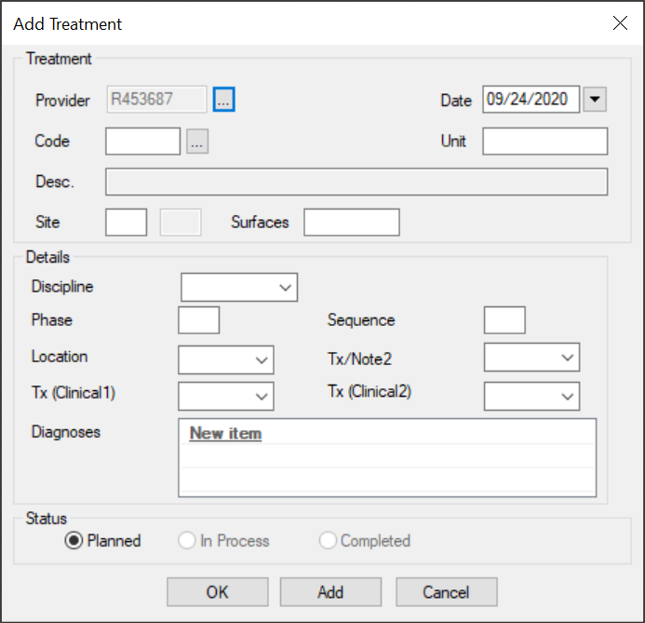
  4. Complete the fields as necessary and click OK.
  5. Field Description
    Provider

    This defaults to the logged-in provider.

    If necessary, click the ellipsis to display the Providers List window and select the treatment provider.

    Date

    This defaults to the current date.

    If necessary, change the date to the appropriate treatment date.

    Code

    Enter the procedure code being added to the patient record.

    Tip: You can also click the ellipsis to display the Procedure Codes List window and select the procedure code.

    Unit

    This defaults to the units specified in the procedure code setup and affects the treatment charge if the procedure code is set up with factor units.

    Note: If factor units are configured, the Maintenance > Clinical > Procedure Code window > Options section > Factor Units? checkbox is selected and the text field displays a value.

    Desc. A read-only field that displays the description of the selected procedure code.
    Site

    Enter the tooth site for the procedure.

    Notes:

    • If the procedure code requires multiple sites (e.g., a bridge), the second site field is enabled.
    • To add the procedure on multiple teeth (e.g., multiple extractions) you must select the teeth using the odontogram. The Site field will display ++ to indicate multiple procedure sites.
    Surfaces

    If applicable, enter the surfaces on the tooth that this procedure applies to.

    Tip: You can enter the surfaces in this field or select them on the odontogram.

    Discipline

    This is the discipline associated with this procedure.

    If necessary, select a treatment discipline from the drop-down list.

    Note: The entries are configurable from Maintenance > Clinical > Tx Disciplines.

    Phase / Sequence If used, enter the phase and sequence for this procedure.
    Diagnosis

    The diagnosis associated to the procedure.

    Click New item to begin typing a diagnosis. Intelli-sense will display matching diagnoses.

    Tip: You can also click the ellipsis to display the Select Clinical Diagnosis window and locate the appropriate diagnosis.

    Custom Fields Enter any information for custom fields configured by your institution.
    Edit Billing Information

    Note: This checkbox only displays for users that don't require approval for treatments.

    Select the checkbox if axiUm should display the Patient Approvals window and allow users to modify the billing information before the treatment is approved.

    Note: If deselected, axiUm automatically approves the billing information associated to this treatment.