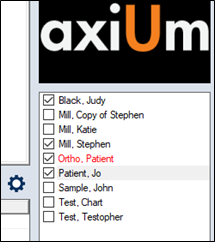
Select Patients

You must select a patient to complete many (most) activities in axiUm.

When you select a patient:

  • Their basic details display in the Patients window > patient information area and you can open the Patient Card window to display all detailed patient information.
  • Their name and chart number also appear in the status bar.
  • Other modules display the patient’s specific information, when opened.
  • Example: If the Case Management module is opened, the window displays that patient’s cases, forms, Tx History, etc.

    Note: The fields you see in the patient information area depend on your institution’s axiUm configuration. They can be customized as necessary.

There are a variety of ways to select a patient in axiUm. Some of the more common ways include:

  • From the Patients window > search results.
  • From the Patients window > selection list.

To select a patient:

  1. Open the Patients window and review the selection list.
    • If the patient is present in the list, click the patient to select the patient.
    • If the patient is not present in the list, search for the patient.
      • From the search results, click the patient to select the patient.

      Note: From the menu bar, you can also click Patient > Select Patients to select a patient.