Grant Patients Access to Accounts
Patients need to be granted access to their PatientAccess account. This allows them to perform any of the following:
- View and confirm appointments.
- Update personal information, including contact and address details.
- View medical information, including problems, alerts, allergies, and medications.
- Change their user names, passwords, and security questions.
- View contact information and frequently asked questions.
Some institutions offer PatientAccess self-registration to patients. If your institution allows patients to use PatientAccess self-registration, they can create their password without assistance.
If your institution does not offer self-registration, or patients prefer to have their credentials assigned to them, you can still create the credentials manually.
To grant a patient access to an account:
- Open the Patients module and select a patient.
- Open the Patient Info window and click the Personal tab.
- Confirm the patient’s email address is entered in the Email field.
- Click Create PatientAccess Account....
- When prompted, click Yes to display the PatientAccess Info. window.
- Perform one of the following:
- Click Send Email Invitation to send the patient an email allowing them to complete the registration process.
- Click Regenerate to generate another password to provide to the patient.
- Click the Modify Record (
 ) icon to save your changes.
 - Provide the patient with the following:
- The web address (URL) for PatientAccess.
- The patient’s user name.
- The patient’s temporary password.
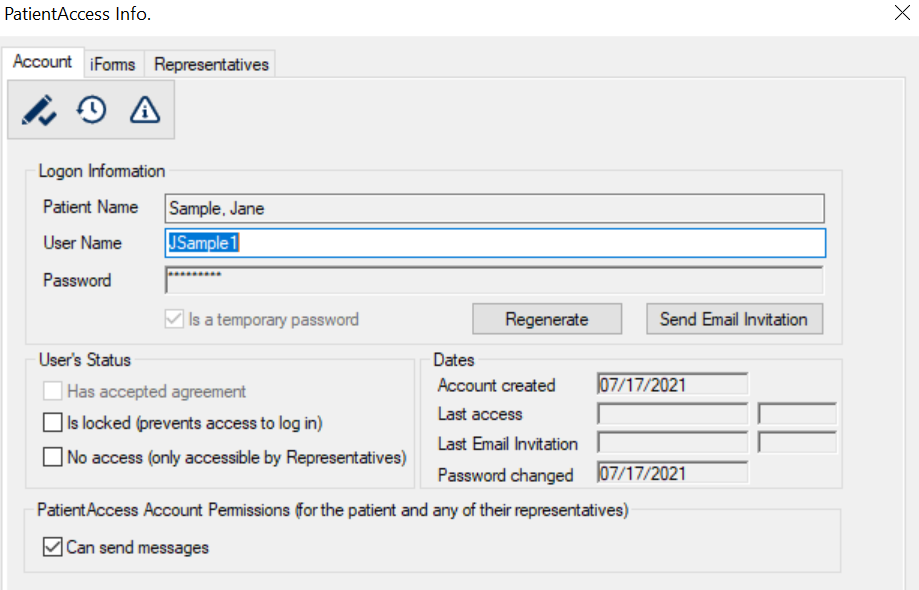
axiUm displays an auto-generated user name and encrypted password.