Add Physicians

During or after the patient record creation process, you can add the patient’s physician to the record. This is helpful if you must contact them concerning the patient and any dental procedures.

To add a patient physician:

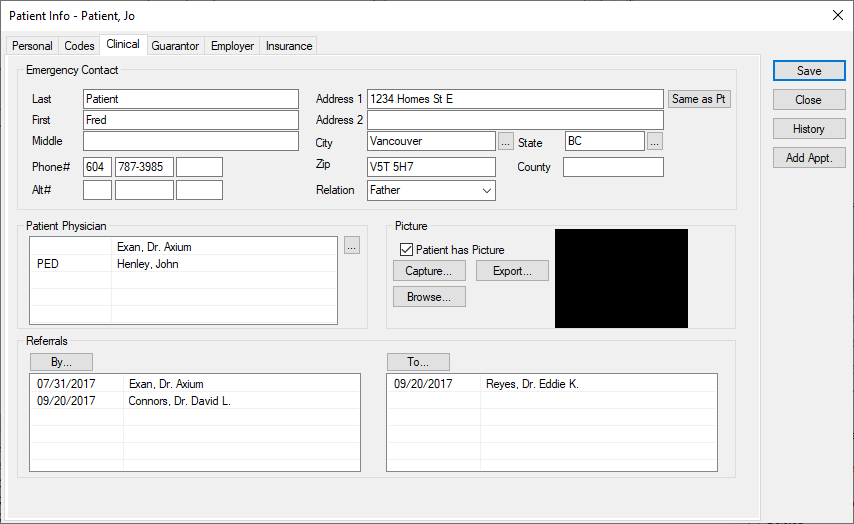
  1. Select a patient and open the Patient Info window > Clinical tab.
  2. Review the patient’s details, including the Emergency Contact, Patient Physician, Picture, and Referrals sections.
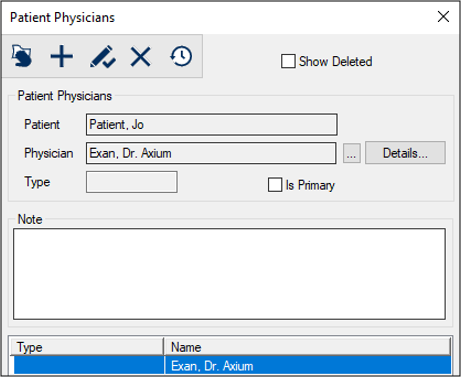
  3. Under Patient Physician, click the ellipsis to display the Patient Physicians window.
  4. Complete the fields as necessary and click the Add a new Record () icon.
  5. Field

    Description

    Patient

    A read-only field that displays the patient name.

    Physician

    Click the ellipsis to open and select a physician.

    Type

    The field auto-populates if the selected physician has a type.

    Details

    Click the button to display the Physicians window and review or modify information.

    The physician’s name, clinic, address, and contact information display.

    Note: This button is enabled once the physician has been added.

    Is Primary

    Select the checkbox if the physician is the patient’s primary.

    Note

    Enter any additional information.