Manage Patient Records
|
As patients return to your institution for additional appointments, patient records must be kept up-to-date in the Patient Info window. You can open the Patient Info window using two methods:
Note: If a patient marks their personal information incorrect or updates it from their PatientAccess account, a sticky note displays when you select the patient record. Depending on the changes made, you can review the sticky note contents, confirm the changes with the patient, and make the changes as necessary on the applicable tab.  Manage the Personal Tab Manage the Personal Tab
The Personal tab holds patient details such as name, chart number, address, contact information, personal demographics, items related to patient status, and assigned dental staff. You can also use the Personal tab to specify if a patient’s address is incorrect, deactivate patient records, and specify a patient’s access to PatientAccess. To manage the Personal tab:
Modify the Personal Tab fields
View Additional Gender Information History
Specify Address Is Incorrect
If the home address attached to a patient record is incorrect, you can mark it as incorrect until the correct address can be added. To specify an address is incorrect:
A sticky note is generated and remains on the Patient Card window as a reminder to update to the correct address. Deactivate Patient Records
In some situations, it is necessary to deactivate a patient record. Examples: If the institution is notified that a patient has passed away, moved out of the area, or if they are excused from the institution, or don’t pay their bills. Tip: Many institutions include a custom field on the Codes tab that allows you to select an inactivation reason entry that describes the situation. Grant Access to PatientAccess Accounts
Your institution may allow your patients and/or their representatives to use PatientAccess. If given access, patients can use PatientAccess to manage their account, forms, and additional details. Manage Patient Assignments
The Assignment section lists all staff assigned to a patient. Manage the Codes Tab
The Codes tab holds patient details such as school, banking, and billing information, patient alerts and office codes that apply to the patient, custom fields and custom info (if configured by your institution). You can also use the Codes tab to display the Ortho Patient Information and Patient Needs windows. To manage the Codes tab:
Modify the Codes Tab Fields
Set as Ortho Patient
When a patient is specified as an ortho patient, they receive ortho-specific treatment because scheduling, clinical aspects, and billing are completed differently. If a patient is an ortho patient, you must indicate their current set as it tracks their progression through their treatment. Tip: You can also display the Ortho Patient Information window from the Patients window > Patient Card window > Ortho Information (
Note: To remove an ortho program, deselect the Is Ortho Patient checkbox. Manage Patient Needs
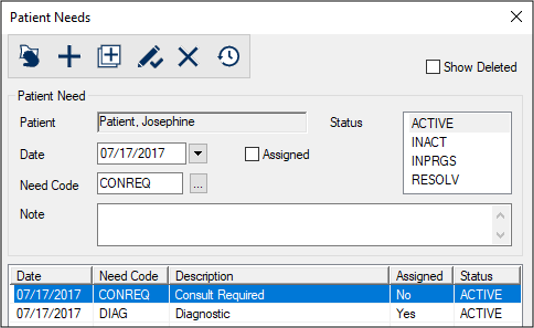
Patient needs can be managed in the Patients module and the Patient Info window > Codes tab. A patient need is an identified dental issue or requirement that must be addressed by your institution. Some patients may have multiple needs. Patient needs aren’t specific to ADA codes and have no associated dollar value. Example: A patient arrives at the institution and requires a crown. Most institutions enter patient needs during the screening period. Once identified, axiUm uses the needs to match patients to providers who must fulfill specific treatment procedures to meet their graduation requirements. To manage patient needs: Tip: You can also open the Patients window > right-click the patient > select Patient Needs to display the Patient Needs window.
Add One Patient Need
Add Multiple Needs
View Needs
View Deleted Needs
The deleted patient need displays in the lower list in gray. Edit Needs
Remove Needs
Manage the Clinical Tab
The Clinical tab holds patient details such as the emergency contact information, physician, photo, and referral information. You can use the Clinical tab to add a new photo, a referral, or modify the physician. To manage the Clinical tab:
Modify the Clinical Tab Fields
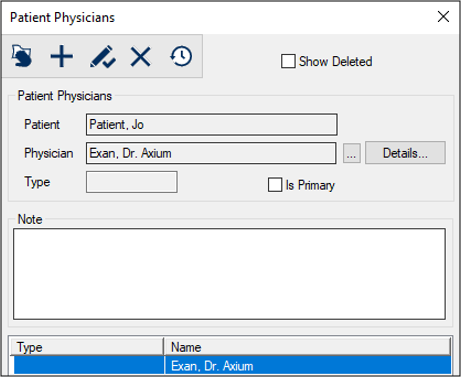
Add Physicians
During or after the patient record creation process, you can add the patient’s physician to the record. This is helpful if you must contact them concerning the patient and any dental procedures. To add a patient physician:
Manage Patient Photos
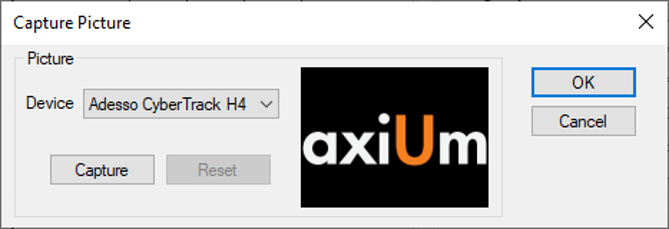
You can add a patient photo to help identify the patient when they arrive at the clinic. Tip: If a patient doesn’t want to have a photo taken, upload a standard or stock image to indicate the patient declined and prevent you from asking again. Note: You can use TWAIN driver webcams, integrated webcams, and USB-connected webcams to capture patient and user photos in axiUm. Upload Patient Photos
Capture Patient Photos
Export Patient Photos
Note: The image file is saved in the same format used for the original photo. Manage Referrals
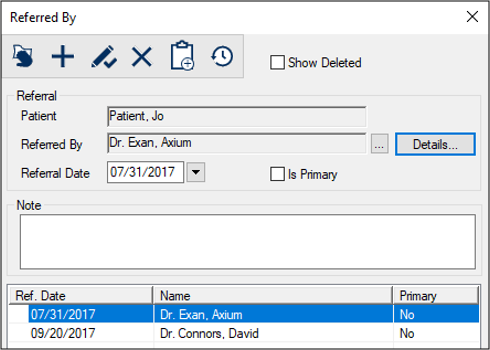
You can add referrals to the patient record. There are two types of referrals: Examples: Another physician, the yellow pages, an advertisement. Referrals include information such as the type, any associated clinical or office codes, and the contact and ID information, if applicable. To manage referrals:
Add Referrals
Edit Referrals
Delete Referrals
View Referral History
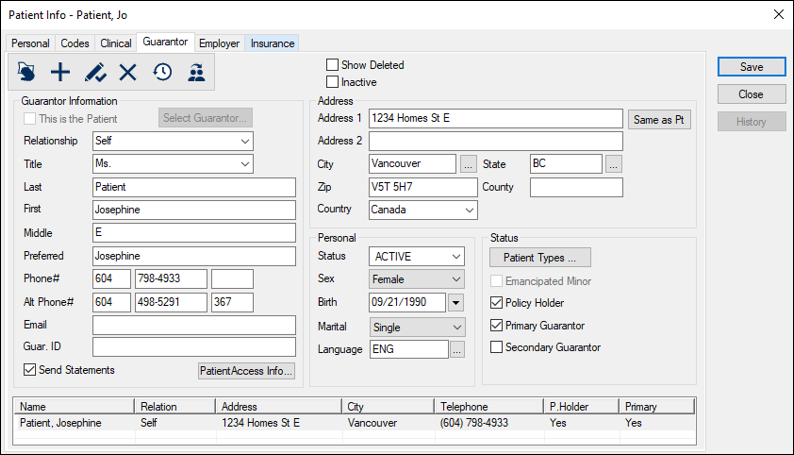
Manage the Guarantor Tab
The Guarantor tab holds guarantor details such as name, address, contact information, personal demographics, and items related to status. You can also use the Guarantor tab to remove guarantor records from the patient record, convert a guarantor to a patient, or delete guarantor records. To manage the Guarantor tab:
Specify Additional Guarantors
Modify Guarantor Information
Convert Guarantors to Patients
If a patient’s guarantor also decides to attend your institution, you can convert their guarantor record into a patient record. Note: This does not remove them as guarantor from other patient records. Note: If the icon is disabled when the guarantor is selected, the guarantor is already a patient. Tip: Change the guarantor patient's status to Active. Remove Guarantors from Patient Records
Occasionally you may need to remove a guarantor from a patient record. Example: If a guarantor is no longer responsible for a patient. To remove a guarantor: Note: All patients much have a guarantor marked as primary. If necessary, another guarantor can be added and marked as primary. The guarantor is removed from the patient record. Delete Guarantors
Occasionally you may need to delete the guarantor from axiUm. Example: Duplicate guarantor records. When deleting a guarantor, we advise you to identify which guarantor record must be removed before removing the record. Tip: Modify an obvious field such as the phone number or name that clearly identifies it as the record you want to delete. Deleting a guarantor is much more permanent than removing the guarantor from a record. To delete a guarantor, you must convert the guarantor to a patient, then delete the patient record. To delete a guarantor: Note: If the patient is a guarantor for other patient(s), and you attempt to delete without removing them as guarantor from the other records, you will get an error message telling you that you cannot delete a patient who is another patient’s guarantor. The patient is deleted from axiUm. Manage the Employer Tab
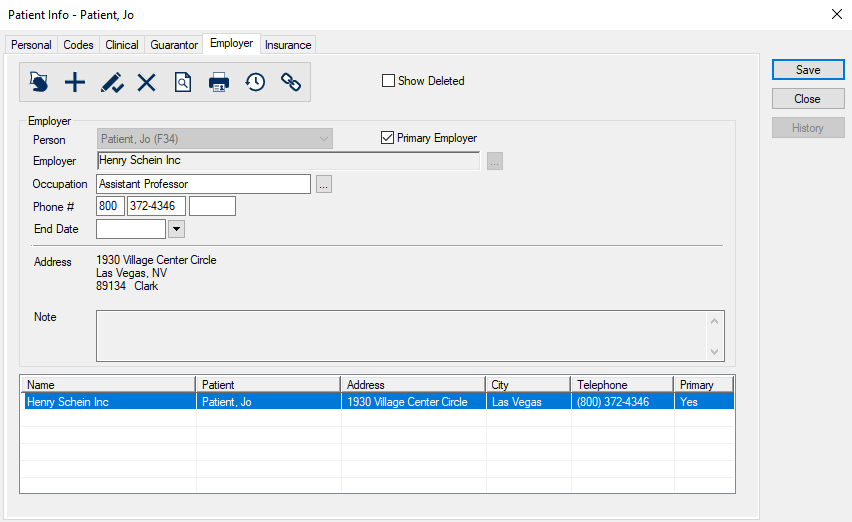
The Employer tab holds a patient’s work details (if applicable) such as employer company, occupation, address, and contact information. You can also use the Employer tab to link patients to employer insurance benefit plans. To manage the Employer tab:
View Deleted Employer Records
Add Employers to the Patient Record
Modify Employer Information
Remove Employer Information from Patients
Warning: If a benefit plan is attached to an employer, you cannot remove the employer from the patient record until you remove the plan from the patient record. If associated with other patient records, the employer is removed from the patient record, but remains in axiUm. If the employer is not associated with other patient records, a second prompt displays, asking if you want to delete the employer record. Manage the Insurance Tab
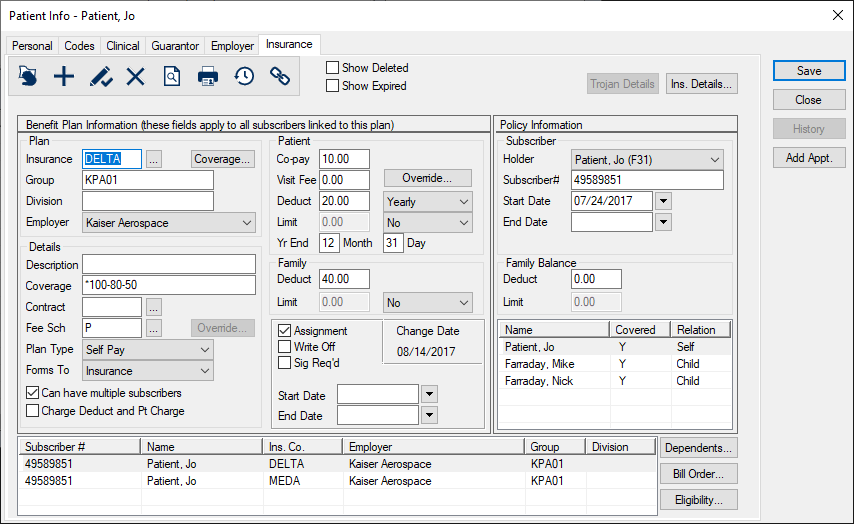
Insurance benefit plan information displays in the Patient Info window > Insurance tab. Information located under the Benefit Plan section affects all subscribers to the policy; information located under the Policy Information section affects only the individual subscriber. To manage the Insurance tab:
View Insurance Company Information
Note: If the plan is a Trojan plan, click Trojan Details. Tip: You can also double-click a listed entry. View Current Benefit Plan Coverage
Note: The window that opens depends whether the benefit plan is linked to the patient record. View Deleted Benefit Plans
Specify Benefit Plans
Modify Benefit Plan Information
Note: If you edit insurance information on a patient record, the changes are reflected on any dependent patient records. If you added changes to the Benefit Plan Information section, a warning cautions that your changes will affect all subscribers. Note: If changes must be reflected in previously created claims, treatments will need to be rebilled using the updated coverage information. Remove Benefit Plan Information
|
 ) icon.
 ) icon and click the relevant pane to open the Patient Info window to the related tab.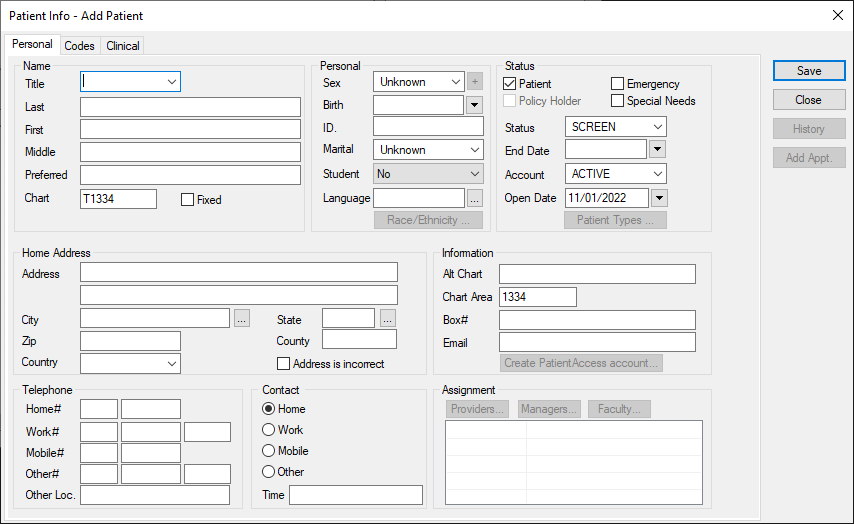
 ) icon to display the history of the patient’s answers.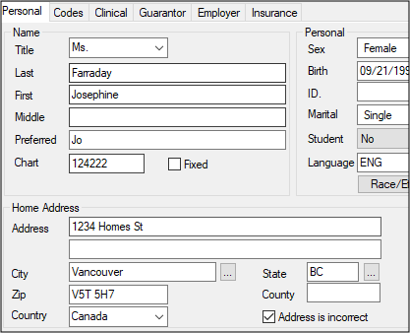
 ) icon.
 ) icon to display the PatientAccess Security Questions window and set Questions 1-3.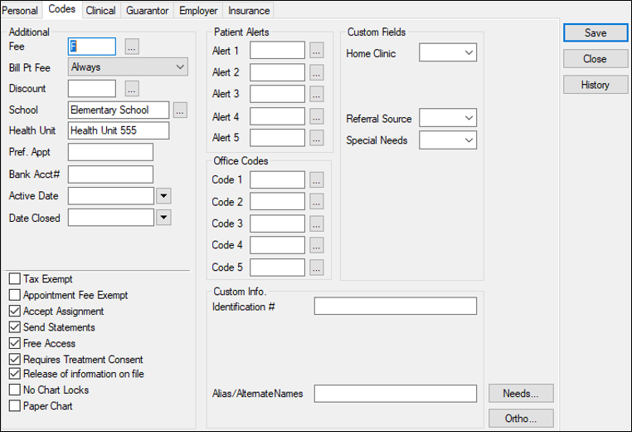
 ) icon.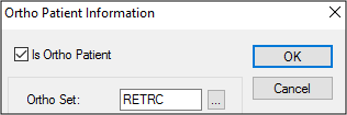
 ) icon.
 ) icon.
 ) icon to display the Add Patient Needs window.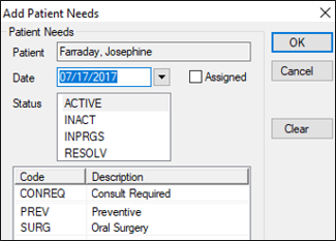
 ) icon.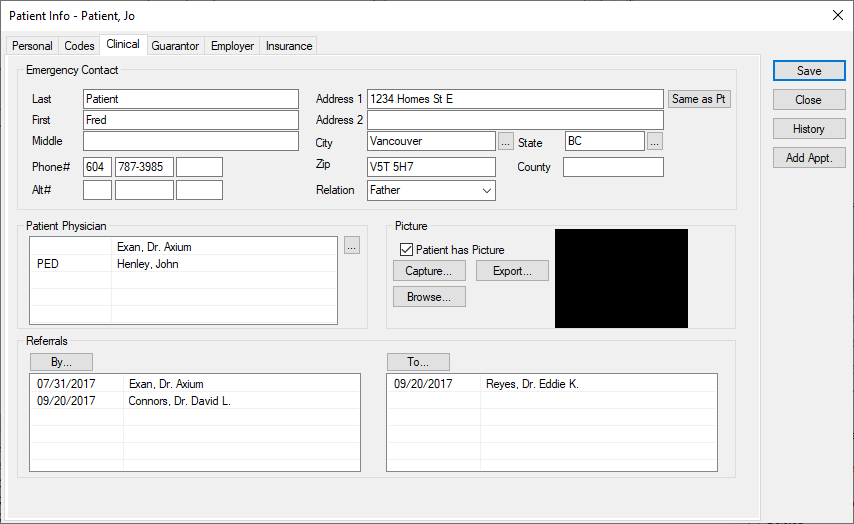
 ) icon.