Approve Problems
|
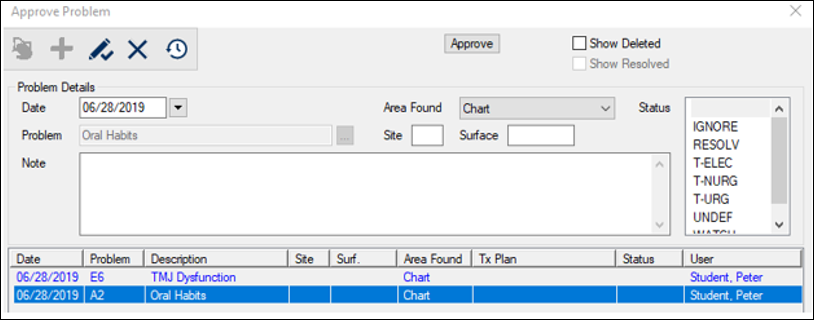
When approving a problem record type, the Approve Problem window displays. Note: If multiple problems require approval, the currently selected problem displays. The Approve Problem window re-displays when the next selected problem is reached in list of approval items.
Note: Only the highlighted entry will be approved. The other entries cannot be selected and will be approved when reached in list of approval items. To approve a problem:
Note: If you do not click the Modify Record ( Note: If you click X or the Delete ( |
 ) icon.
 ) icon to delete the problem and display the Abort Approval Process Question window.