Approve EPR Forms
|
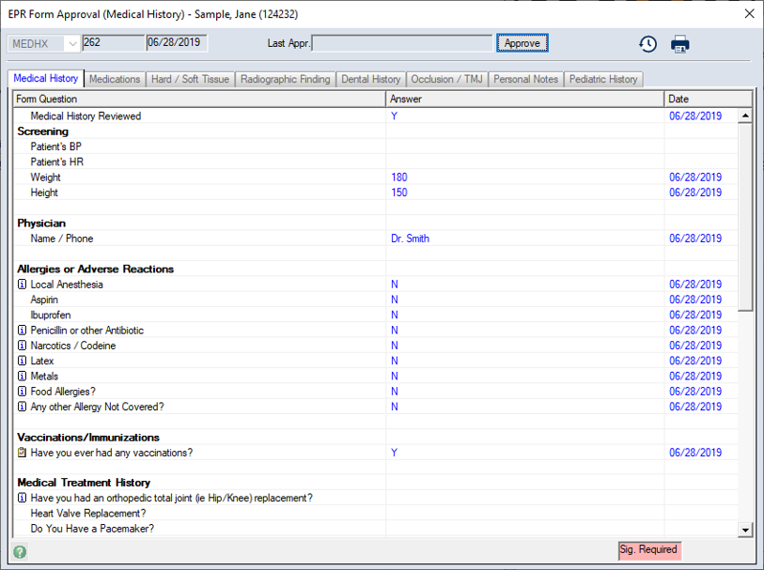
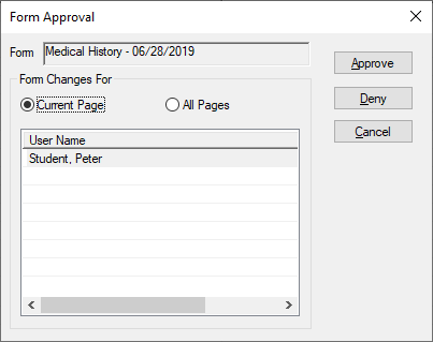
When approving a form record type, the EPR Form Approval window displays.
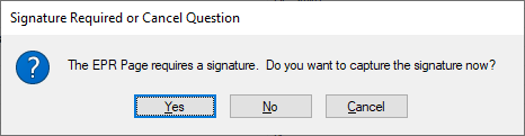
If a signature is required, but has not yet been obtained, a prompt to enter a signature displays.
Note: If you click Cancel and other items are selected for approval, the Abort Approval Process Question window displays. Click Continue or Stop as necessary.
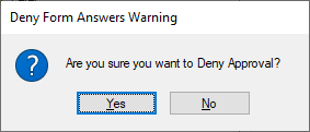
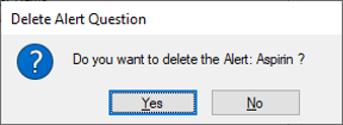
Important: If all changes are denied and the form was previously approved, it reverts to those answers. If all changes are denied and the form has no previous versions, the form is deleted. If answers to specific questions created other records, such as Alerts, the related prompts display. Click Yes or No as necessary.
|