Substitute Internal Order Products
|
If you are unable to fill an internal order from the main warehouse, it may be necessary to substitute another item for the item on the pick list. After an internal order has been reviewed and a pick list has been printed, you must use the printed pick list to fill an internal order from the main warehouse, and update the Inventory module.
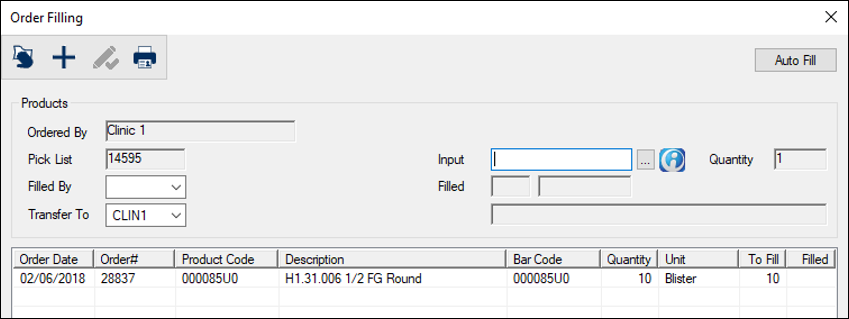
The Order Filling window displays with the item in the list.
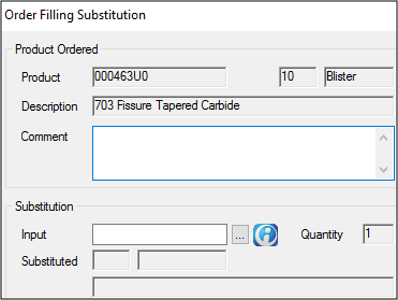
The Product and Description fields are auto-populated with the product being substituted. The content is auto-pulled into the Substituted fields. |