Place Internal Orders

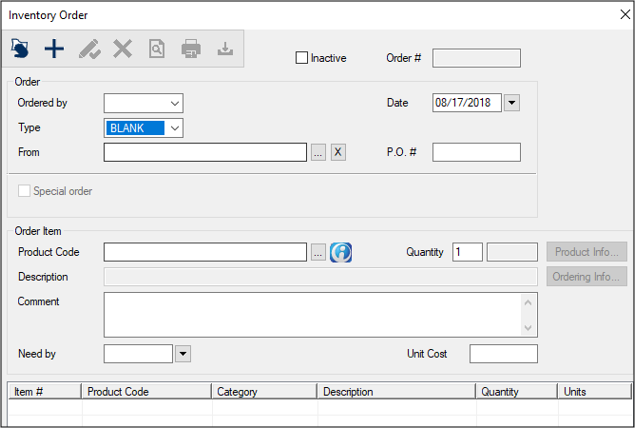
  1. Open the Inventory module and click Order... to display the Inventory Order window.
  2. Complete the Order fields.
  3. Field Description
    Ordered By

    Select the location that requires the product(s).

    Type

    Select the entry that indicates an internal order.

    Example: Internal Order

    From

    Select the location the product(s) are currently located in and you want to order from.

    Example: Your main warehouse.

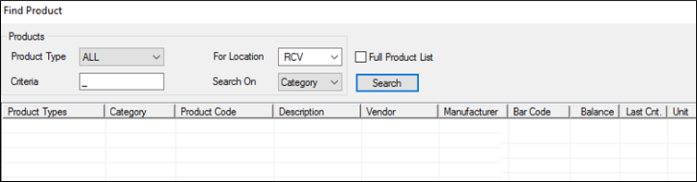
  4. Next to the Product Code field, click the ellipsis to display the Find Product window.
    1. From the For Location drop-down list, select your current location and click Search.
    2. Note: This ensures the search displays results for the location that needs more products.

    3. From the list of results, hold Ctrl and multi-select the products you require.
    4. From the For Location drop-down list, re-select the location the products will be taken from, then close the Find Product window.
    5. Example: The main warehouse

      Warning: If you don’t re-select the location the items should originate from, the order cannot be processed, and you will receive an error for each item you selected.

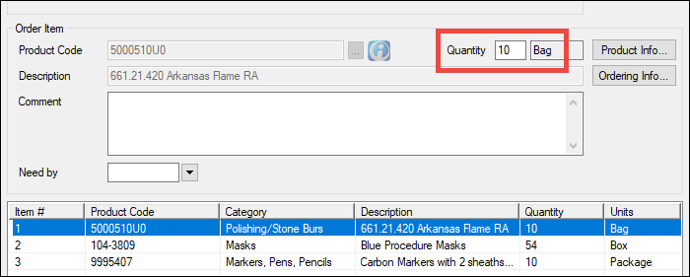
  5. If necessary, modify the listed product(s).
    1. Select each item in the order list.
    2. In the Quantity field, enter the correct value, and click the Modify Record () icon.
  6. Close the Inventory Order window.
  7. The order items display in the Pending Internal Orders tab with Requested statuses.