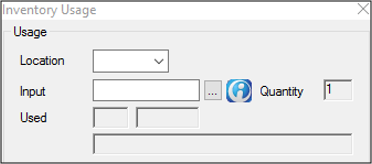
Enter Inventory Usage
|
Within the Inventory module, you can enter product usage. This removes the specified unit(s) from the Inventory module and updates the current inventory numbers. Important: The Inventory/Dispensary modules can be integrated to track sundry item usage and inventory levels simultaneously. If using the integration, you no longer need to enter product usage manually to adjust the product levels. The product levels adjust automatically in the linked inventory store when a provider checks a sundry item in or out, or marks a sundry item as found and checks it in. Tip: You can enter usage for products marked as inactive if the location still has stock. To enter inventory usage:
This value is automatically pulled over to the Quantity field. Note: If a Not enough Product warning displays, you must enter a lower value. If an item has an associated expiry date and has expired, a prompt warns you to check the expiry date. Note: You are not notified when an item’s expiry date is approaching. The prompt only displays if the expiry date has passed. In the Product Levels tab, the product value under the Balance column decreases by the value entered in the Quantity field. Note: This only occurs if the product is marked as a Real-Time Tracking product.
|