Adjust Received Items
|
After receiving an order, you can make an adjustment if something requires you to change an item’s status. There are several situations when you must make an adjustment:
Note: You cannot adjust an item until after it has been received. Tip: You can adjust product balances for products marked as inactive if the location still has stock. To adjust an item:
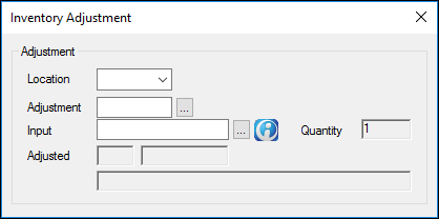
Note: This field may default to your current location. Tip: If known, you can manually enter the code in the Adjustment field. The number displays in the Quantity field. The value entered in the Quantity field displays in the Adjusted field, and in the Product Levels tab, the Quantity column reflects the adjustment. Note: If you reduce an inactive product’s balance at a location to zero through adjustment, a warning displays, prompting you to mark the product location as inactive as well. |