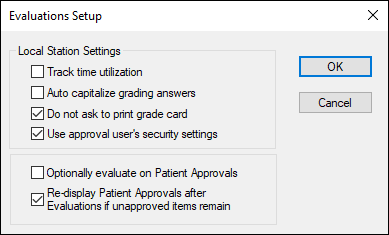
| Track time utilization |
Select the check box to display the Period field on the Add/Edit Evaluations window and allow evaluators to indicate whether the evaluation is for a morning, afternoon, or evening session. |
| Auto capitalize grading answers |
Select the check box to display all grading answers entered on an evaluation form in upper case. |
| Do not ask to print grade card |
Select the check box to prevent axiUm from displaying the Print Grade Question window when you complete an evaluation. |
| Use approval user’s security settings |
Select the check box to display the approval user’s name next to each answer when completing evaluations.
Note: If deselected, the logged in user’s name displays next to each answer when completing evaluations.
|
| Optionally evaluate on Patient Approvals |
Select the check box to display the Enter Evaluation checkbox on the Patient Approvals window. |
| Re-display Patient Approvals if unapproved items remain |
Select the check box to re-display the Patient Approvals window if some items still require approval after a user approves a treatment. |