Manage Patient Medical Alerts
|
Patient medical alerts identify a patient's medical problems. If the selected patient has one or more medical alerts, problems, or allergies, the alert displays in the EHR module > odontogram > Alerts tab. From there, they can be viewed and managed.
Tip: A red Alert indicator also displays on the status bar. To manage patient medical alerts:
Tip: If Carequality is enabled, any records that are reconciled from outside axiUm display a Reconciled (
Note: If your institution uses Carequality, a Recon Date column displays the date of reconciliation and a Source column displays the source of the data for reconciled records. Note: This checkbox only displays if Carequality is enabled. Note: If the patient’s language is set to Spanish, the site displays in Spanish.  Add Alerts Add Alerts
Add Allergies
Add Medical Problems
Edit Patient Medical Alerts
Delete Patient Medical Alerts
If necessary, you can delete patient alerts from the patient record. Tip: You can delete reconciled alerts that are inaccurate or no longer relevant. Preview/Print Report
Show Patient Alert History
Tip: A Clinical Reconciliation section displays Reconciliation Date and Source fields for institutions that use Carequality. If the record was reconciled into the EHR, the fields will be populated with the date of reconciliation and the source of the data. View Source C-CDA
When necessary, you can view the source C-CDA file for an alert that was reconciled into a patient record. Note: This is only applicable for institutions that use Carequality. The C-CDA file opens as an Export Summary in a new tab in your default browser. Review Allergies/Medical Problems
Note: If the patient has no allergies or medical problems, click Yes to confirm you reviewed the message. |

 ) icon. If a record also has a note attached to it, the icons display side-by-side (
 ).
).
 ) icon to display the Medline Plus site open to the correct alert.
 ) icon.
 ) icon.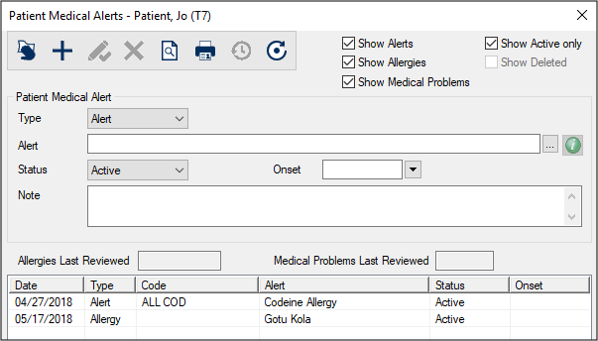
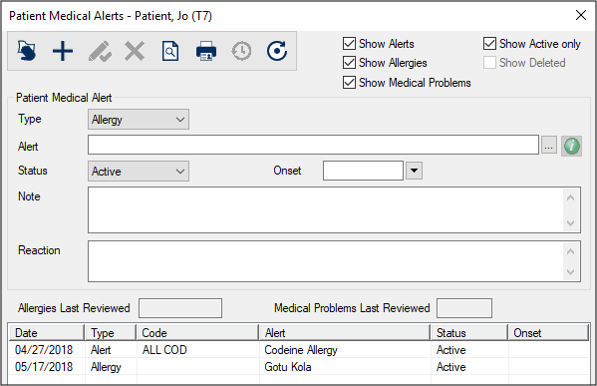
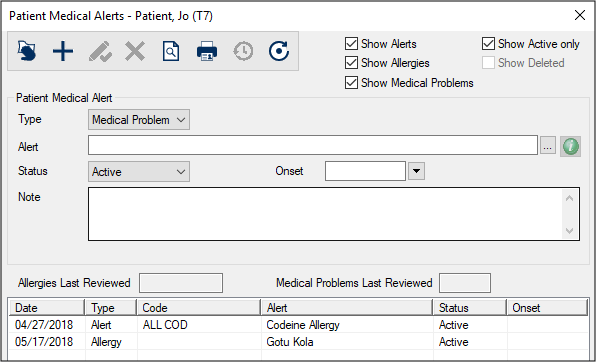
 ) icon.
 ) icon.
 ) icon.
 ) icon.
 ) icon to display the Patient Medical Alert History window.
 ) icon and select one of the following:
