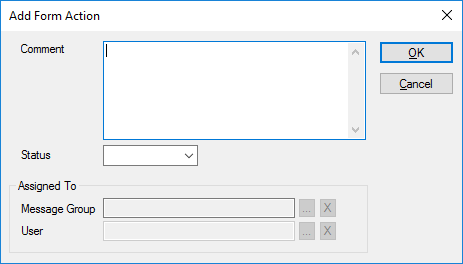
Add Form Actions
|
Some forms are simple and can be completed by a single user. More complex forms may go through a series of phases (statuses) and require input by multiple people. Example: A complex course of treatment on a patient's account could require a specialist consult, then financial approval. This information cannot be stored on the planned treatment itself. A form easily captures and tracks the treatment's progression. In the case of more complex forms, you may need to use form actions. These can include:
Tip: Status codes can be used to automatically assign forms to a specific user or group. To add form actions:
Example: Open the EHR module > Forms tab > From the Forms on File pane, select a form.
|
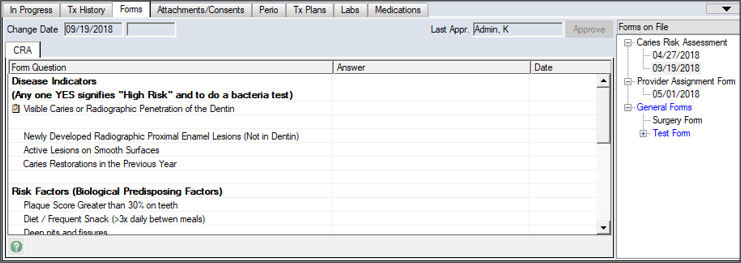
 ) icon to display the Add Form Action window.