Medical Tests and Lab Results
|
You can manually import and reconcile patient tests and lab results from a C-CDA file into axiUm. Once reconciled, you can view them via the EHR module > Medical Tests tab. For institutions using the Consistency of Care or Carequality modules, C-CDA files containing medical tests can be imported automatically as part of the patient clinical reconciliation / patient sync process. Additionally, institutions using Carequality can configure and perform auto-reconciliation on medical test records in imported C-CDA files. Note: For information on importing results via the Consistency of Care or Carequality modules, refer to the Consistency of Care and Carequality Setup and User Guides.  Manage Medical Tests and Labs Manage Medical Tests and Labs
Tip: If Carequality is enabled, any records that are reconciled from outside axiUm display a Reconciled ( Note: The default settings are configured by your institution.
View Medical Test Results
Tip: A Clinical Reconciliation section displays Reconciliation Date and Source fields for institutions that use Carequality. If the record was reconciled into the EHR, the fields will be populated with the date of reconciliation and the source of the data. View Source C-CDA File
When necessary, you can view the source C-CDA file for a medical test that was reconciled into a patient record. Note: This is only applicable for institutions that use Carequality. The C-CDA file opens as an Export Summary in a new tab in your default browser. Delete Reconciled Medical Test Results
If necessary, you can delete reconciled medical tests from the patient record that are inaccurate or no longer relevant. |
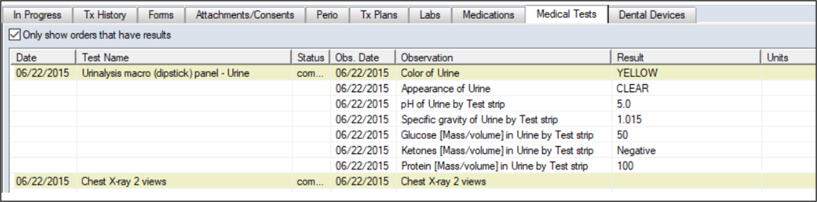
 ) icon. Additionally, a Recon Date column displays the date of reconciliation and a Source column displays the source of the data for reconciled records.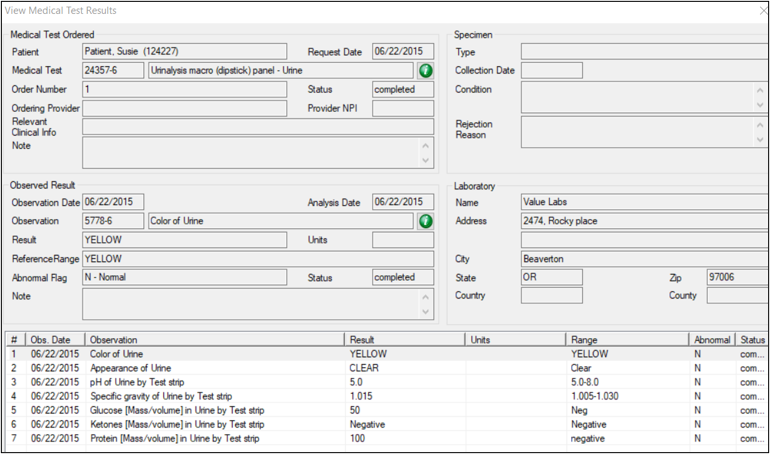
 ) icon.
