Messenger Overview
|
Messenger allows you to send and receive messages with other axiUm users, and to receive automatic notifications and messages based on events at your institution. Example: You can send a message to a student letting them know their lab has come back or an appointment has changed. Messenger also integrates with PatientAccess, allowing you to communicate with patients outside of appointments. The Messenger (
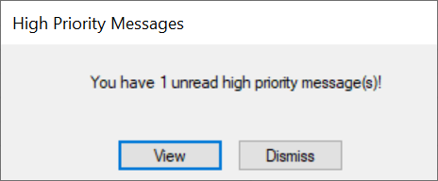
If you have unread high-priority messages in your inbox when you log in to axiUm, Messenger opens automatically. However, some users may be permitted to dismiss high-priority messages and review them at a more convenient time. If this is enabled, a High Priority Messages window displays. You can click View to view the message(s) with the most recent message displaying first or click Dismiss to close the window without viewing the message(s). Note: If you click Dismiss, the High Priority Messages window displays each time you open Messenger and when you next log in to axiUm.
Note: If not enabled, your high priority messages display in order, as expected. Messenger differs from other email applications in that you cannot include attachments and all messages remain within axiUm/PatientAccess. Tip: You can enable axium to send email notifications to an external email when you receive a new message in axiUm.  Access Access
You can open the Messenger module using one of the following methods:
|
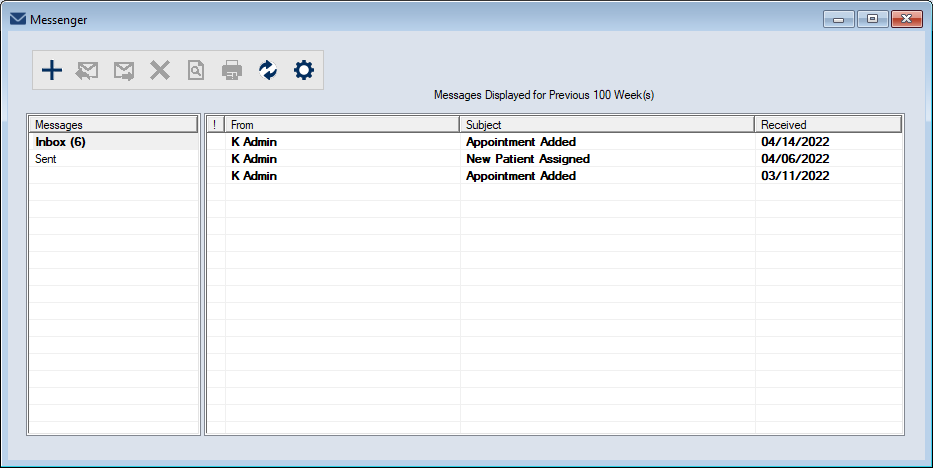
 ) icon is located on the status bar:
 ).
).
 ).
).