Use Surgery View
|
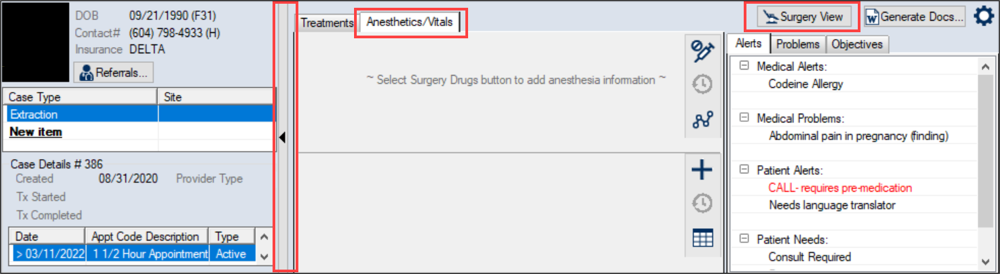
You will be work mainly in the Case Management tab > Anesthetic/Vitals tab during surgery. Tip: If you update forms such as the Day of Surgery form or BMI form, you will also work in the Forms tab. Surgery View allows you to maximize the space in the Case Management tab and better manage the patient’s BMI, Adult/Pediatric status, and anesthetics and vitals as you progress through the surgery stages. It is accessed through the Surgery View button. Note: You must select a case and appointment before you can access and use the Surgery View button. To use Surgery view:
Tip: If the tab does not display, right-click the appointment and select Enable Anesthetics/Vitals tab. Note: You can also click the (
If a Day of Surgery (DOS) form has been defined for this case type, it opens and displays in the Forms tab. |
 ) (
) ( ) icons to hide or display the case and appointment details as necessary.

 ) icons beside the Filter By Case check box.
