Manage Surgery Stages
|
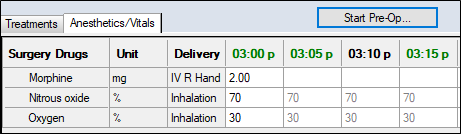
Stages subdivide a surgery chronologically, functionally, and visually. They display in the Anesthetic/Vitals pane.
 Start Surgery Stages Start Surgery Stages
The current stage (and its color) display at the top of the Case Management tab. The button beside the current stage allows you to move to the next surgery stage.
If the no stage has been set, the button allows you to start the first stage of the surgery.
To start a surgery stage:
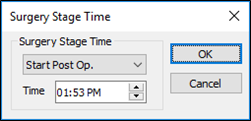
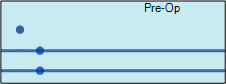
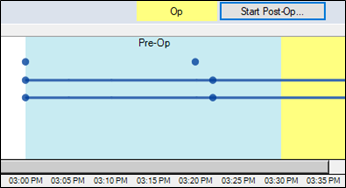
Note: Only optional stages can be skipped. Note: The time must be equal to or earlier than the current time. The name of the current stage displays at the top of the Anesthetics/Vitals tab according to its color code, and the Start button for the next stage displays to the right. Tip: When working with anesthetics and vitals in Graphic mode, the background displays the stage color. Edit Surgery Stages
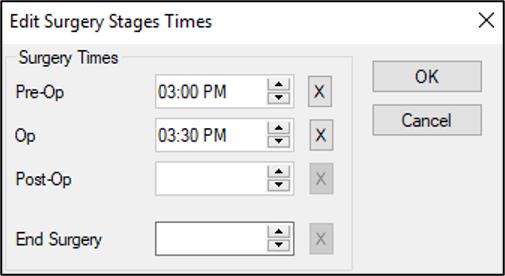
Surgery stage times can be edited after entry or can be entered all at once at the end of the surgery.
Note: The End of Surgery stage refers to the time the patient leaves the hospital or clinic, not the time the operation ends. Tip: When working with stages in Graphic view, each stage is assigned a different color, making it easier to see the subdivisions of time and function on the screen. Example: The first two stages of an operation: Pre-Op and Op.
Approve Surgeries
Surgery approval should be done after the last surgery stage is over, and the vitals and anesthetic data has been entered. Once the surgery is approved, users requiring approval can no longer enter additional surgery data. Typically, this doesn’t happen until the surgery has ended and the patient is discharged. Users who do not require approval, such as a nurse in recovery, can continue entering surgery data after approval. In this case, while another such user records recovery vitals, the approval can be completed. If the person entering data into the Anesthetics/Vitals tab (or the appointment’s primary provider) requires approval, axiUm displays a teal Approve Surgery indicator and an Approve button beside the indicator becomes active.
If one or more drugs selected for the surgery require waste approval:
For more information on approving waste, see Manage Anesthetics. To approve a surgery:
The surgery is approved, and the indicator beside the Approve button changes to Approved. |