Manage Case Documents
|
You can create case documents (letters and reports) in Microsoft Word that summarize and display case details using templates. Once a template is selected, the document is created in Microsoft Word and pulls information from the axiUm database using merge codes. Example details: Patient demographics, alerts, allergies, medications, prescriptions, appointments, treatments, surgery data, vitals data, anesthetics data, form summaries, and specific form answers. You can edit these documents in Microsoft Word and customize as necessary. When you save a document and close Microsoft Word, it is placed in the EHR module > Attachments/Consents tab for later access. Tip: It is also accessible from the Attachments/Consents module. If you have questions about the content, format, or title of these documents, please check with your axiUm administrator.  Generate Documents Generate Documents
As part of the surgery process, you create documents using a Generate Docs button. Note: You cannot access the Patients module and some axiUm functions are blocked while Microsoft Word is open. You can still access modules that do not require patients to open them, such as the Scheduler module. Once a document has been added, it is automatically saved to the patient’s file and is accessible in the Attachments/Consents module in the applicable section/sub-tab. To generate a document:
Tip: If the tab does not display, right-click the appointment and select Enable Anesthetics/Vitals tab. Note: The Generate Docs button is only enabled when the appointment status is set to Active, Cancelled, or Failed. If the surgery is not yet complete, a prompt informs you that the surgery has not ended (the patient has not been discharged from the clinic after recovery) and asks whether you want to end the surgery. Click Yes or No as necessary.
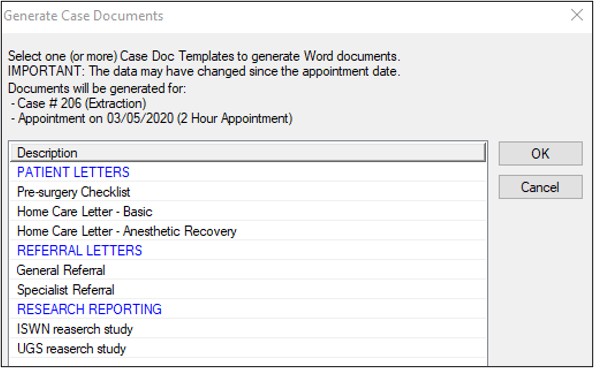
Tip: Blue items are headings and black items are selectable documents. The templates are grouped into categories (e.g., forms, letters, and reports). Note: If multiple templates were selected, multiple instances of Microsoft Word will open. Note: If a merge code displays in the document, you will need to correct this manually as there is an issue with the code or no data is present to populate the field. Example Merge Code: <<Referral.Code>> The document is saved to the Attachments/Consents tab and module. Note: If you opened multiple documents in Microsoft Word, ensure you edit and save all documents before closing. Edit Saved Documents
After you save a document for the first time, you can reopen and edit it in Microsoft Word.
Note: You cannot save the edited version directly into axiUm. Note: The edited surgery document is saved as a new, separate file. View Saved Documents
Saved documents can be viewed in the Attachments/Consents module or in the EHR module > Attachments/Consents tab. Move Saved Documents
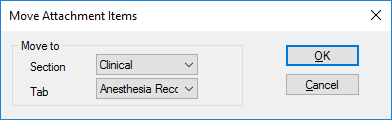
If you put a document in the wrong section or sub-tab of the Attachments/Consents tab, you can move it to a new location.
|