Generate Documents
|
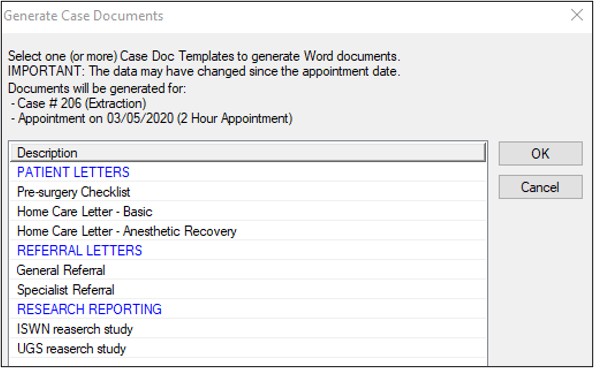
As part of the surgery process, you create documents using a Generate Docs button. Note: You cannot access the Patients module and some axiUm functions are blocked while Microsoft Word is open. You can still access modules that do not require patients to open them, such as the Scheduler module. Once a document has been added, it is automatically saved to the patient’s file and is accessible in the Attachments/Consents module in the applicable section/sub-tab. To generate a document:
Tip: If the tab does not display, right-click the appointment and select Enable Anesthetics/Vitals tab. Note: The Generate Docs button is only enabled when the appointment status is set to Active, Cancelled, or Failed.
Tip: Blue items are headings and black items are selectable documents. The templates are grouped into categories (e.g., forms, letters, and reports). Note: If multiple templates were selected, multiple instances of Microsoft Word will open. Note: If a merge code displays in the document, you will need to correct this manually as there is an issue with the code or no data is present to populate the field. Example Merge Code: <<Referral.Code>> The document is saved to the Attachments/Consents tab and module. Note: If you opened multiple documents in Microsoft Word, ensure you edit and save all documents before closing. |